Versioning
Versioning allows you to safely modify agents, workflows, or prompts while maintaining a history of changes. This ensures stability in production while enabling continuous improvements.
Why Versioning Matters
- Prevents breaking live systems
- Maintains a history of changes
- Enables rollback to previous versions
- Supports experimentation without risk
Step-by-Step Guide
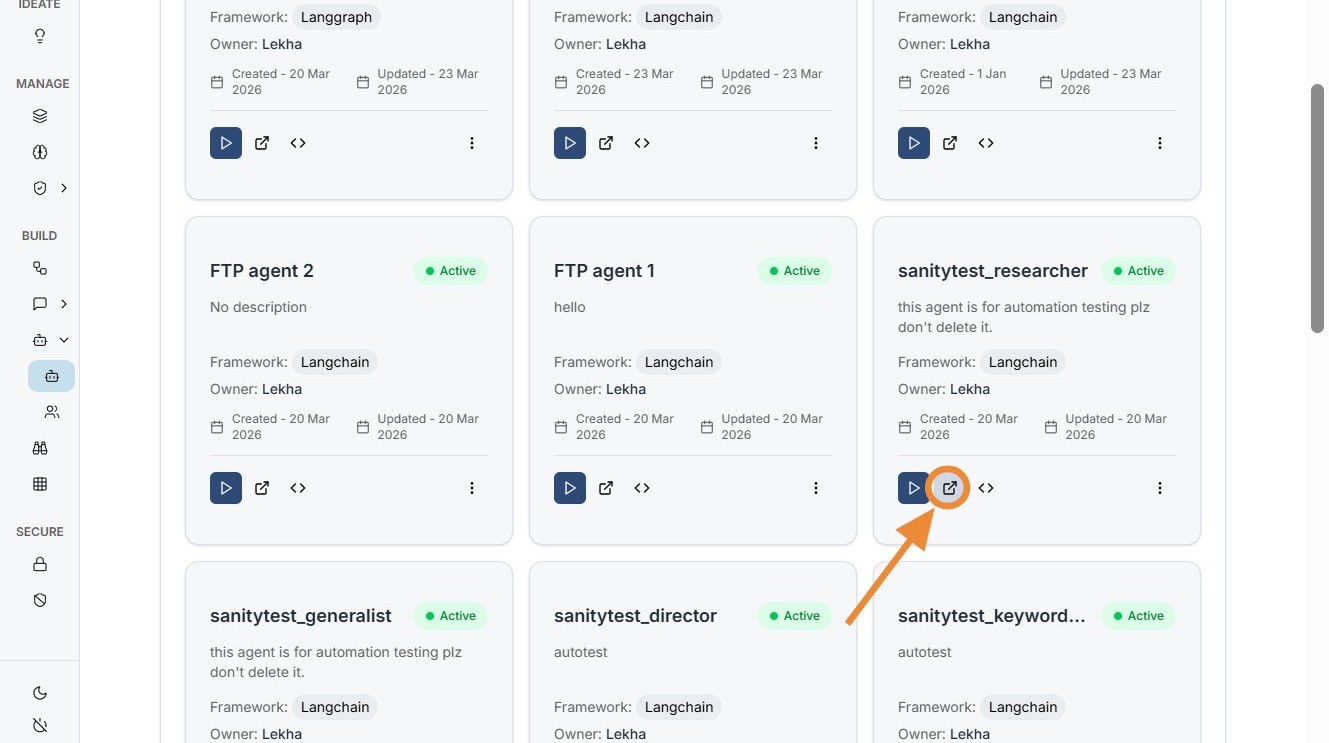
1. Open Edit Mode
Click on the Edit button to modify the existing configuration.
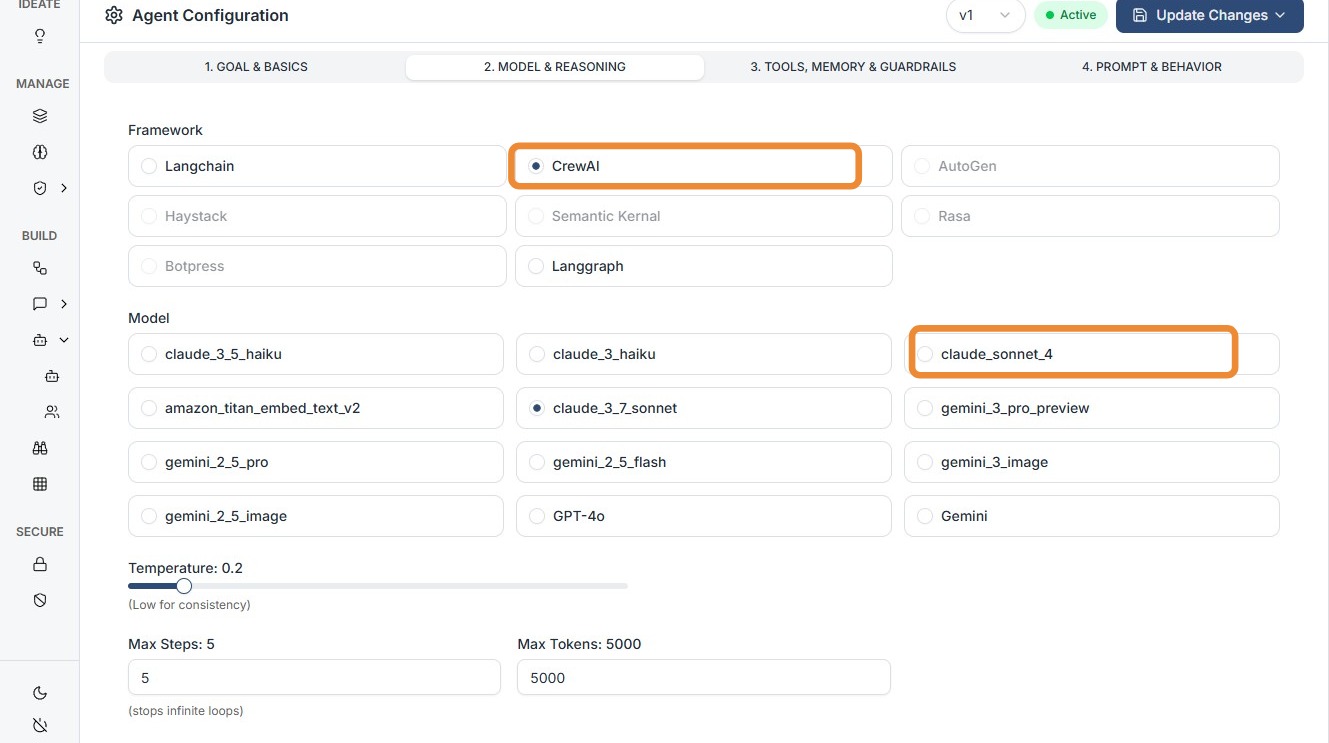
2. Make Required Changes
Update the configuration as per your requirements (e.g., prompts, tools, parameters, or logic).
3. Click "Update Changes"
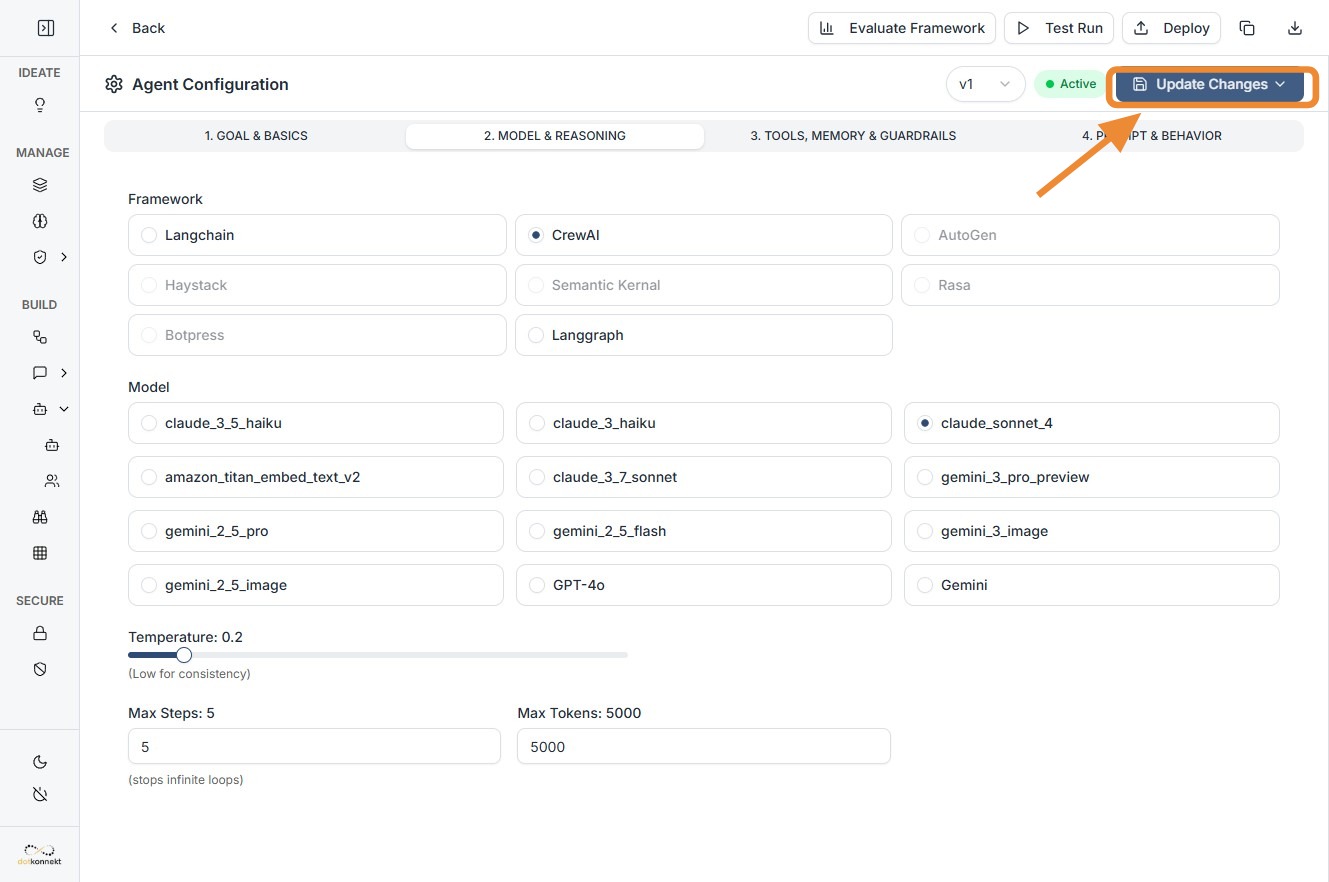
What this means:
- Updates are applied to the current version
- No new version is created
- Existing version gets overwritten
Use this when: - Fixing minor issues - Making quick edits that don’t need history tracking
4. Click "Save as New Version"
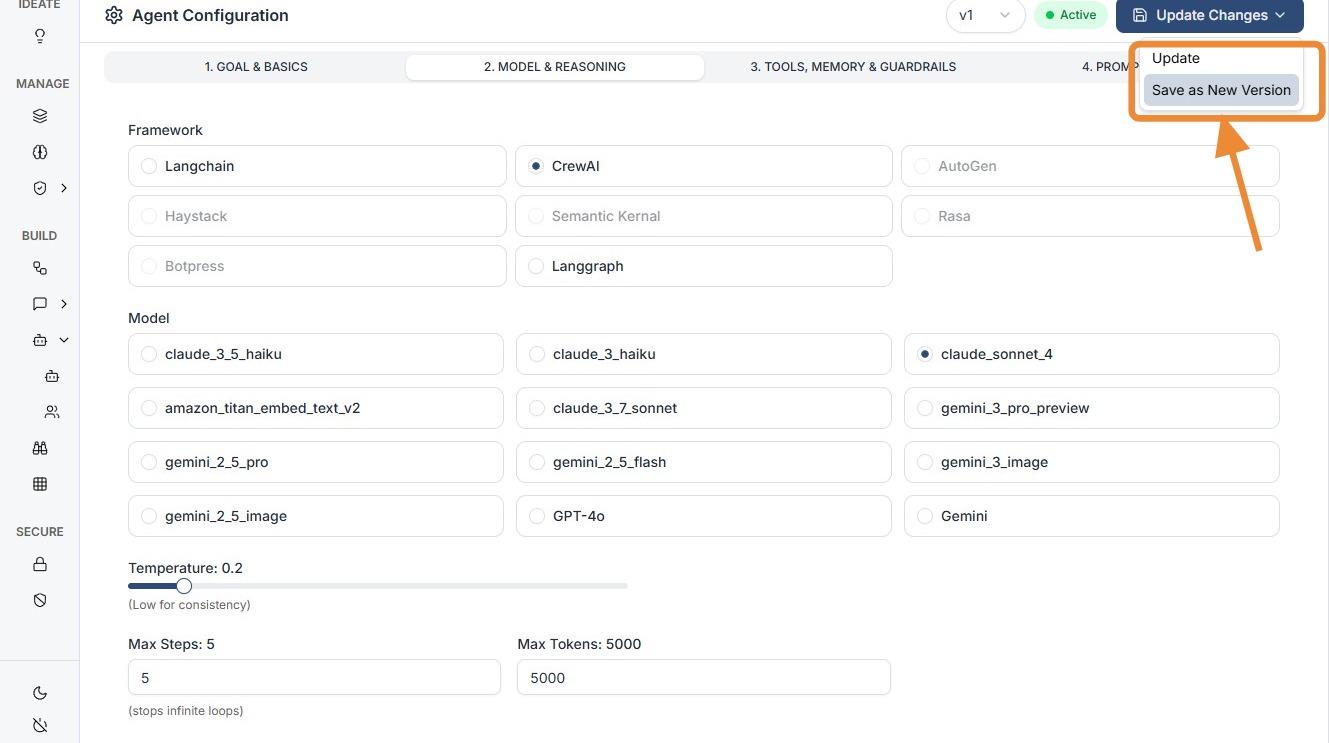
5. Confirm Action
Click "Yes" to create a new version.
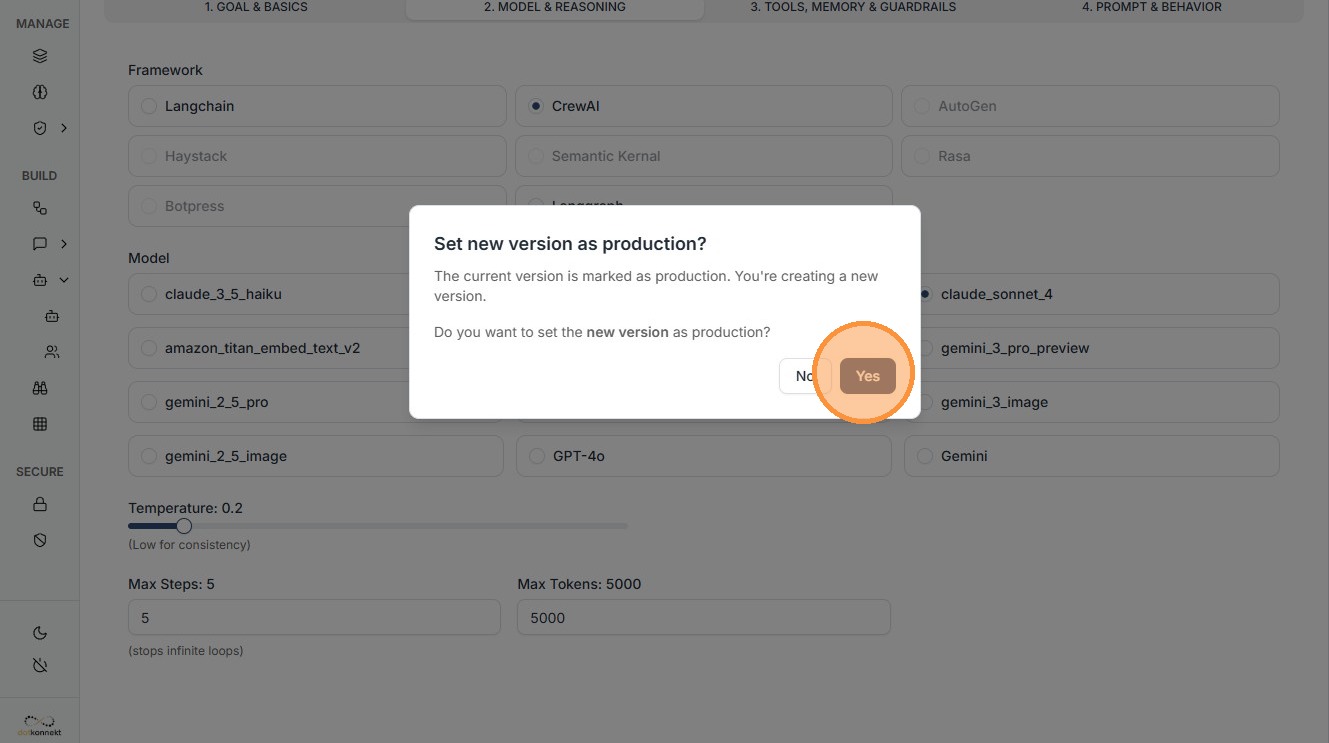
What this means:
- A new version is created
- Previous version remains unchanged
- You can compare or roll back anytime
Use this when: - Making major updates - Testing new logic or prompts - Preparing for production deployment
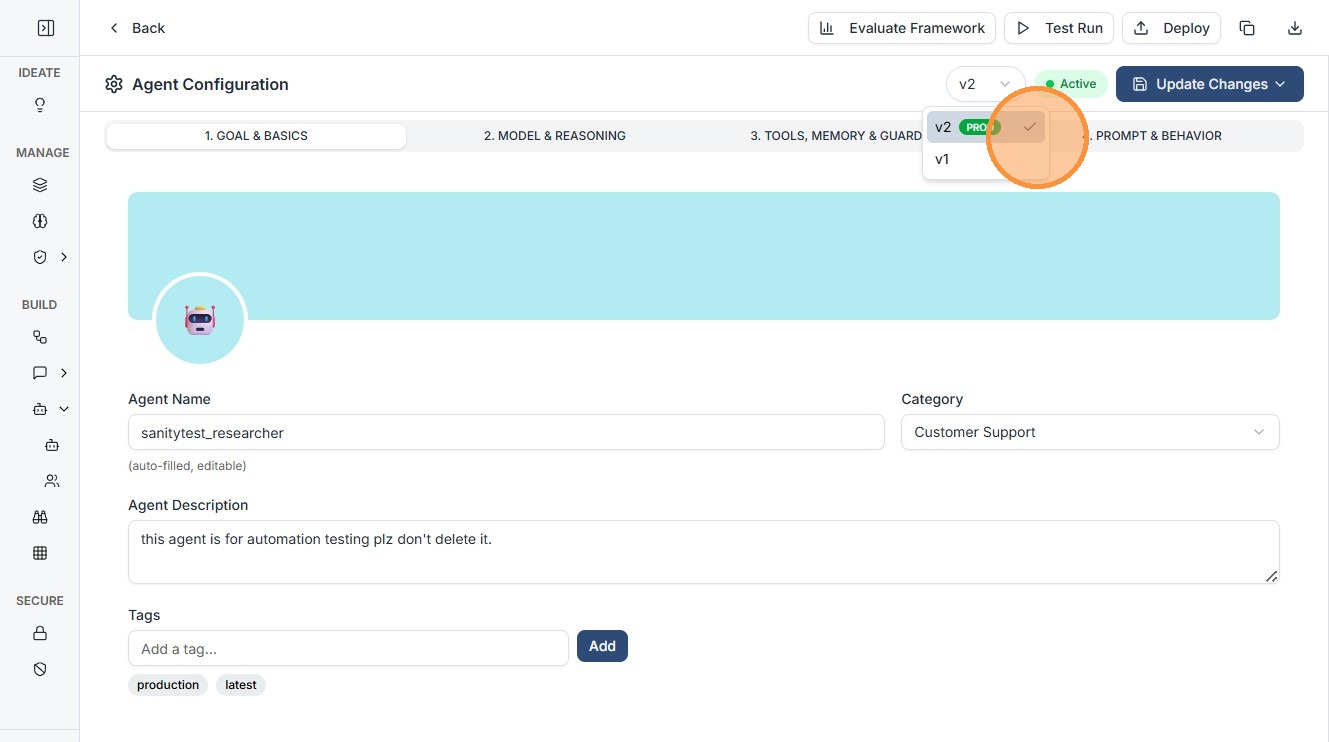
6. Verify Changes
You can view and verify the updated version in the version history.
Best Practices
- Use "Update Changes" only for small fixes
- Use "Save as New Version" for any meaningful change
- Always create a new version before deploying to production
- Maintain clear version naming or notes (if supported)
- Test new versions before replacing stable ones
Pro Tip
Tip
Always create a new version before experimenting with prompts, tools, or workflows. This ensures you can quickly revert if something breaks.