Image Generation Node
The Image Generation component enables workflows to generate images dynamically using generative AI models. It converts natural language prompts into visual outputs and optionally stores generated images in cloud storage providers such as AWS, Azure, or GCP.
Component Introduction
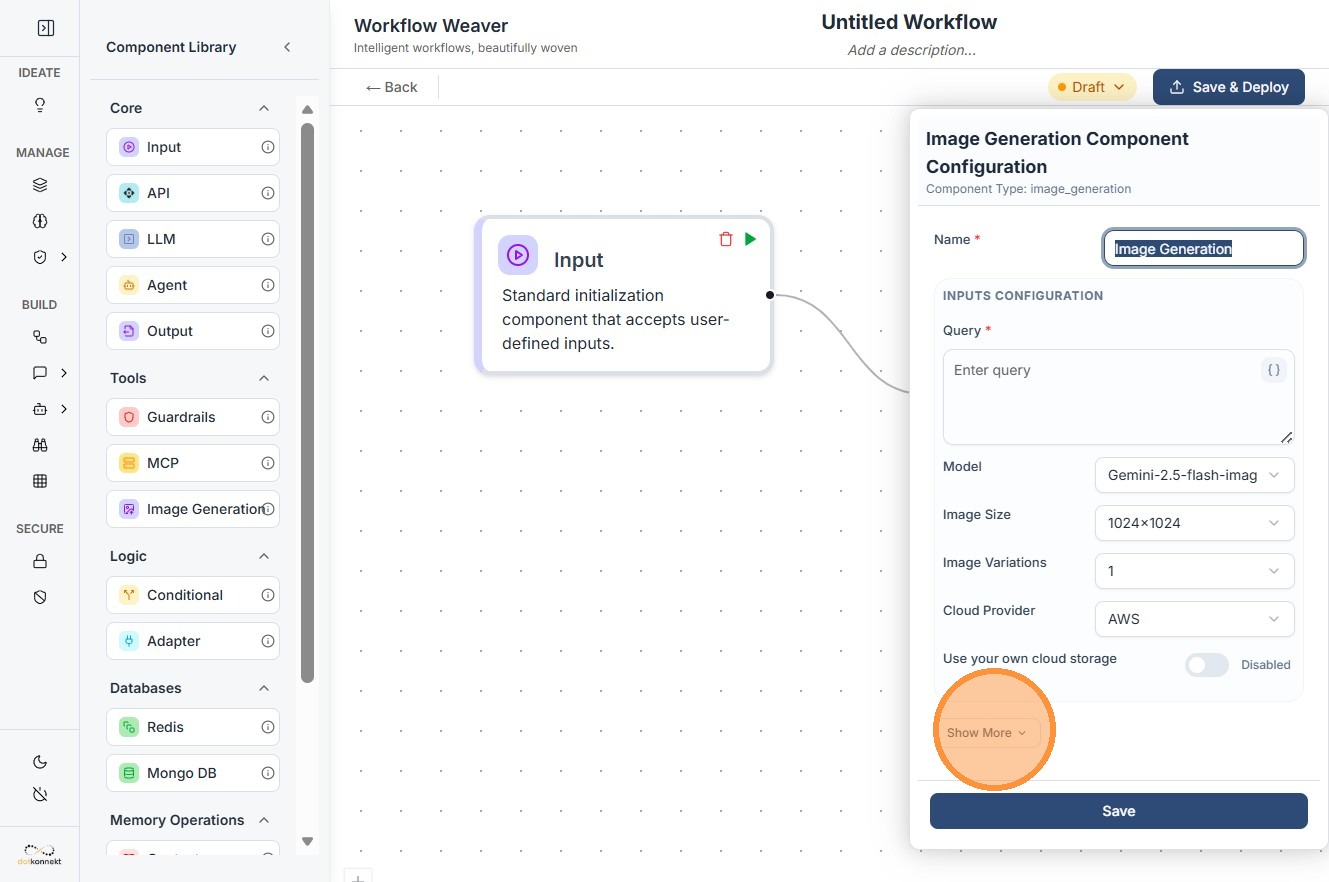
| Field | Value |
|---|---|
| Component Type | image_generation |
| Input | Natural language text prompt |
| Output | Generated image — URL |
| Supported Models | Gemini image models |
| Storage Options | Local response or Cloud (AWS / Azure / GCP) |
Core JSON Structure
{
  "name": "Test Image Generation",
  "type": "image_generation",
  "description": "Test image gen component",
  "output_type": "json",
  "inputs": {
    "user_query": "a girl driving a red car",
    "model": "gemini_3_image",
    "variations": "1",
    "size": "1024x1024",
    "cloud_provider": "aws",
    "use_cloud": false
  }
}
How to Initialize
Step 1: Add the Node
Drag the Image Generation component from the Tools section onto the workflow canvas.
Step 2: Enter a Prompt
Set the user_query field to describe the image you want generated.
"a futuristic city at sunset"
Step 3: Select a Model
Choose an image generation model from the dropdown — for example, gemini_2_5_image or gemini_3_image.
Step 4: Set Image Properties
Configure resolution and output count:
- Size — output resolution, e.g.
1024x1024 - Variations — number of images to generate per run
Step 5: Configure Cloud Storage (Optional)
Enable use_cloud: true to persist generated images externally.
- Select a provider:
aws,azure, orgcp - Provide the required credentials and bucket/storage details
Step 6: Connect Ports
- Input port — connect to a prompt source (user input node or upstream LLM node)
- Output port — connect to downstream processing (API call, storage, or UI display)
Input Parameters
| Parameter | Description |
|---|---|
user_query |
Natural language prompt describing the image |
model |
Image generation model to use |
size |
Output resolution (e.g. 1024x1024) |
variations |
Number of images to generate |
use_cloud |
Whether to upload output to cloud storage |
cloud_provider |
aws, azure, or gcp |
azure_* / gcp_* fields |
Provider-specific credentials and configuration |
Cloud Storage Behaviour
use_cloud |
Result |
|---|---|
false |
Image is stored in Kompass cloud storage(AWS) |
true |
Image uploaded to your configured cloud storage; output includes URL |
Output typically includes the image URL or path, model used, resolution, and generation metadata.
Prompt Engineering Tips
The quality of your output depends directly on the quality of your prompt.
| Example | |
|---|---|
| Vague | "A girl playing tennis" |
| Descriptive | "A young girl playing table tennis on a sunny street, cinematic lighting, high detail" |
Include subject, environment, lighting, style, and detail level for best results.
Do's and Don'ts
Do's
- Write clear, descriptive prompts — include subject, setting, and style
- Use supported resolutions — stick to known sizes like
1024x1024 - Enable cloud storage for production workflows to persist outputs
- Test with variations — multiple outputs improve creative coverage
- Store credentials securely — use the Vault, never hardcode secrets
Don'ts
- Avoid vague prompts — generic descriptions produce generic results
- Never expose private keys in logs, UI, or workflow configs
- Avoid unsupported sizes — incorrect dimensions will fail execution
- Don't set high variation counts unnecessarily — increases cost and latency
- Don't skip the Playground — always validate output before deploying
Common Constraints
- Image models may only support fixed resolutions — check model documentation before setting custom sizes
- Latency increases with higher resolution and more variations
- Cloud upload requires valid credentials and appropriate storage permissions
Power Pattern: LLM → Image Generation
Use an LLM node to dynamically generate a detailed prompt, then pipe its output directly into the user_query field of the Image Generation node. This enables fully automated, context-aware image creation.