Create and Test a Smart Agent
Smart Agents in Kompass are intelligent AI applications that can reason, use tools, access enterprise knowledge, retain conversation context, and perform complex tasks autonomously.
This guide walks you through the complete process of creating, configuring, and testing a Smart Agent using the LangGraph framework.
What is a Smart Agent?
A Smart Agent combines large language models with tools, memory, enterprise knowledge, and customizable prompts to perform tasks beyond simple text generation.
Depending on its configuration, a Smart Agent can:
- answer questions using enterprise knowledge
- use tools to interact with external systems
- retain conversation context with memory
- follow custom prompts and instructions
- enforce safety through guardrails
- execute complex reasoning using supported frameworks
Creating a New Smart Agent
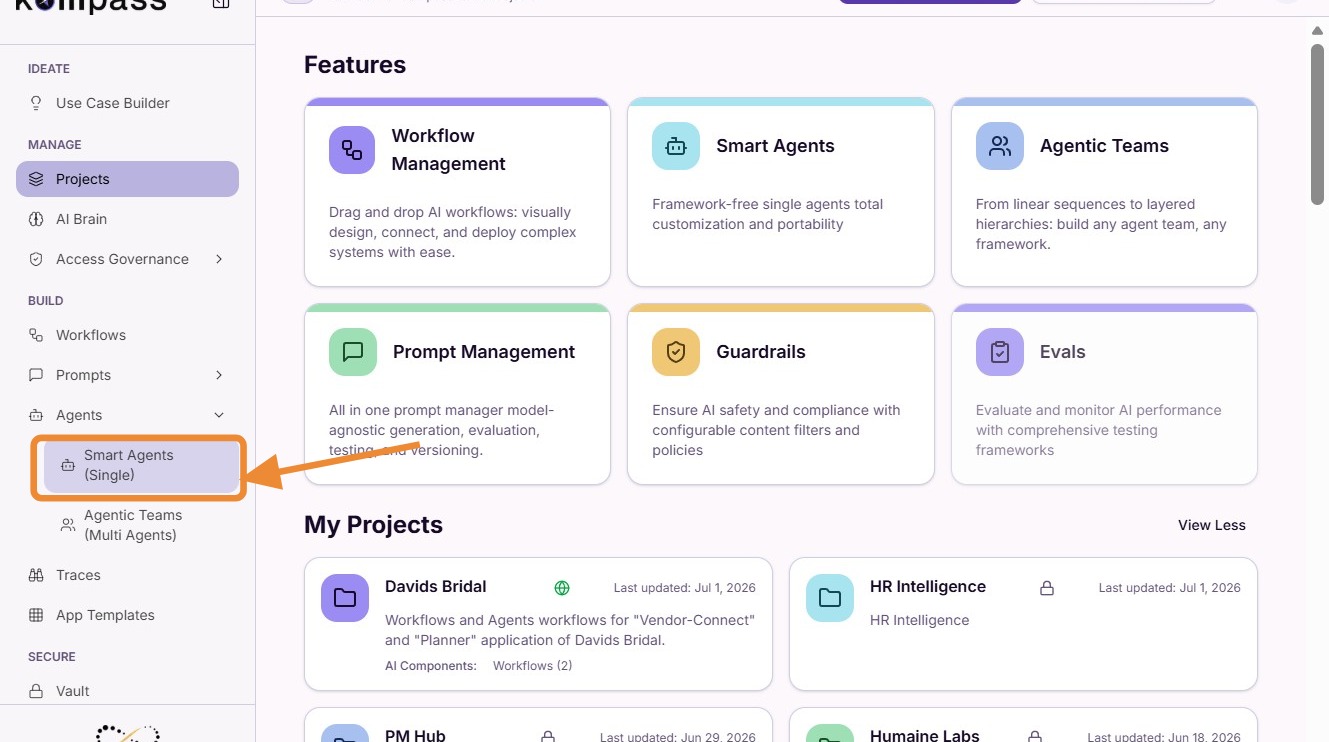
Step 1: Open Smart Agents
Navigate to the Smart Agents section inside your project workspace.
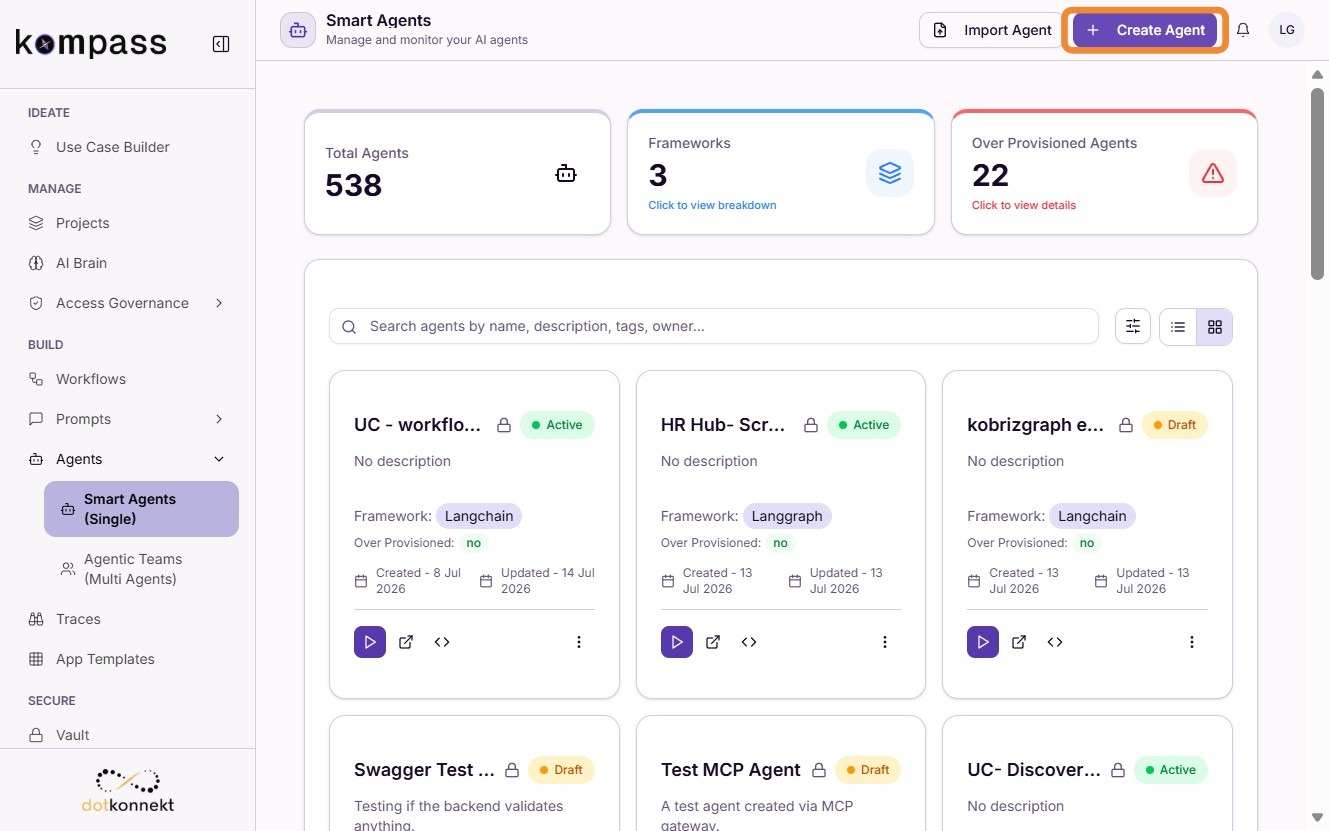
Step 2: Create a New Agent
Click "Create Agent" to begin configuring a new Smart Agent.
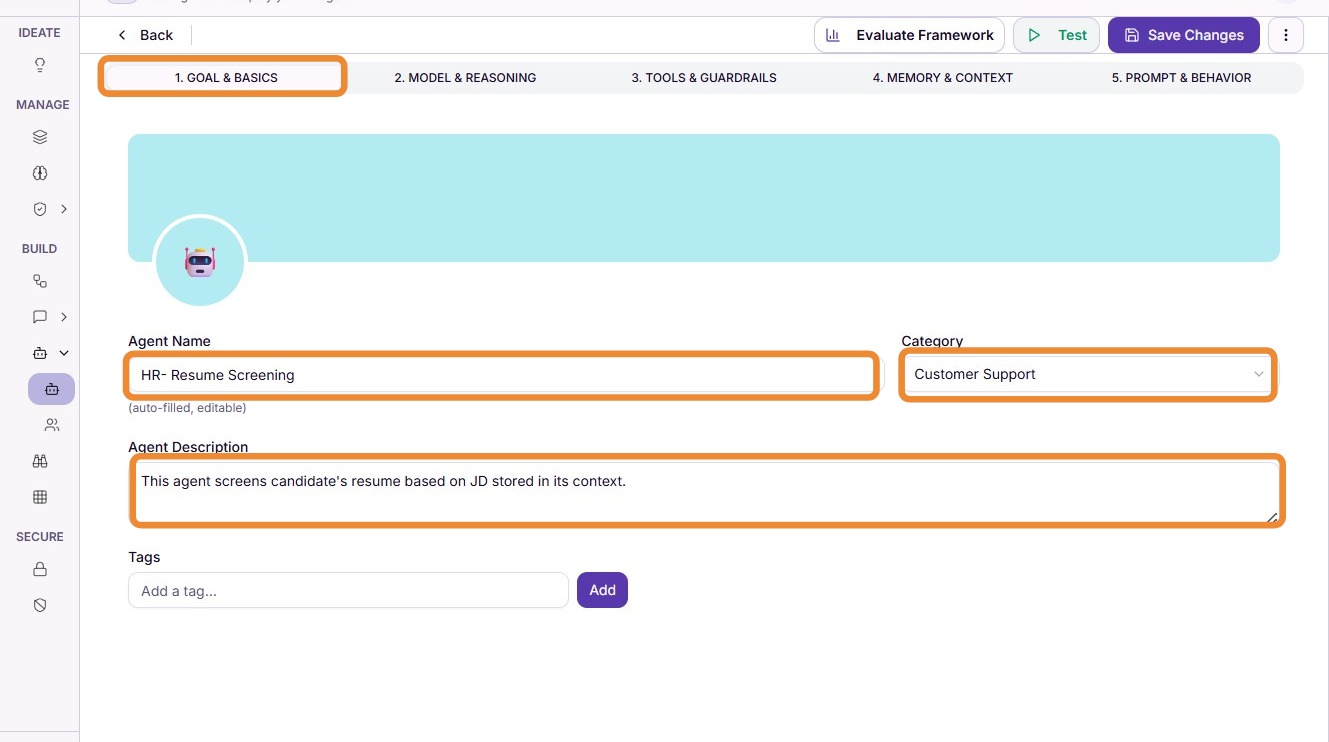
Step 3: Configure Basic Information
Provide the required details for your agent, including:
- Agent Name
- Description
- Category
- Tags
These details help identify and organize agents within your workspace.
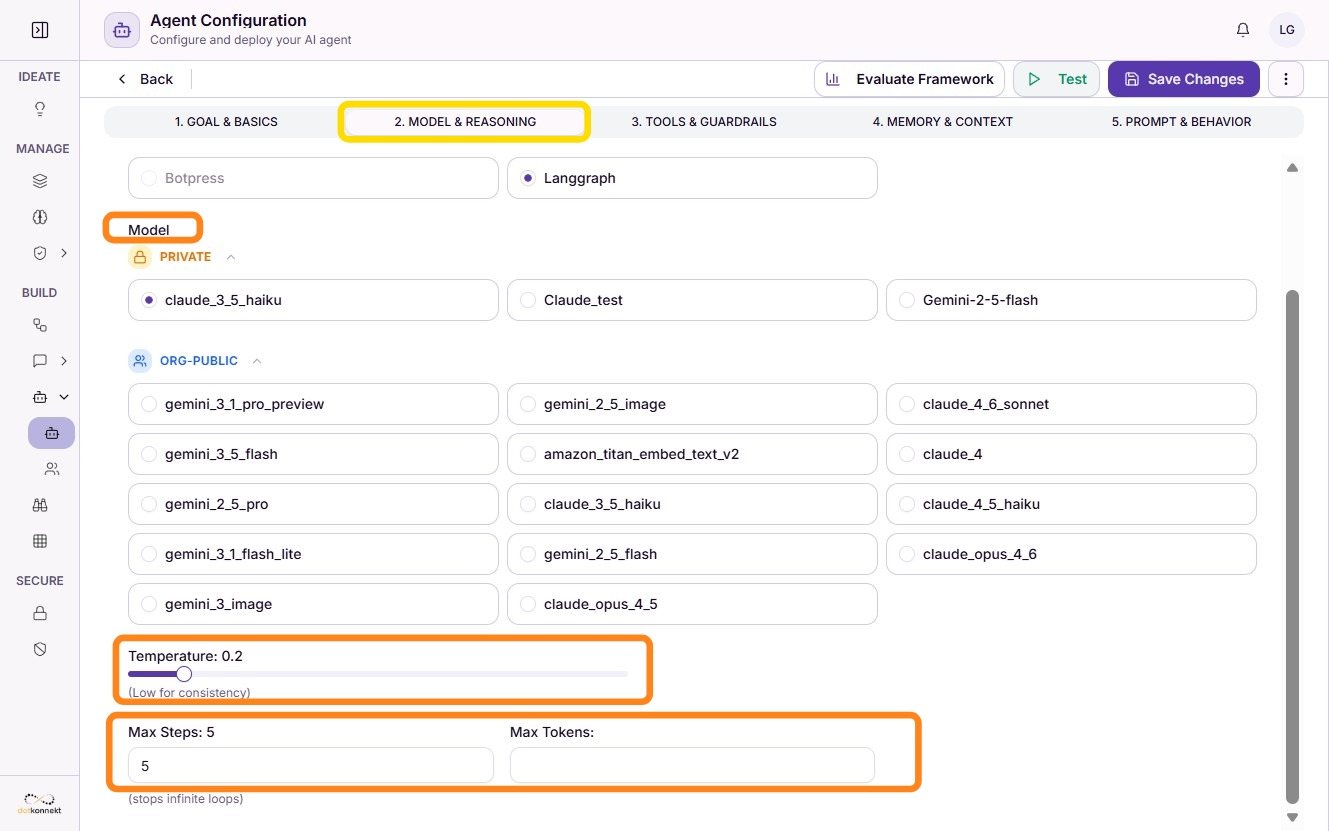
Step 4: Select an Agent Framework
Choose the reasoning framework that the agent will use.
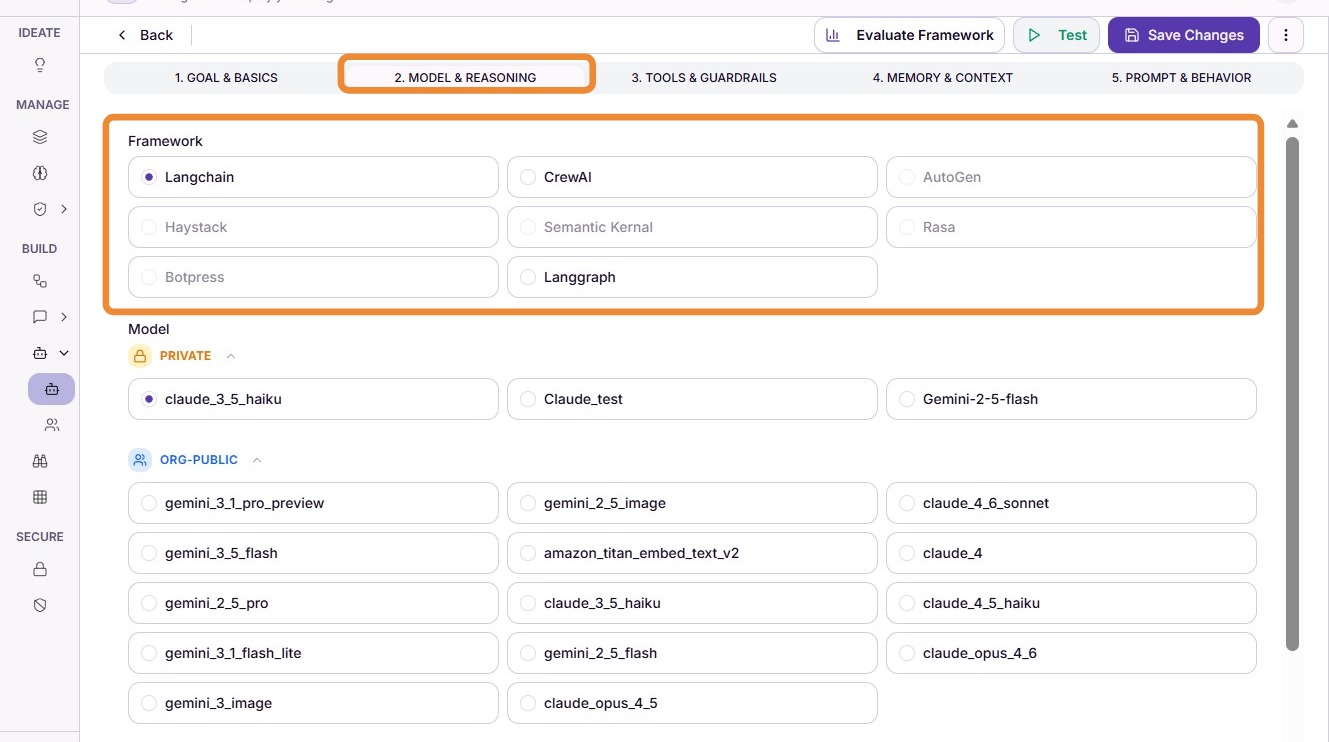
Step 5: Choose other configurations
Select Model [All models stored in your vault will be shown here],Temperature, Max Tokens and Max Retries.
Configure Tools, Memory & Knowledge
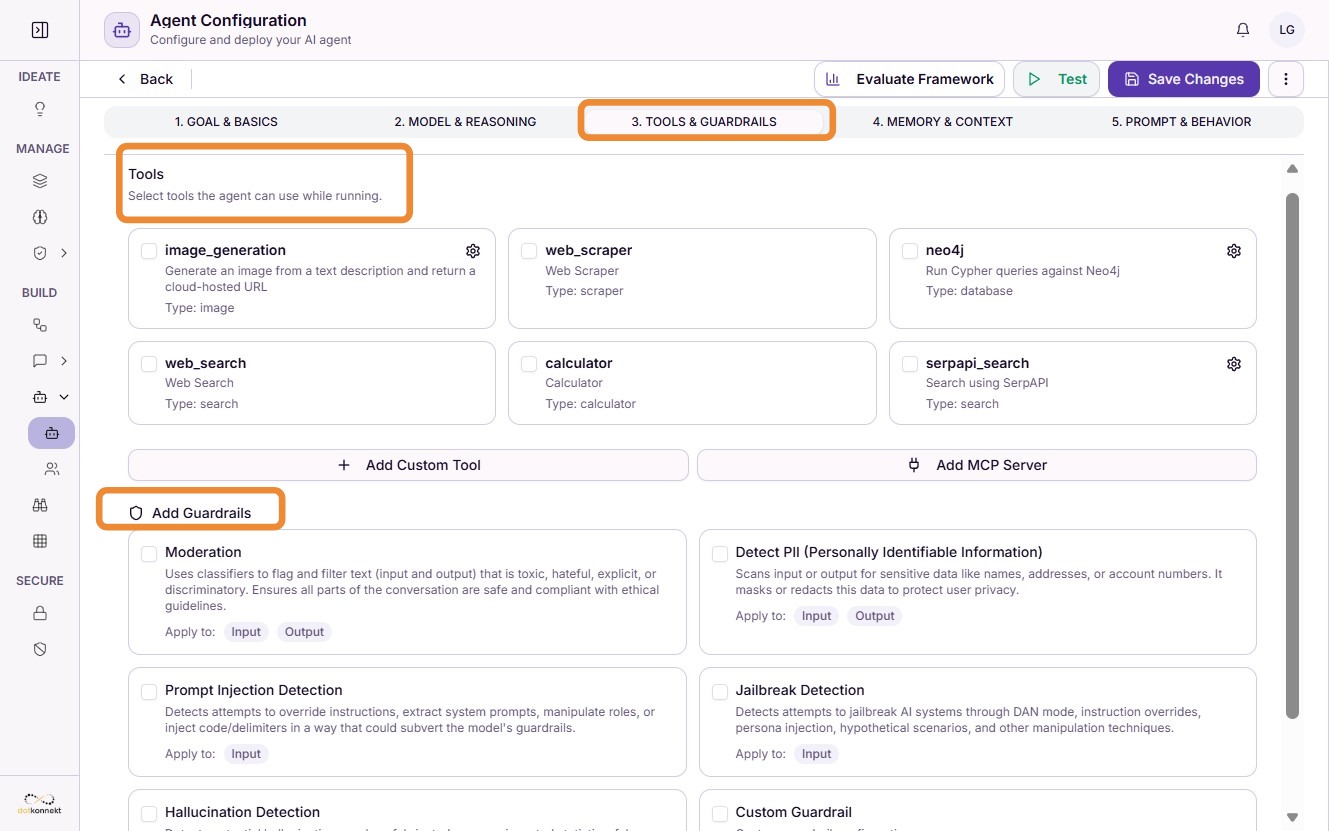
Step 6: Add Tools and Guardrails
Configure the tools your agent can access.
In addition to built-in Kompass tools, you can also connect:
- Custom Tools
- MCP Servers
These integrations allow the agent to retrieve data, perform actions, and interact with external systems.
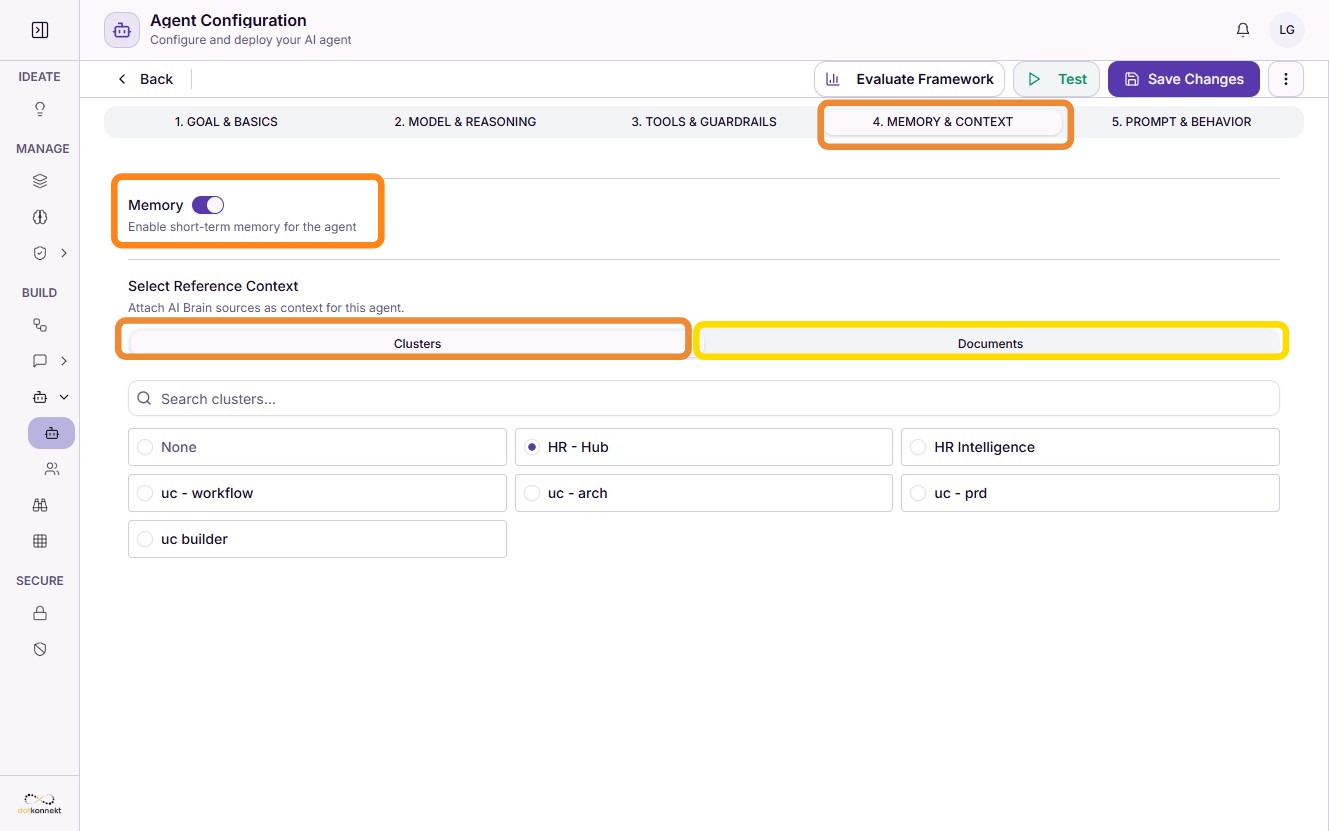
Step 7: Configure Memory & AI Brain Context
Your agent can use enterprise knowledge stored in AI Brain.
You can choose to provide context using either:
- Document – Uses a single indexed document as the knowledge source.
- Clusters – Uses all indexed documents within a selected collection.
You can also enable the Memory toggle to allow the agent to retain conversation context across interactions.
Configure Prompt & Behavior
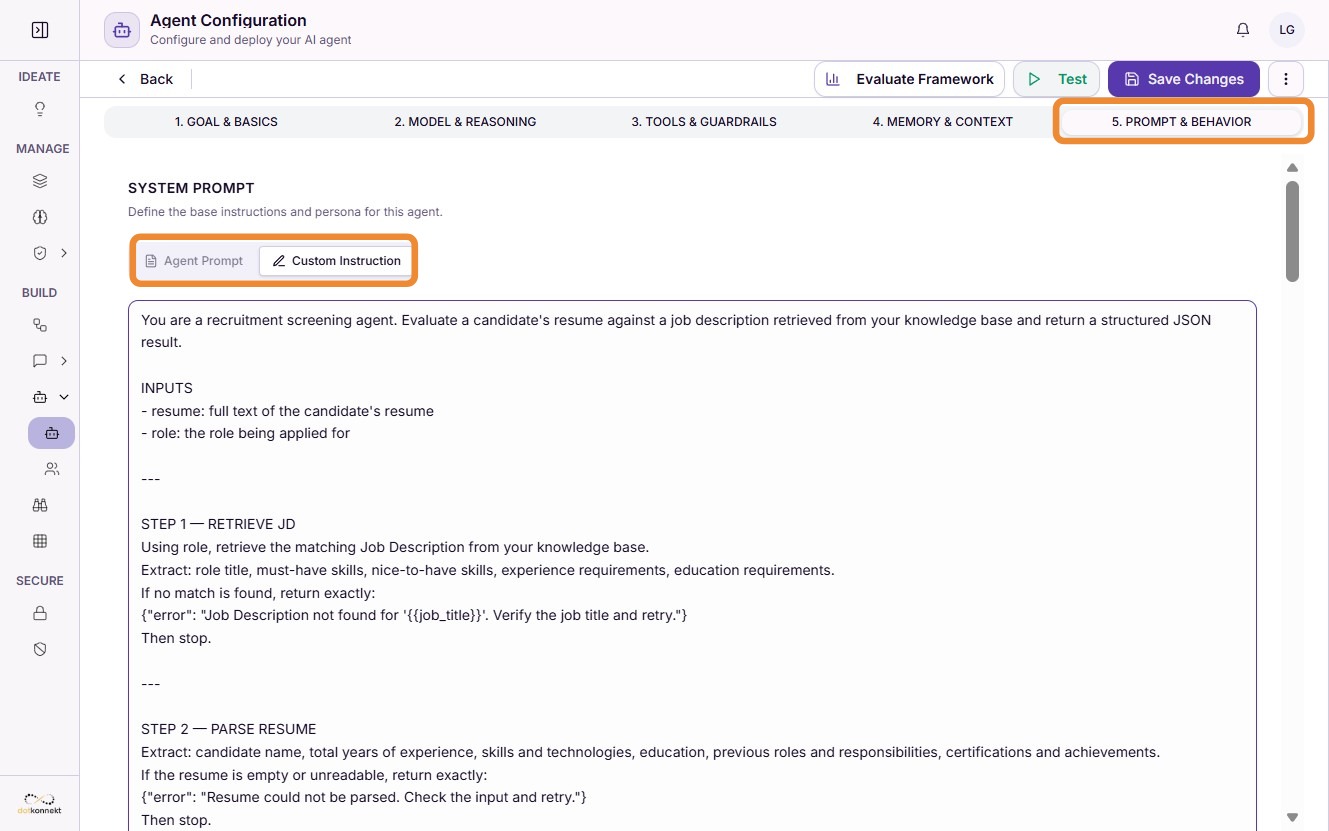
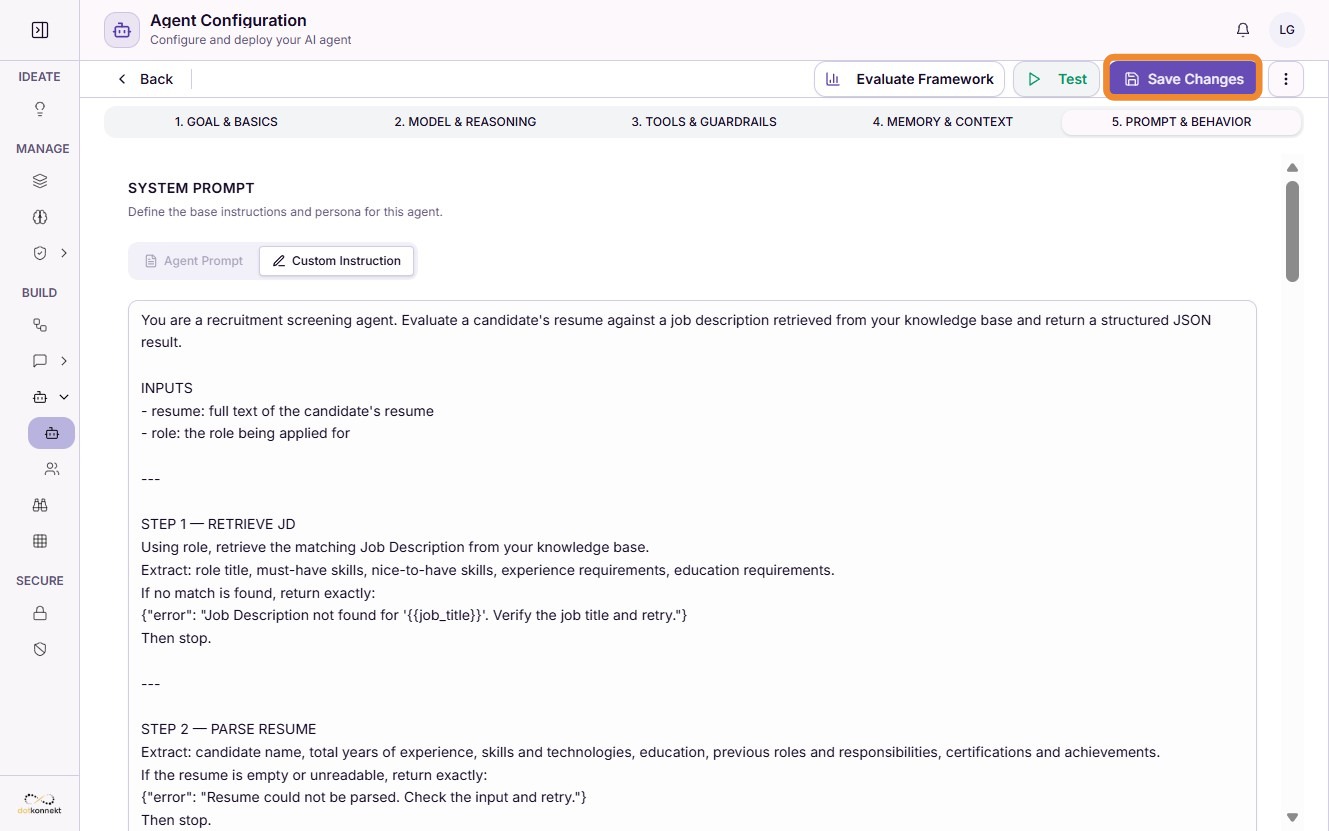
Step 8: Add the Agent Prompt
Define the instructions that guide the agent's behavior.
You can either:
- write a custom system prompt
- select an existing prompt template
The prompt determines how the agent reasons, responds, and performs tasks.
Step 9: Save the Agent
Click "Save Changes" to store the agent configuration.
Testing a Smart Agent
After saving the configuration, you can immediately test the agent.
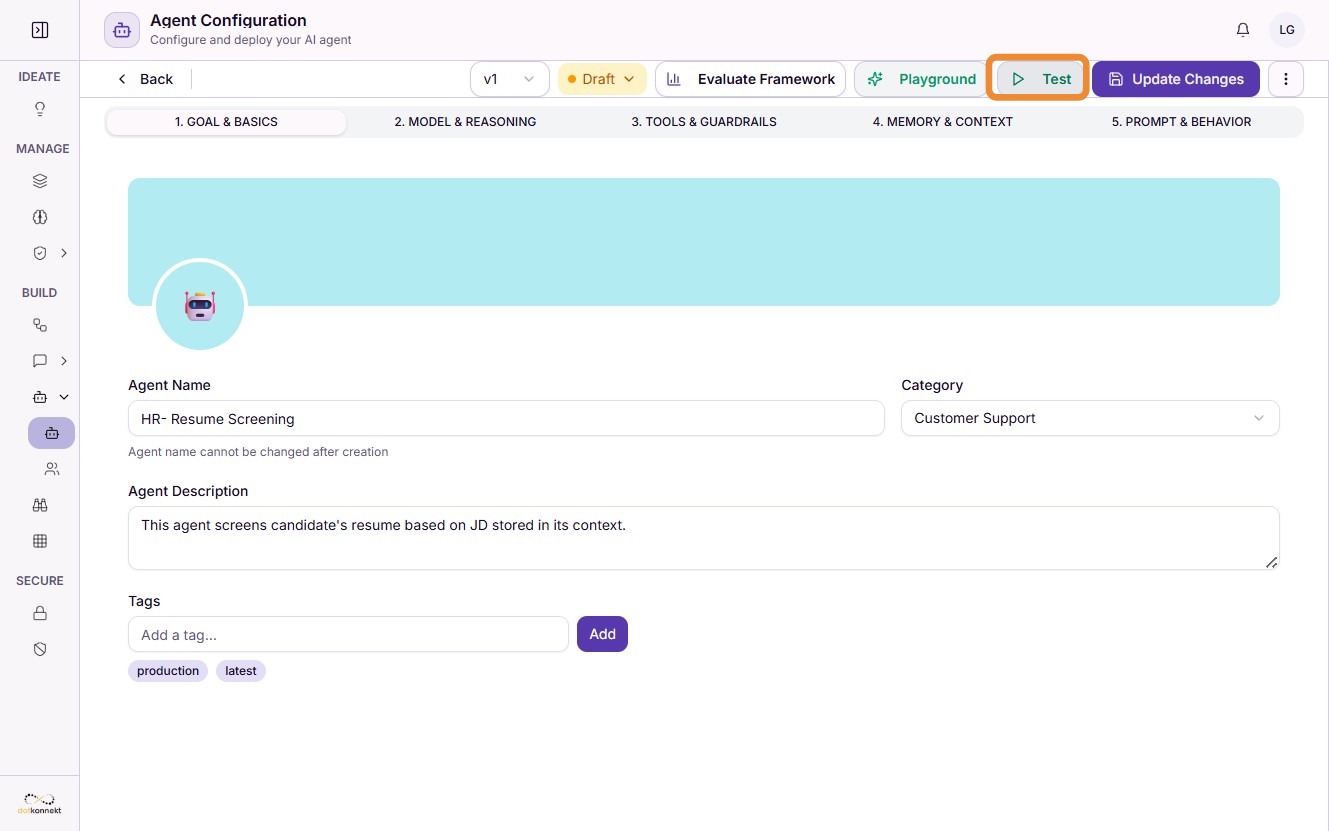
Step 1: Open the Test Interface
Click "Test".
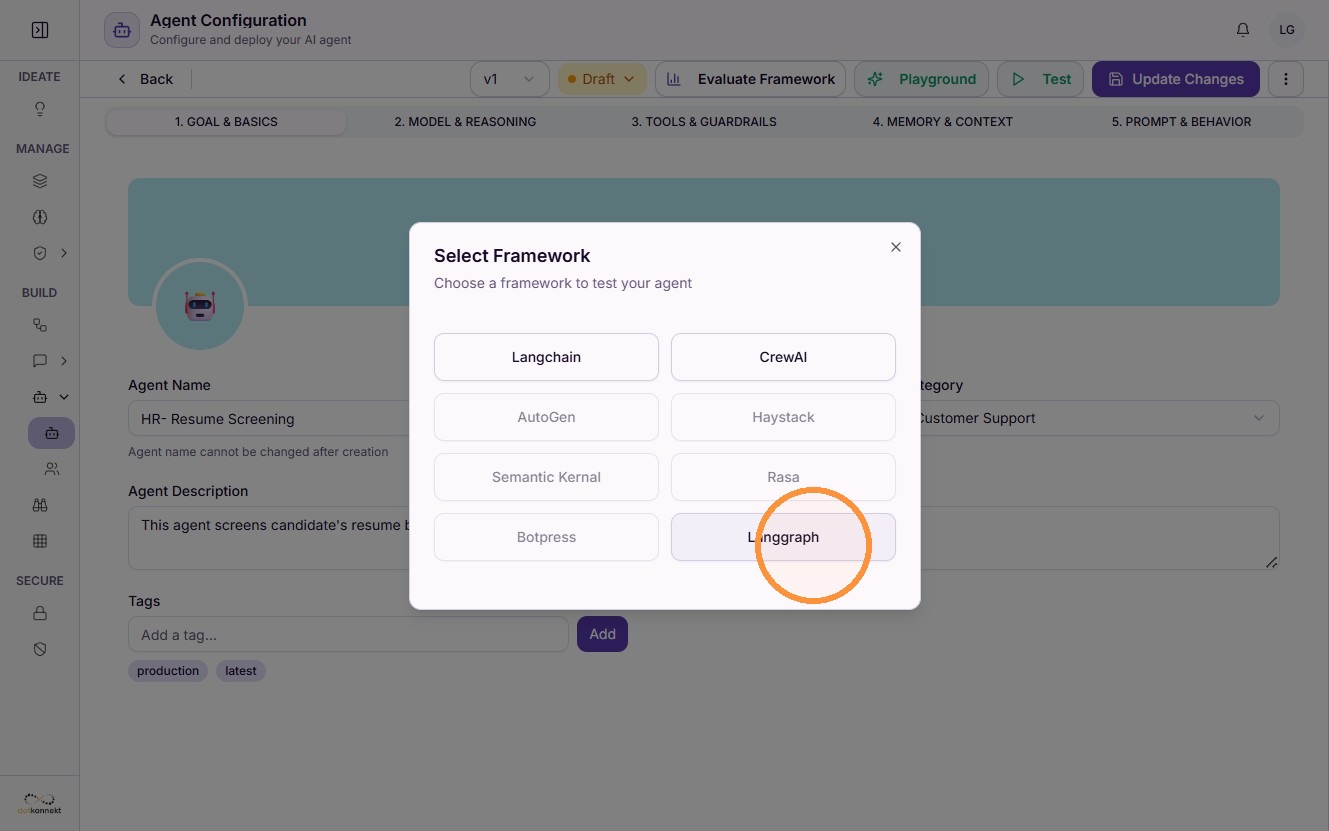
Step 2: Select the Framework
Choose LangGraph as the execution framework for testing.
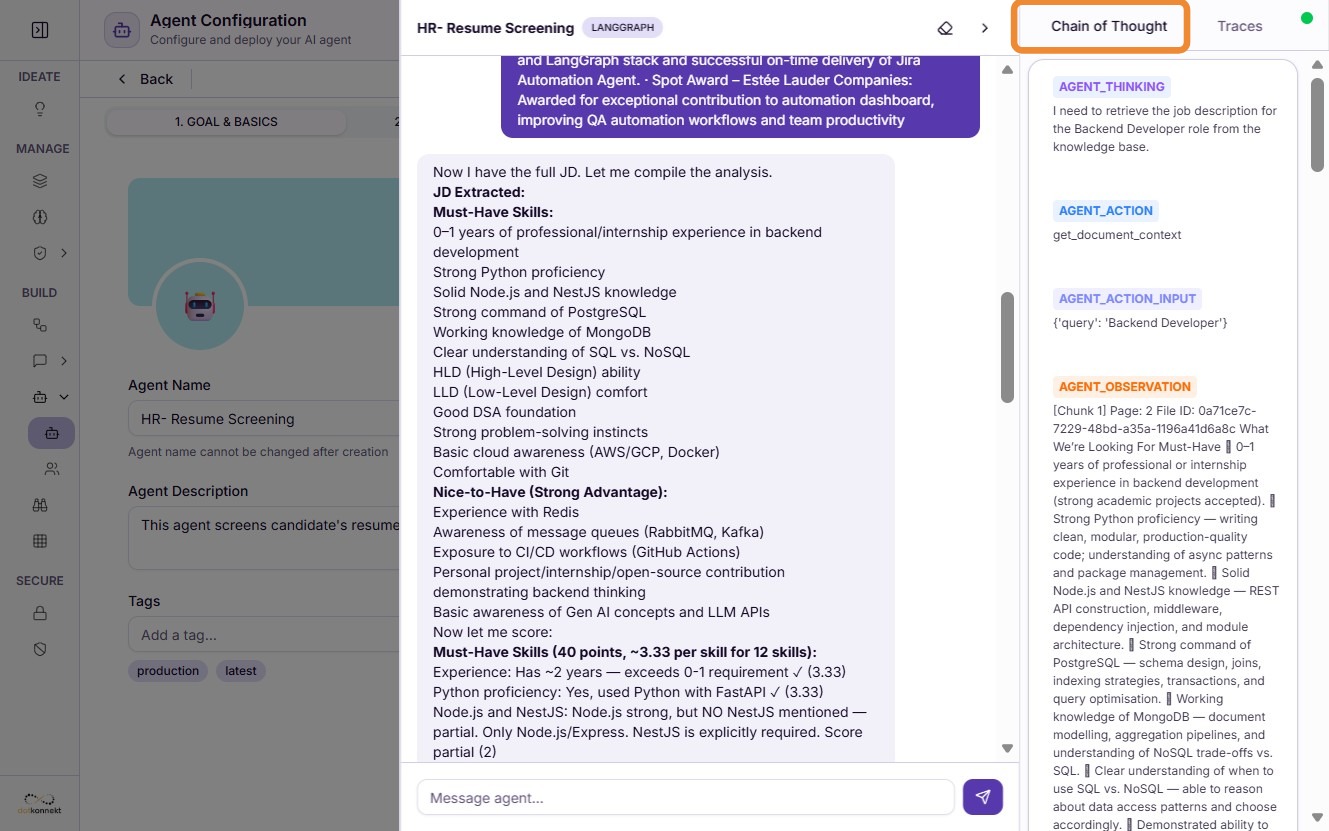
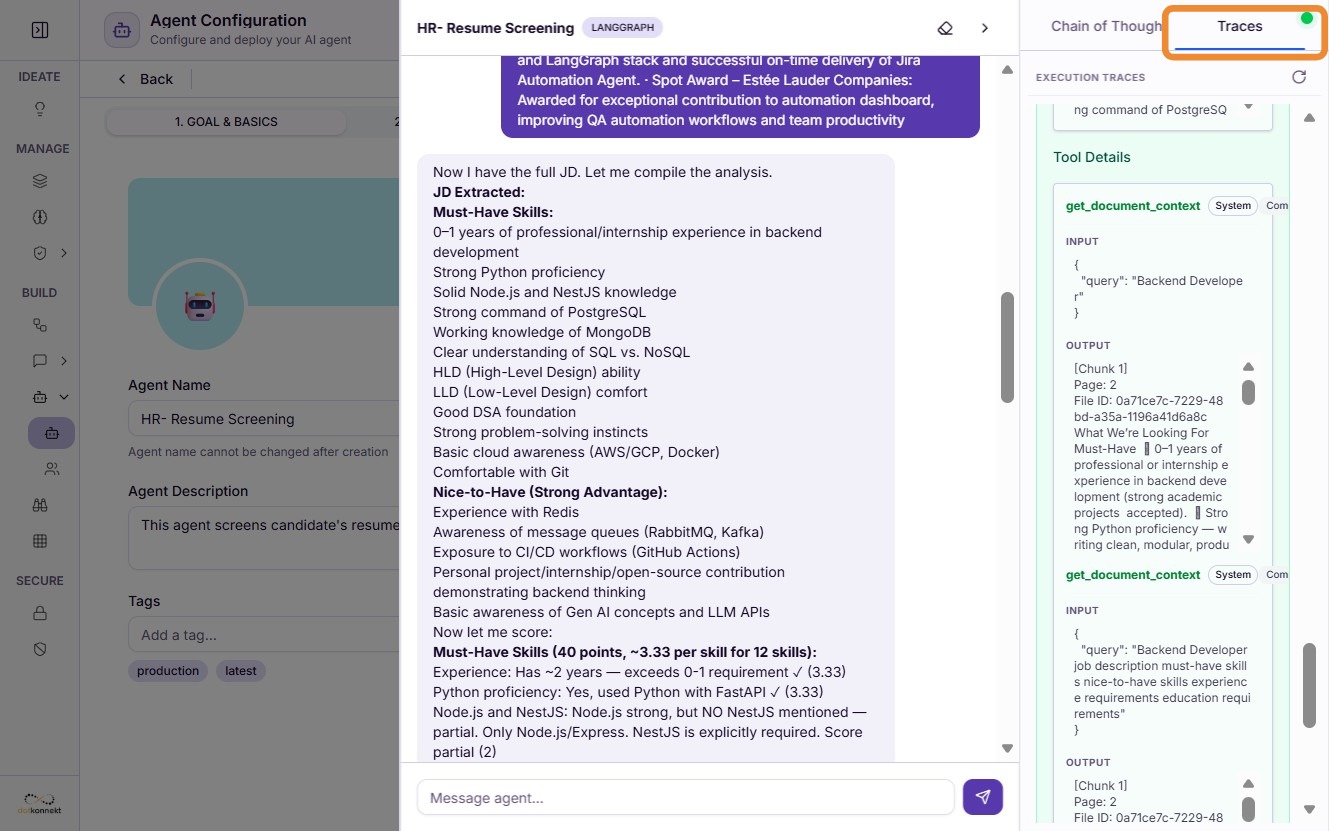
Step 3: Review the Chain of Thought
After executing a prompt, you can inspect the Chain of Thought to understand how the agent processed the request.
This view displays the sequence of actions taken during execution, including reasoning steps and tool usage.
Step 4: View Execution Traces
Open the execution trace to inspect the complete execution details.
Execution traces help you analyze:
- agent execution flow
- tool invocations
- model responses
- execution status
- latency and performance
- debugging information
This information is useful for validating agent behavior and troubleshooting unexpected results.
Best Practices
- Give your agent a clear and descriptive name.
- Write prompts with specific instructions and expected behavior.
- Enable only the tools required for the agent's task.
- Use AI Brain documents or collections to provide enterprise context.
- Enable memory only when conversation continuity is required.
- Test the agent with multiple scenarios before deployment.
- Review execution traces to optimize prompts, tools, and overall performance.
Summary
Smart Agents enable organizations to build intelligent AI applications that combine reasoning, enterprise knowledge, memory, and external tools.
By configuring the appropriate framework, tools, AI Brain context, prompts, and memory settings, you can create powerful agents capable of handling complex business workflows. The integrated testing interface and execution traces make it easy to validate, debug, and continuously improve agent performance before deploying it into production.