Integrations
1. Component Intro:
The Google Sheets component enables your workflows to read from, write to, and manage Google Sheets spreadsheets using the Google Sheets API.
You can configure the component to:
- Read Data from specific ranges in a spreadsheet.
- Append Data to add new rows without overwriting existing content.
- Update Data to modify existing cell values.
- Clear Data to remove content from ranges.
- Batch Update multiple ranges in a single operation.
- Manage Sheets by creating, renaming, or deleting tabs.
This allows your workflows to integrate seamlessly with Google Sheets for data collection, reporting, analytics, and automation.
Core JSON Structure
{
    "name": "Google Sheets",
    "type": "google_sheets",
    "label": "Google Sheets",
    "description": "Standard google sheets component that accepts user-defined inputs.",
    "nodeType": "google_sheets",
    "inputs": {
        "operation": "read_data",
        "credential_key": "{{init-1784099795412}}",
        "spreadsheet_id": "1sWUnztiiyeRZmIBaz2jTmh2AvcM9UVmU3f0rKuir8"
    }
}
2. Where to Use It
-
Lead Capture: Append form submissions directly to a Google Sheet for CRM integration.
-
Data Reporting: Automatically generate and update reports by writing workflow results to spreadsheets.
-
Batch Data Operations: Read data from a sheet, process it through AI components, and write results back.
-
Survey Data Collection: Collect responses and append them to a response tracking sheet.
-
Inventory Management: Update stock levels, prices, and product information in shared spreadsheets.
-
Analytics Dashboard: Feed workflow metrics and KPIs into Google Sheets for visualization.
-
Document Processing: Extract data from documents, transform it, and append to sheets.
Step 1: Get Google Service Account API Key
Prerequisites
- A Google account with admin access
- Access to Google Cloud Console
Step 1.1: Create a Google Cloud Project
- Go to Google Cloud Console
- At the top left, click the Project selector dropdown
- Click NEW PROJECT
- Enter the project name:
Google Sheets Integration - Click CREATE
- Wait for the project to be created (may take a few seconds)
Step 1.2: Enable Google Sheets API
- In the Google Cloud Console, ensure you've selected the Google Sheets Integration project (check top left)
- Navigate to APIs & Services in the left sidebar
- Click Library
- In the search bar, type:
Google Sheets API - Click on Google Sheets API from the results
- Click the blue ENABLE button
API is now enabled — Your project can now access Google Sheets
Step 1.3: Create a Service Account
A service account is a special account that allows your application (Kompass) to authenticate with Google services.
- In the Google Cloud Console, navigate to APIs & Services → Service Accounts (left sidebar)
- Click + CREATE SERVICE ACCOUNT at the top
- Fill in the following fields then Click CREATE AND CONTINUE
| Field | Value |
|---|---|
| Service account name | project-integration |
| Service account ID | Auto-generated (leave as is) |
| Description | Service account for Kompass Google Sheets workflows |
Step 1.4: Grant Permissions to Service Account
- On the Grant this service account access to project screen, you'll see the Select a role dropdown
- Click the dropdown and search for
Editor - Select Editor role (allows full access to create, read, update, delete spreadsheets)
- Click CONTINUE
- On the final screen, click DONE
Permission Levels
- Editor: Full access to all spreadsheet operations. Recommended for most workflows.
- Viewer: Read-only access. Use if your workflow only reads data.
Step 1.5: Generate Service Account Key (JSON)
- In the Google Cloud Console, navigate to APIs & Services → Service Accounts
- Click on the service account you just created:
project-integration - Click the Keys tab at the top
- Click + ADD KEY → Create new key
- In the dialog that appears:
- Select JSON (should be pre-selected)
- Click CREATE
- A JSON file will automatically download to your computer
- Save this file safely — you'll need it in the next step
Step 1.6: Copy the JSON Key Content
- Open the downloaded JSON file in a text editor (Notepad, VS Code, etc.)
- The file contains your service account credentials: Select all content (Ctrl+A or Cmd+A)
- Copy the entire JSON (Ctrl+C or Cmd+C)
Security: Keep This Safe
- Never share this file publicly
- Never commit it to GitHub or version control
- Delete the file from your downloads after storing it in the vault
- Treat it like a password
Step 2: Store API Key in Kompass Vault
Now you'll store the service account JSON securely in Kompass so it can be used by all your workflows.
Step 2.1: Navigate to Vault
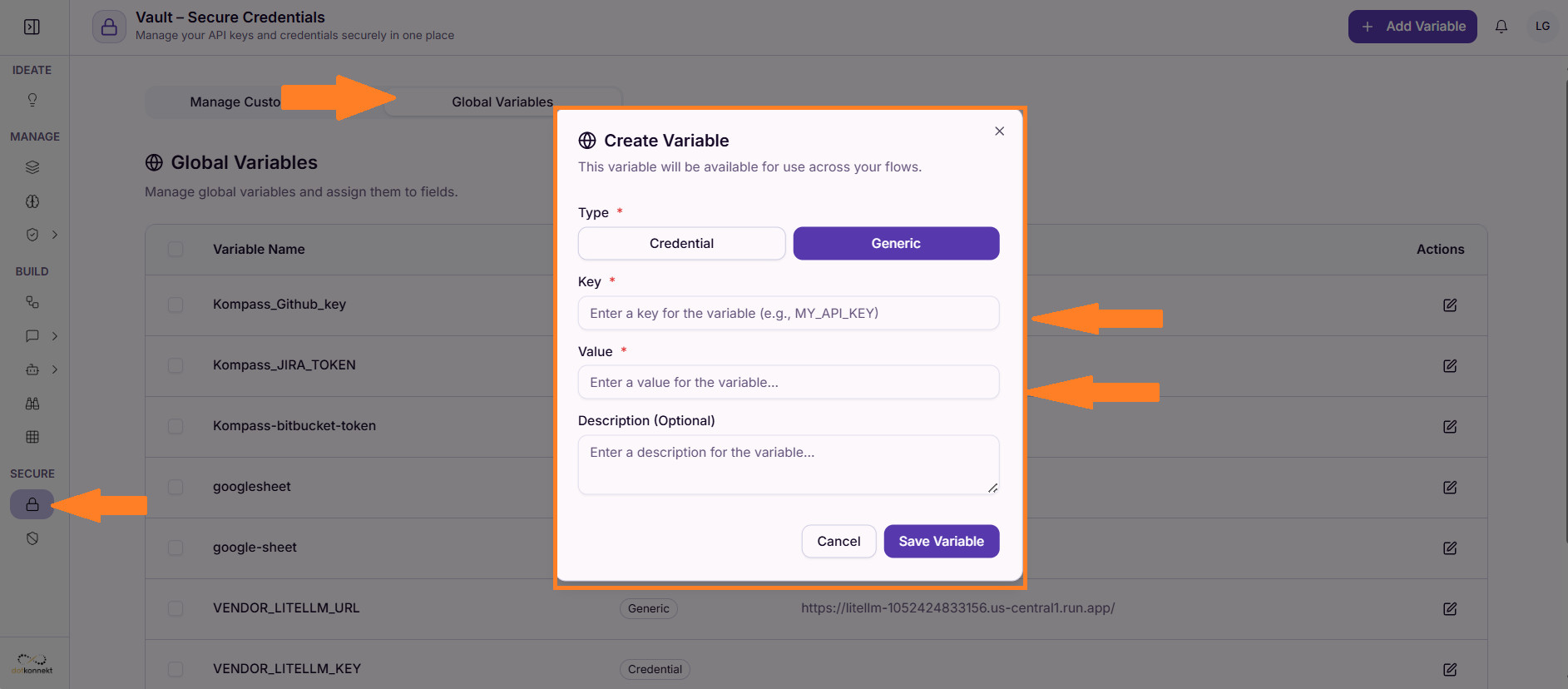
- In Kompass, Go to Vault
- Click Global Variables
Step 2.2: Create New Secret
- Click + Add Variable
- A dialog will appear with these fields:
Step 2.3: Fill in Secret Details
| Field | Value | Example |
|---|---|---|
| Type | Select Generic | Generic |
| Key | Give a clear name to the key | googlesheet |
| Value | Paste the entire JSON you copied | (entire JSON file) |
| Description (optional) | Describe the secret | Google Sheets Service Account |
Step 2.4: Save the Variable
Step 2.5: Share the Google Sheet with Service Account
Before using the component, you must grant the service account access to your Google Sheet.
- Copy the client_email from your JSON file:
- Open the Google Sheet you want to use in your workflow
- Click Share (top right)
- Paste the service account email in the share field
- Select Editor permission
- Click Share
Service account now has access to your sheet
Step 3: Configure Append Data Operation
Append Data adds new rows to your spreadsheet without overwriting existing content.
UI Configuration
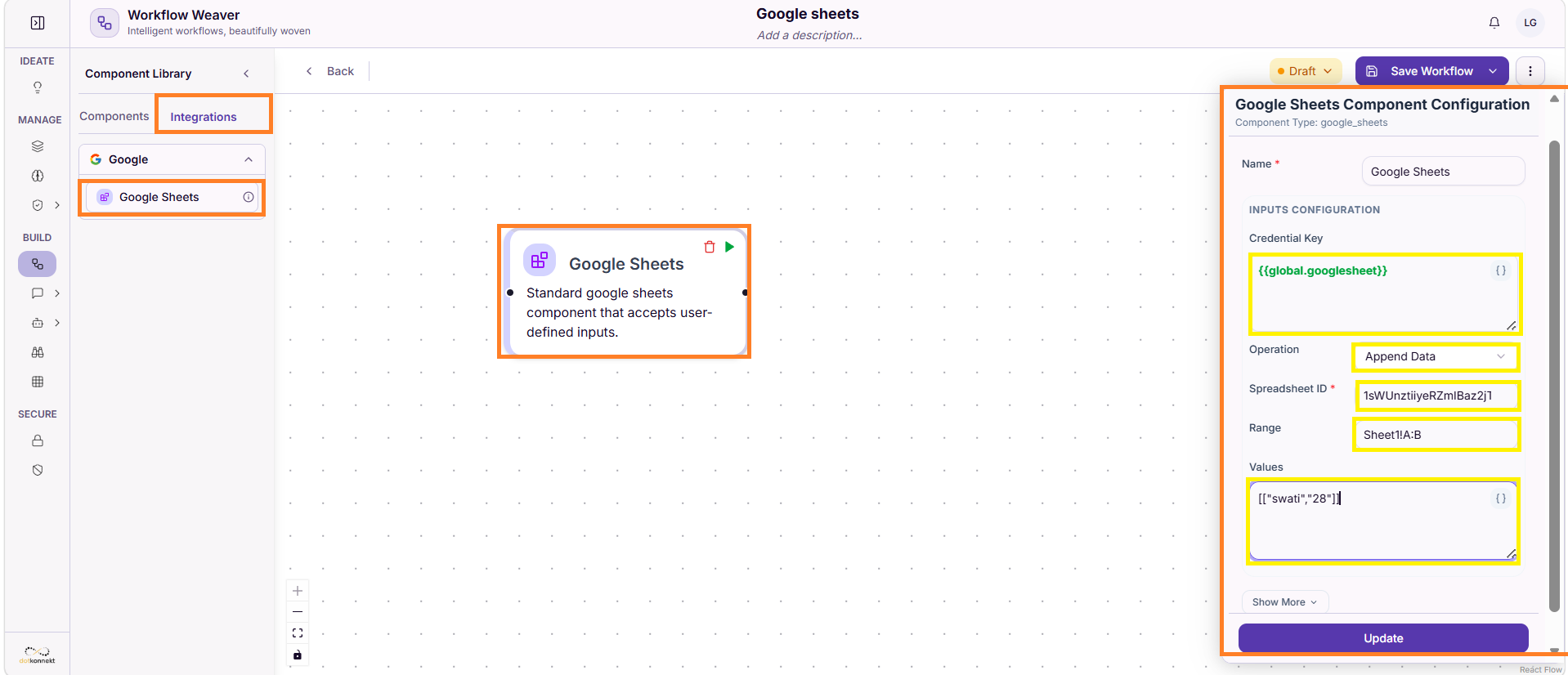
Open the Google Sheets component in your workflow and fill in these fields:
| Field | Value | Example |
|---|---|---|
| Operation | Select Append Data from dropdown |
Append Data |
| Credential Key | Reference to vault secret | click on "{}" a list of global variables will come choose your key |
| Spreadsheet ID | Your Google Sheet ID (from URL) | 1sWUnztiiye*************f0rKuir8 |
| Range | Column range where to append | Sheet1!A:B |
| Values | Data to append as JSON array | [["swati","28"]] |
Field Breakdown: Spreadsheet ID
The Spreadsheet ID is a unique identifier for your Google Sheet.
How to find it: 1. Open your Google Sheet in a browser 2. Look at the URL:
https://docs.google.com/spreadsheets/d/1sWUnztiiyeRZmIBaz2jTmh2AvcM9U5RVmU3f0rKuir8/edit#gid=0
                                       ↑ Copy this 44-character string ↑
Correct format:
1sWUnztiiyeRZmIBaz2jTmh2AvcM9U5RVmU3f0rKuir8
Common mistakes:
❌ 1sWUnztiiyeRZmIBaz2jTmh2AvcM9U5RVmU3f0rKuir8/edit   (include /edit)
❌ https://docs.google.com/spreadsheets/d/1sWUn...     (include full URL)
✅ 1sWUnztiiyeRZmIBaz2jTmh2AvcM9U5RVmU3f0rKuir8       (ID only)
Field Breakdown: Range
The Range specifies which columns to populate.
Format: SheetName!ColumnStart:ColumnEnd
| Range | Result | Use Case |
|---|---|---|
Sheet1!A:B |
Append to columns A and B | For 2-column data |
Sheet1!A:D |
Append to columns A, B, C, D | For 4-column data |
Responses!A:C |
Append to different sheet | Different tab |
Data!A2:E100 |
Append within specific rows | Bounded append |
Best Practice for Range
Use: SheetName!A:LastColumn
This automatically appends to the next empty row.
Example: Sheet1!A:C appends to the first empty row in columns A-C.
Field Breakdown: Values
The Values field contains the data to append.
CRITICAL: Values Must Be an Array of Arrays
✅ CORRECT:    [["swati","28"]]
❌ WRONG:      ["swati","28"]
❌ WRONG:      "[[\"swati\",\"28\"]]"
The API expects: Array of rows → Each row is an array of columns
Single Row Example
Append one person:
[["John Doe", "john@example.com"]]
Multiple Rows Example
Append three people:
[
  ["Alice Smith", "alice@example.com"],
  ["Bob Johnson", "bob@example.com"],
  ["Charlie Brown", "charlie@example.com"]
]
Other Operations Reference
For all other operations, refer to the configurations below.
Operation 1: Read Data
Purpose: Retrieve values from a spreadsheet range
Configuration:
| Field | Required | Value | Example |
|---|---|---|---|
| Operation | ✅ | Read Data |
- |
| Credential Key | ✅ | Vault reference | {{init-1784099795412}} |
| Spreadsheet ID | ✅ | Sheet ID | 1sWUn...8 |
| Range | ❌ | Cell range | Sheet1!A1:C10 |
| Values | ❌ | Not used | - |
Input JSON:
{
  "operation": "read_data",
  "credential_key": "{{init-1784099795412}}",
  "spreadsheet_id": "1sWUnztiiyeRZmIBaz2jTmh2AvcM9U5RVmU3f0rKuir8",
  "range": "Sheet1!A1:C10"
}
Operation 2: Update Data
Purpose: Overwrite existing cell values
Configuration:
| Field | Required | Value | Example |
|---|---|---|---|
| Operation | ✅ | Update Data |
- |
| Credential Key | ✅ | Vault reference | {{init-1784099795412}} |
| Spreadsheet ID | ✅ | Sheet ID | 1sWUn...8 |
| Range | ✅ | Exact cells | Sheet1!B2:B5 |
| Values | ✅ | Data array | [["new_value"]] |
Input JSON:
{
  "operation": "update_data",
  "credential_key": "{{init-1784099795412}}",
  "spreadsheet_id": "1sWUnztiiyeRZmIBaz2jTmh2AvcM9U5RVmU3f0rKuir8",
  "range": "Sheet1!B2:B5",
  "values": [
    ["Updated1"],
    ["Updated2"],
    ["Updated3"],
    ["Updated4"]
  ]
}
Important: Values array dimensions must match range dimensions
Update vs. Append
- Update: Overwrites existing values in the specified range
- Append: Adds new rows to the bottom
Operation 3: Clear Data
Purpose: Remove content from a range (cells remain empty)
Configuration:
| Field | Required | Value | Example |
|---|---|---|---|
| Operation | ✅ | Clear Data |
- |
| Credential Key | ✅ | Vault reference | {{init-1784099795412}} |
| Spreadsheet ID | ✅ | Sheet ID | 1sWUn...8 |
| Range | ✅ | Cells to clear | Sheet1!A1:Z100 |
| Values | ❌ | Not used | - |
Input JSON:
{
  "operation": "clear_data",
  "credential_key": "{{init-1784099795412}}",
  "spreadsheet_id": "1sWUnztiiyeRZmIBaz2jTmh2AvcM9U5RVmU3f0rKuir8",
  "range": "Sheet1!A1:Z100"
}
Operation 4: Batch Update
Purpose: Update multiple ranges in a single operation
Configuration:
| Field | Required | Value | Example |
|---|---|---|---|
| Operation | ✅ | Batch Update |
- |
| Credential Key | ✅ | Vault reference | {{init-1784099795412}} |
| Spreadsheet ID | ✅ | Sheet ID | 1sWUn...8 |
| Range | ❌ | Included in values | - |
| Values | ✅ | Array of objects | See below |
Input JSON:
{
  "operation": "batch_update",
  "credential_key": "{{init-1784099795412}}",
  "spreadsheet_id": "1sWUnztiiyeRZmIBaz2jTmh2AvcM9U5RVmU3f0rKuir8",
  "values": [
    {
      "range": "Sheet1!A1:B2",
      "values": [["Header1", "Header2"], ["Value1", "Value2"]]
    },
    {
      "range": "Sheet2!C1:C3",
      "values": [["Data1"], ["Data2"], ["Data3"]]
    }
  ]
}
Format for values field:
- Outer array: contains multiple range-value pairs
- Each object has: range (string) and values (array of arrays)
Operation 5: Create Sheet
Purpose: Add a new tab to an existing spreadsheet
Configuration:
| Field | Required | Value | Example |
|---|---|---|---|
| Operation | ✅ | Create Sheet |
- |
| Credential Key | ✅ | Vault reference | {{init-1784099795412}} |
| Spreadsheet ID | ✅ | Sheet ID | 1sWUn...8 |
| Range | ❌ | Not used | - |
| Values | ❌ | Not used | - |
| Sheet Name | ✅ | Tab name | Responses |
Input JSON:
{
  "operation": "create_sheet",
  "credential_key": "{{init-1784099795412}}",
  "spreadsheet_id": "1sWUnztiiyeRZmIBaz2jTmh2AvcM9U5RVmU3f0rKuir8",
  "sheet_name": "Responses"
}
Operation 6: Delete Sheet
Purpose: Remove a tab from the spreadsheet
Configuration:
| Field | Required | Value | Example |
|---|---|---|---|
| Operation | ✅ | Delete Sheet |
- |
| Credential Key | ✅ | Vault reference | {{init-1784099795412}} |
| Spreadsheet ID | ✅ | Sheet ID | 1sWUn...8 |
| Sheet Name | ✅ | Tab to delete | Old Sheet |
Input JSON:
{
  "operation": "delete_sheet",
  "credential_key": "{{init-1784099795412}}",
  "spreadsheet_id": "1sWUnztiiyeRZmIBaz2jTmh2AvcM9U5RVmU3f0rKuir8",
  "sheet_name": "Old Sheet"
}
This action cannot be undone
Do's and Don'ts
Do's
- Use the vault to store credentials securely
- Share the sheet with the service account before using in workflows
- Keep headers in row 1 for clarity
- Use array format for values:
[["row1"], ["row2"]] - Test in Playground before deploying workflows
- Use meaningful sheet names for organization
- Monitor API quotas (Google has rate limits)
Don'ts
- Don't hardcode API keys in workflows
- Don't forget to share the sheet with service account
- Don't use single brackets for values:
["value"]→ Use[["value"]] - Don't manually edit sheets during workflow execution (race conditions)
- Don't store sensitive data in sheets read by workflows
- Don't commit JSON key files to version control
- Don't mix Append and Update operations on same range
Troubleshooting
API Validation Error (422)
Cause: Incorrect values format
Check:
- ✅ Values are array of arrays: [["val1", "val2"]]
- ❌ Not single array: ["val1", "val2"]
- ❌ Not string: "[\"val1\",\"val2\"]"
Fix:
"values": [["swati", "28"]]
Permission Denied (403)
Cause: Service account not shared with sheet
Fix:
1. Open Google Sheet
2. Click Share
3. Add service account email: kompass-sheets-integration@...iam.gserviceaccount.com
4. Grant Editor permission
Spreadsheet Not Found (404)
Cause: Invalid spreadsheet ID
Fix:
1. Open Google Sheet
2. Copy ID from URL: https://docs.google.com/spreadsheets/d/1sWUn.../edit
3. Verify ID is correct and 44 characters
Connection Error
Cause: Credential key not found or invalid
Check:
1. [ ] Secret is saved in vault with key: googlesheet
2. [ ] Credential key field references correct component/vault
3. [ ] JSON key file is valid (not corrupted)