Prompt Catalog
The Prompt Catalog is the central hub in Kompass where all AI prompts are stored, managed, and organized. It acts as the operational data library for developers and product leads to review deployment states, track variations across specific large language models, and monitor live configuration history.
Navigation
Under the unified Prompts workspace tab bar, click on the Catalog header toggle.
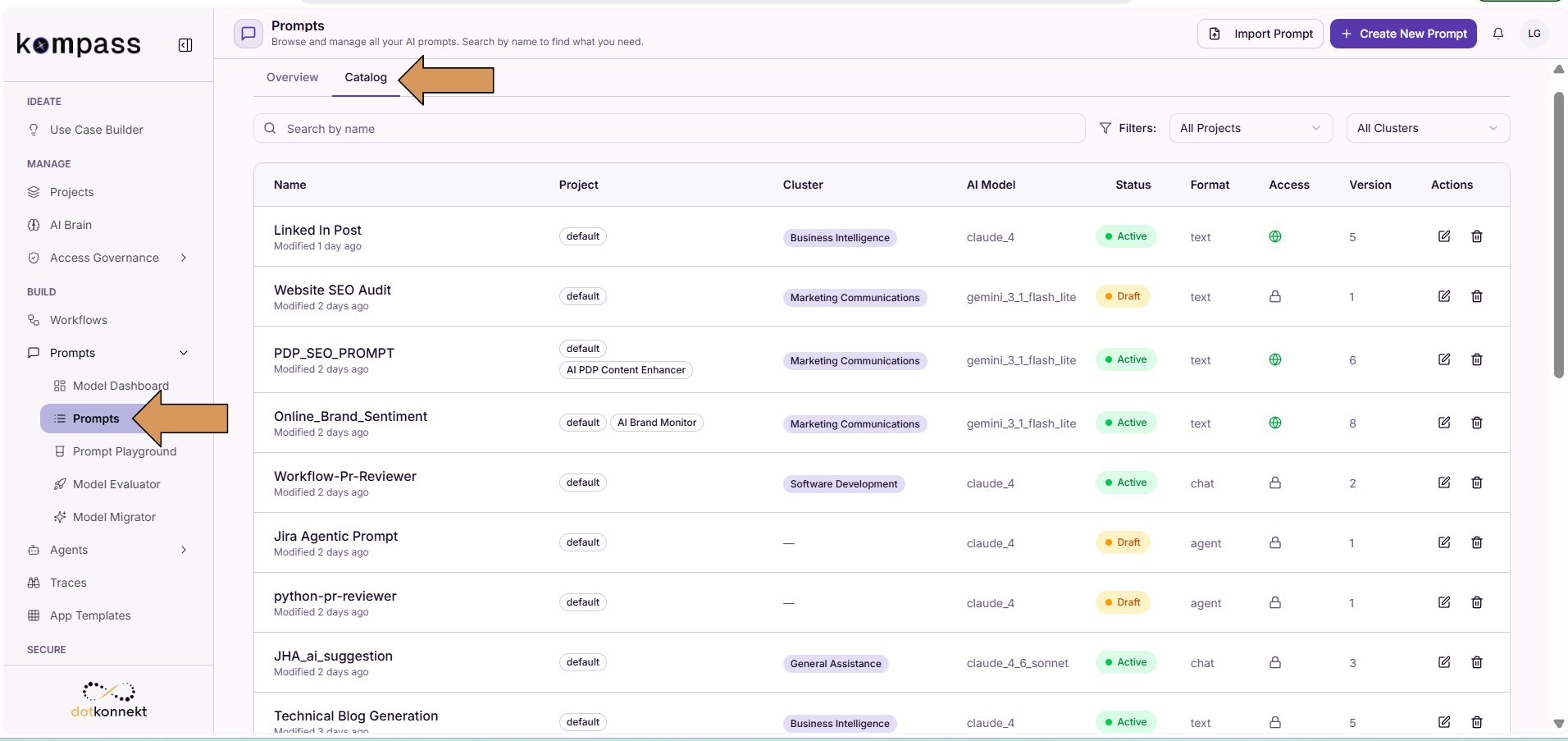 

Core Operational Grid
The catalog organizes prompt inventories into an explicit metadata grid containing nine strategic structural headers:
- Name: The descriptive identifier of the entry alongside its real-time modification age (e.g.,
Modified 2 days ago). - Project: Defines the architectural ownership boundaries of the prompt configuration (e.g.,
defaultorAI PDP Content Enhancer). - Cluster: The semantic business context automatically assigned to the prompt template (e.g.,
Business IntelligenceorMarketing Communications). - AI Model: Identifies the primary foundational model mapped directly to the prompt layout configuration (e.g.,
claude_4orgemini_3.1_flash_lite). - Status: Reflects the life-cycle state of the target version. This includes:
Active: Finalized configurations ready for production workspace deployment.Draft: Work-in-progress configurations undergoing iterative development.
- Format: Broadly there are 2 types of prompts in kompass, Workflow prompts and agent prompts.
- Access: Until the user make the prompt public,only he is able to see it , apart from super admin account noone will be able to access that prompt.
- Version: The total revision cycle iteration number of the specified template entry.
- Actions: The interactive command column housing quick tools to modify or clean up configurations:
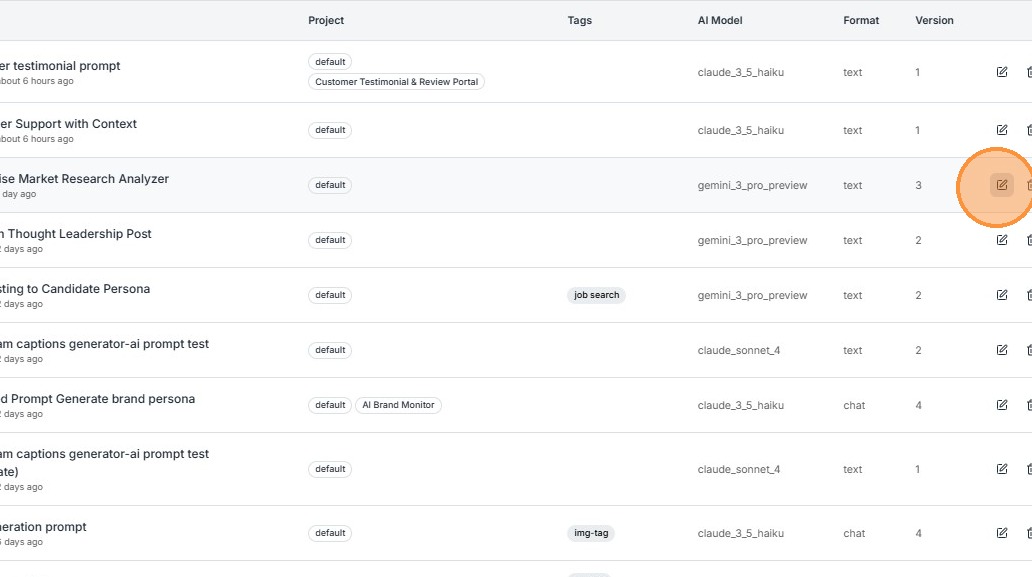
- material-pencil: Edit Icon: Instantly opens the active layout inside the Prompt Builder workspace canvas.
- material-delete: Delete Icon: Permanently purges the target entry configuration from the platform catalog inventory.
Dynamic Query and Filtering Systems
To efficiently manage large enterprise prompt datasets, the catalog includes dynamic search and contextual aggregation layers at the top of the interface.
Search Fields
The search entry bar allows you to filter listings dynamically as you type: 1. Enter unique identifiers and the prompt will appear .
Contextual Dropdown Filters
Refine layout visibility by combining two target filters:
* All Projects Dropdown: Restricts your grid display exclusively to templates owned by a specific project group.
* All Clusters Dropdown: Narrows your visual view down to prompts matching a specific semantic boundary group, making it easy to isolate tools like Customer Support assets.
Configuration Actions-
1. Create a New Prompt
To create a prompt from scratch, click the + Create New Prompt button in the upper right quadrant of the catalog layout. This directly opens the interactive development workspace wrapper.
2. Import Prompts
The Import Prompt feature allows users to upload prompts from external sources using a JSON file.
This enables teams to:
- Reuse prompts across environments
- Share prompts between teams
- Import prompts from version-controlled repositories
Steps to Import Prompts:
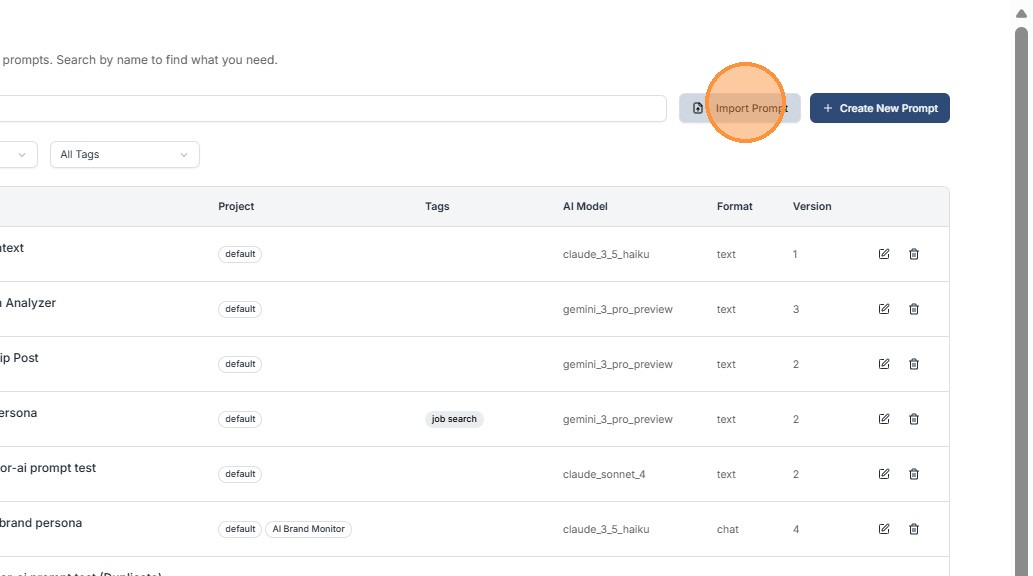
Step 1: Click Import Prompt
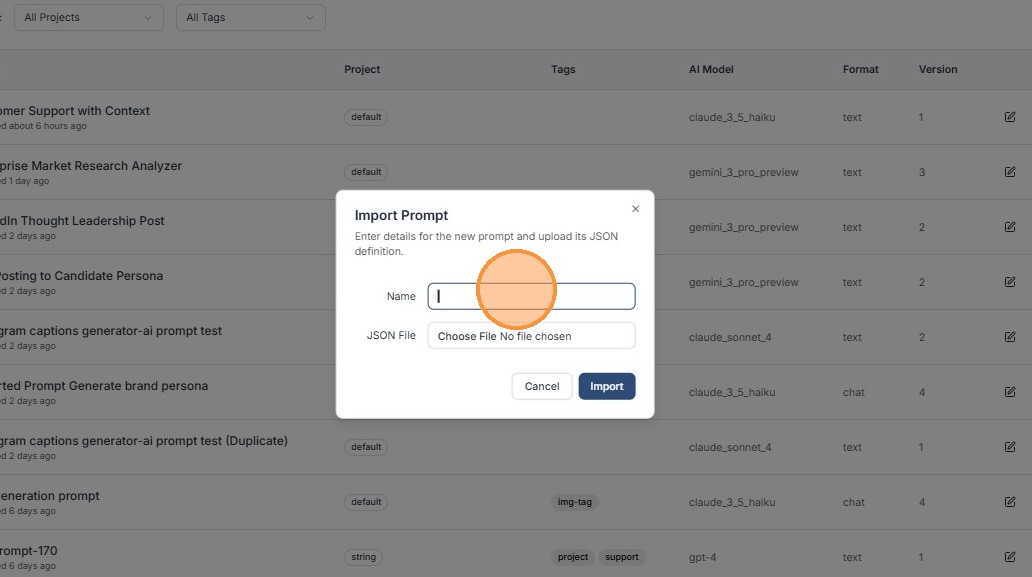
Step 2: Enter a prompt name
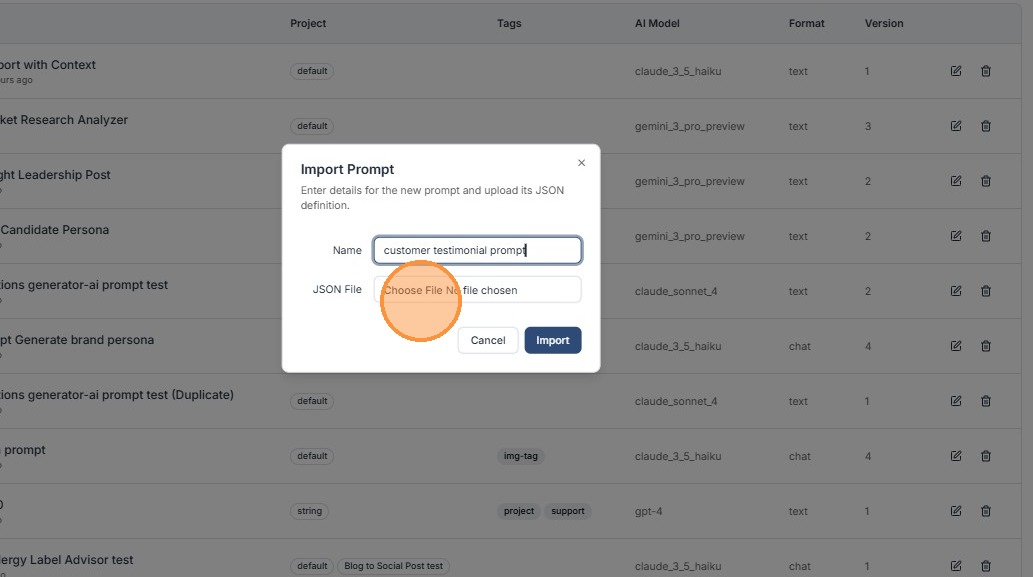
Step 3: Click the "JSON File" field and upload the prompt file from your computer.
Step 4: Click "Import"
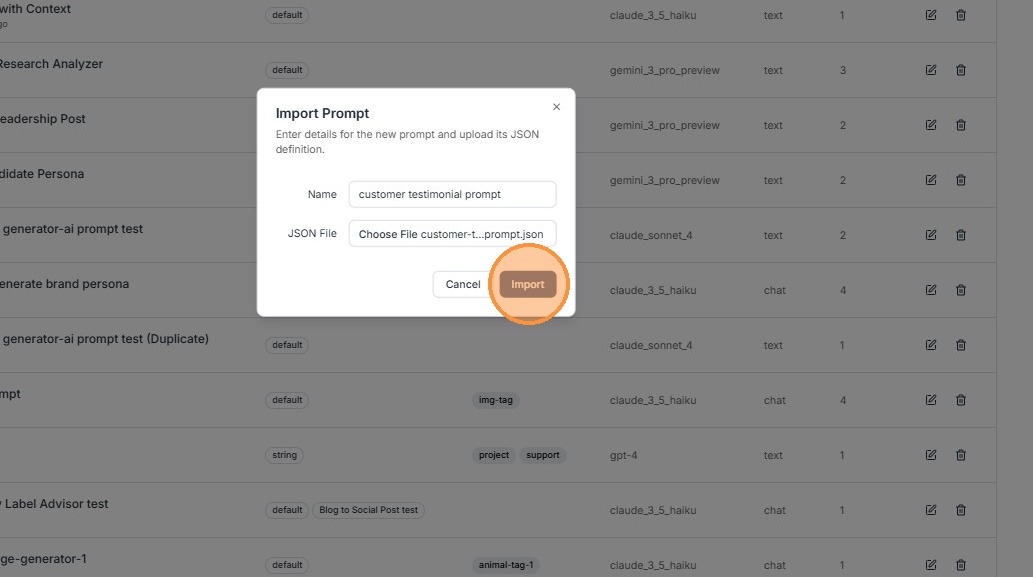
Note: Imported prompt files must be in JSON format only (.json extension) — other formats like TXT or YAML are not supported.
3. Edit Existing Prompts
Users can modify an existing prompt directly from the Prompt Catalog.
How to Edit:
- Locate the prompt in the catalog
- Click the Edit icon
- The system opens the Prompt Builder
- Update the prompt configuration
- Save changes
Editing allows users to refine prompts as requirements evolve. Kompass maintains version history of your prompts as well!
4. Export Prompts
The Export JSON option allows users to download a prompt configuration.
This feature is useful for:
- Sharing prompts with other teams
- Creating backups
- Moving prompts across environments
Steps to Export Prompts:
Step 1: Open the prompt actions menu
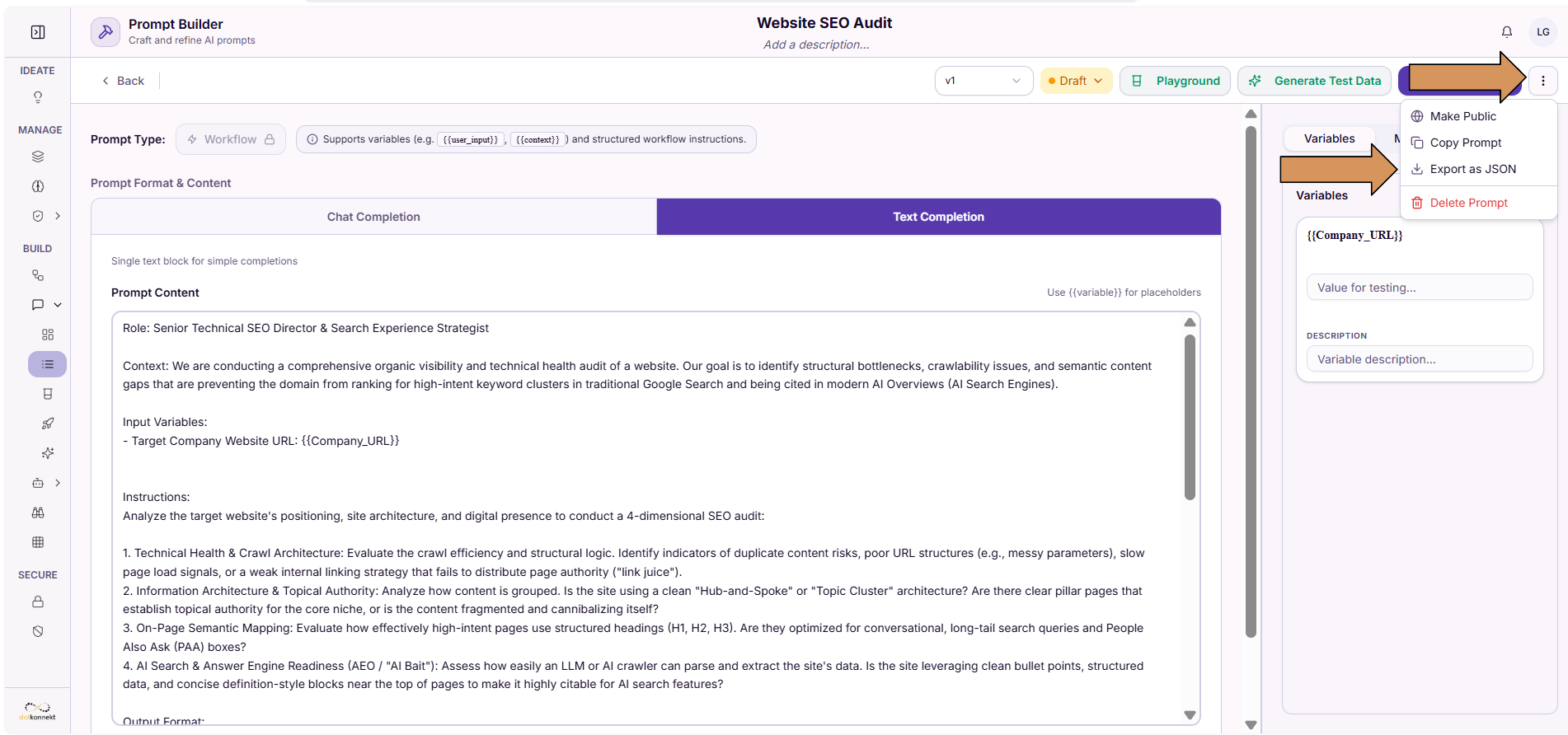
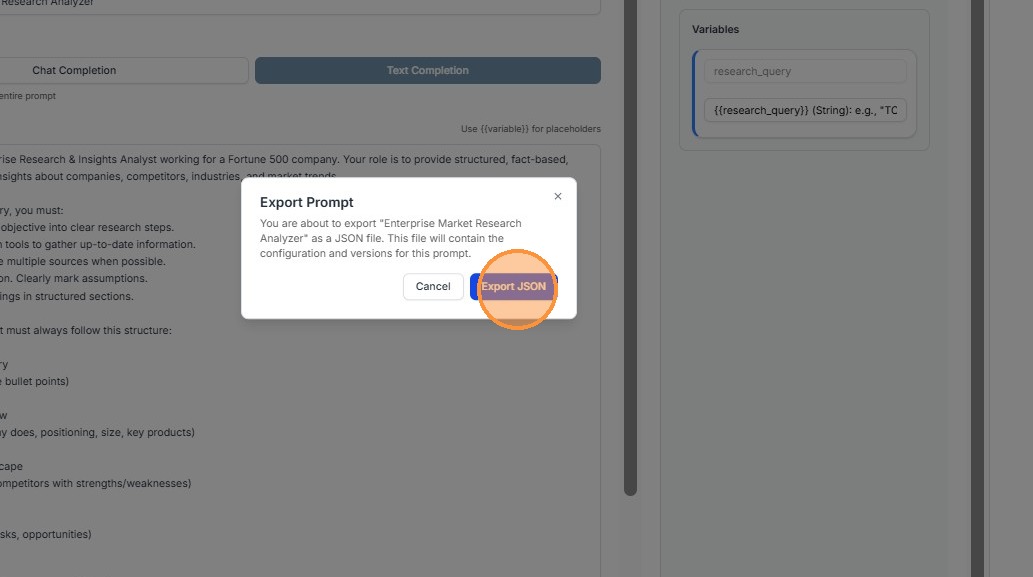
Step 2: Select Export JSON
Step 3: The prompt configuration file will download to your system
Summary
The Prompt Catalog provides a centralized interface for managing AI prompts in Kompass.
Through this component, users can:
- Browse and organize prompts
- Search and filter prompt libraries
- Import prompts from JSON
- Export prompts for sharing
- Edit and update prompts
- Create new prompts through the Prompt Builder
This ensures teams can maintain scalable, reusable, and well-organized prompt libraries for AI applications.