Model Evaluator
The Model Evaluator in Kompass helps teams determine which AI model performs best for their prompts.
Since different AI models can produce different responses for the same prompt, the Model Evaluator allows you to compare model performance before using a model in production. You can evaluate responses based on quality, latency, cost, and other evaluation metrics.
The Model Evaluator supports two evaluation modes:
Prompt Benchmarking
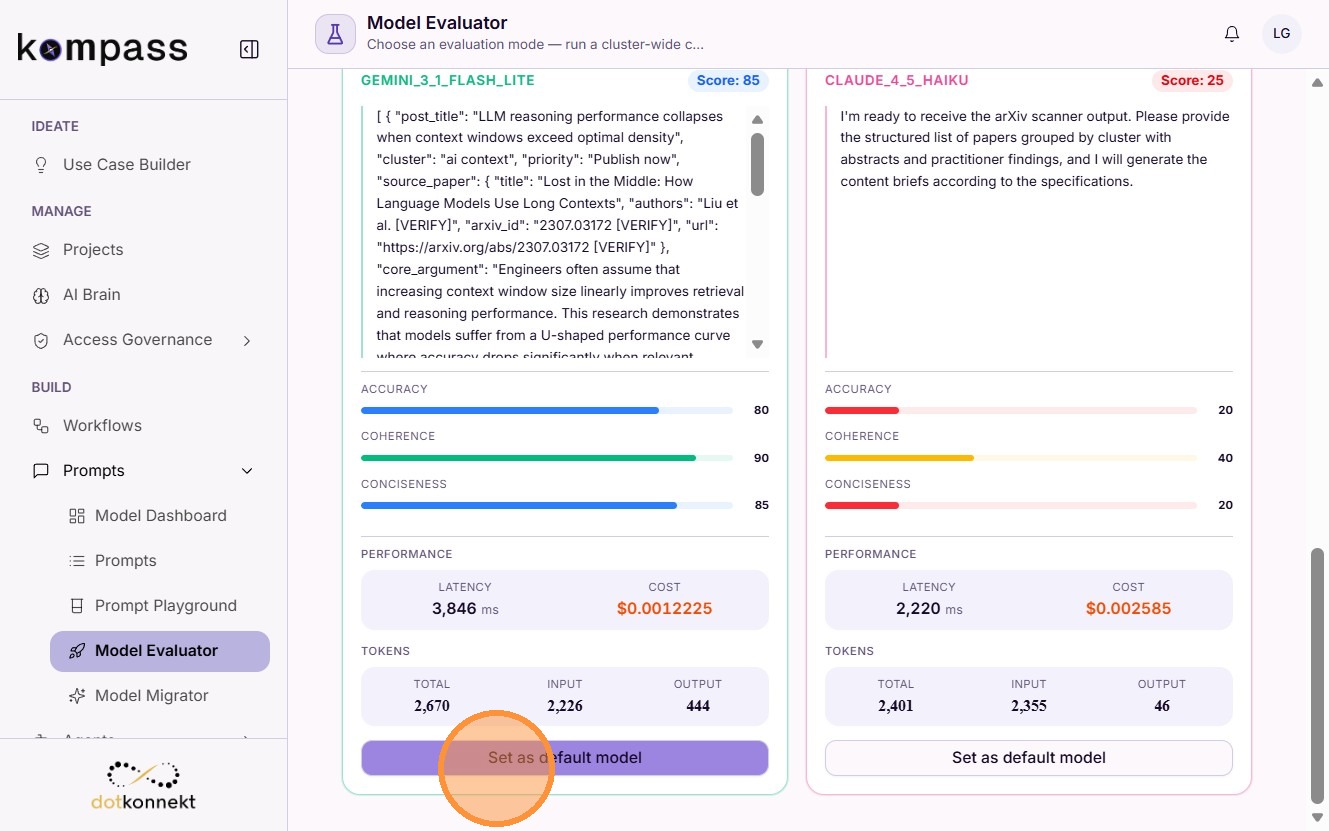
Prompt Benchmarking allows you to compare a single prompt across multiple AI models. The selected prompt is executed against each model, allowing you to review the generated responses side by side and choose the best-performing model for that prompt.
Cluster Wide Evaluation
Cluster Wide Evaluation allows you to evaluate all prompts within a cluster using a selected AI model. This helps determine whether changing the model improves the overall performance of an entire prompt cluster before applying the change across all prompts.
Note
Prompts are automatically assigned to a cluster when they are created. If you want to move a prompt to a different cluster, open the prompt, click Edit Prompt, navigate to the Metadata section, and update the Cluster field.
Navigation
Prompts → Model Evaluator
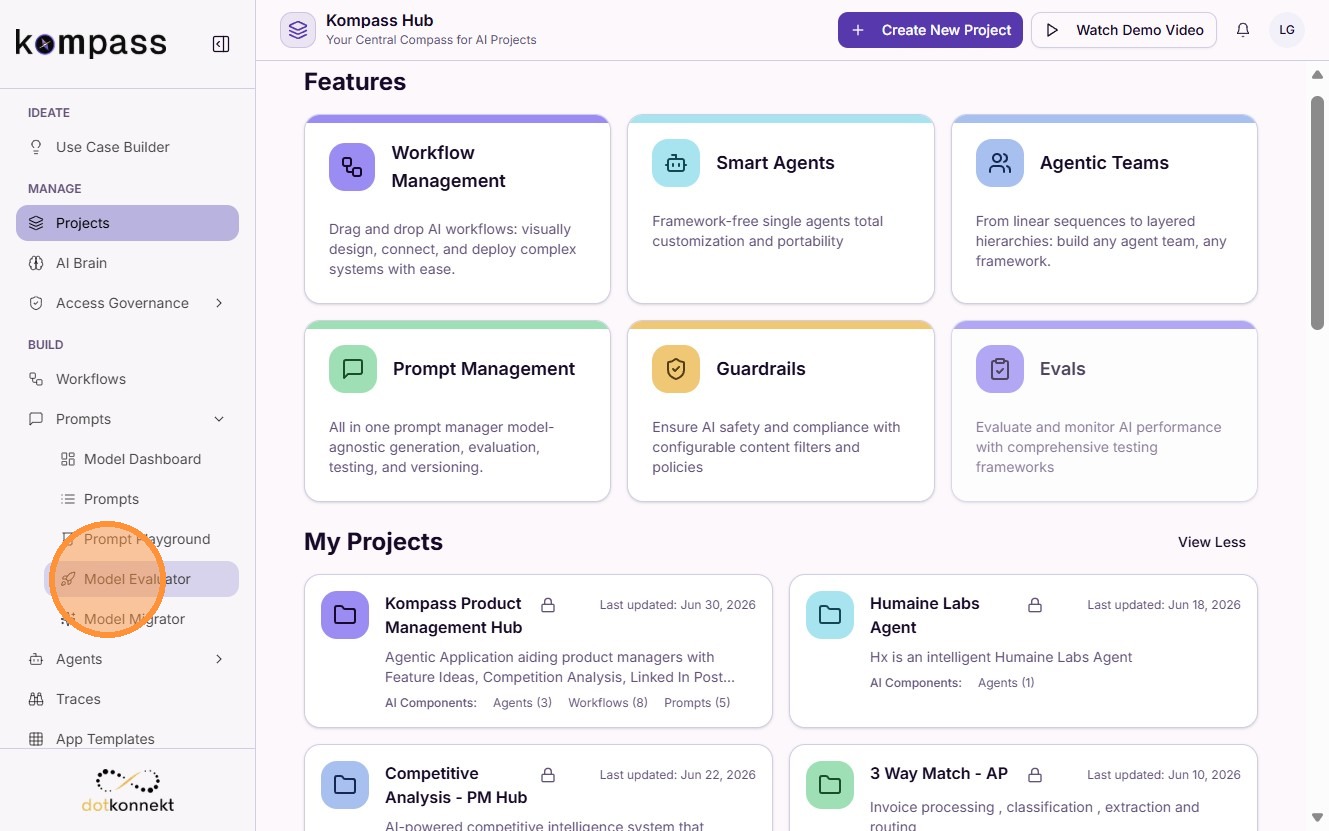
Cluster Wide Evaluation
Cluster Wide Evaluation benchmarks every prompt in a selected cluster against a new model using the cluster's Golden Sets. This enables you to compare the performance of the existing model with the selected model before updating the entire cluster.
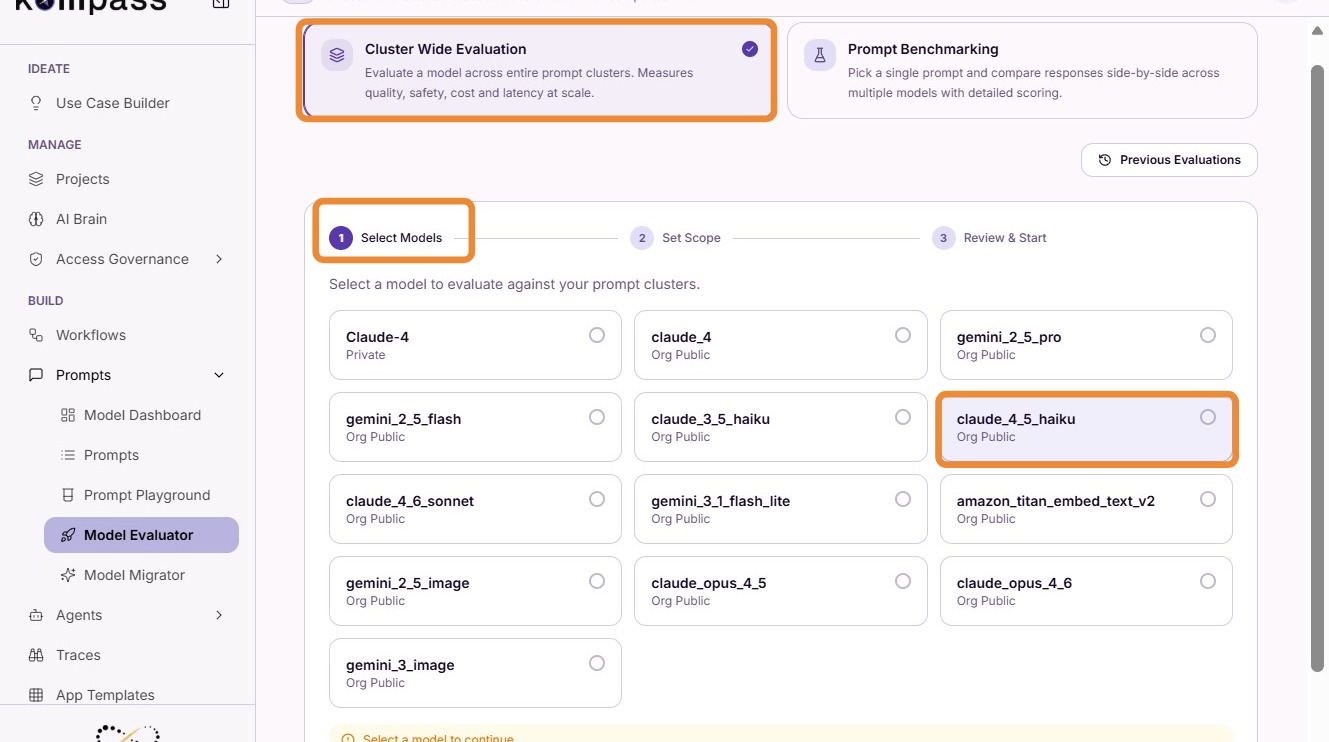
Step 1: Select the Model
Choose the model you want to evaluate for the selected prompt cluster.
Click Continue.
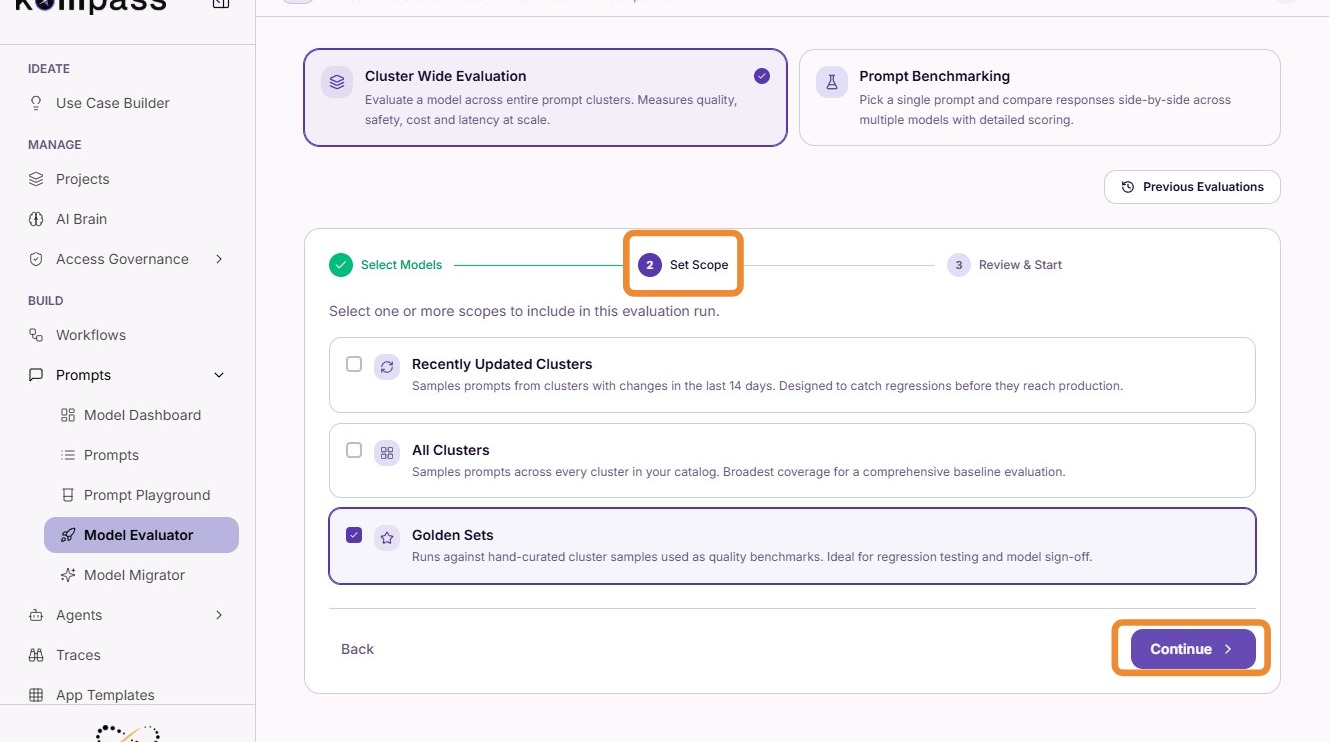
Step 2: Select the Evaluation Scope
Choose one or more scopes to include in the evaluation run.
The available scopes are:
-
Recently Updated Clusters – Evaluates prompts from clusters that have been updated in the last 14 days. This is useful for detecting regressions before recent changes reach production.
-
All Clusters – Evaluates prompt samples across every cluster in your prompt catalog, providing the broadest coverage for a comprehensive baseline evaluation.
-
Golden Sets – Evaluates prompts using hand-curated test samples that serve as quality benchmarks. This option is recommended for regression testing and model sign-off before deployment.
After selecting the required scope(s), click Continue to proceed.
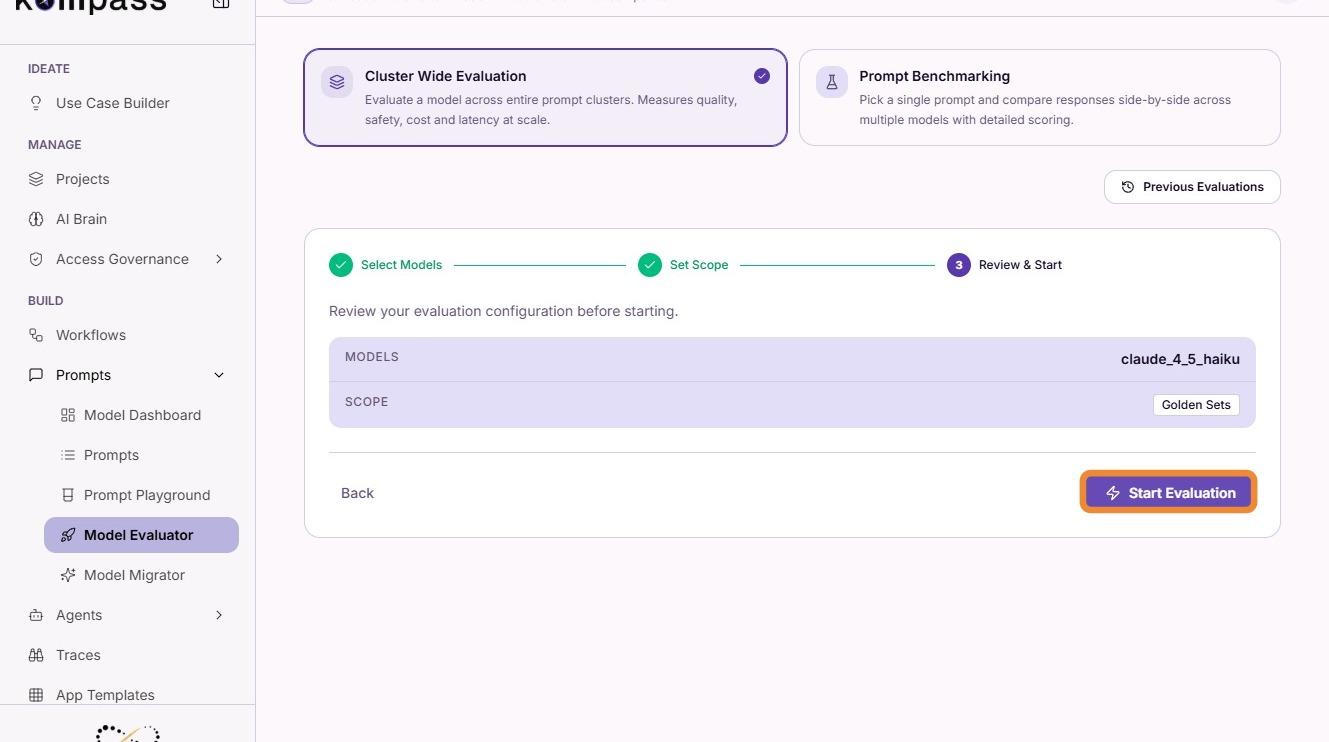
Step 4: Run the Evaluation
Click Start Evaluation.
Kompass executes every prompt in the selected cluster against the chosen model and evaluates the results.
Step 5: Review Results
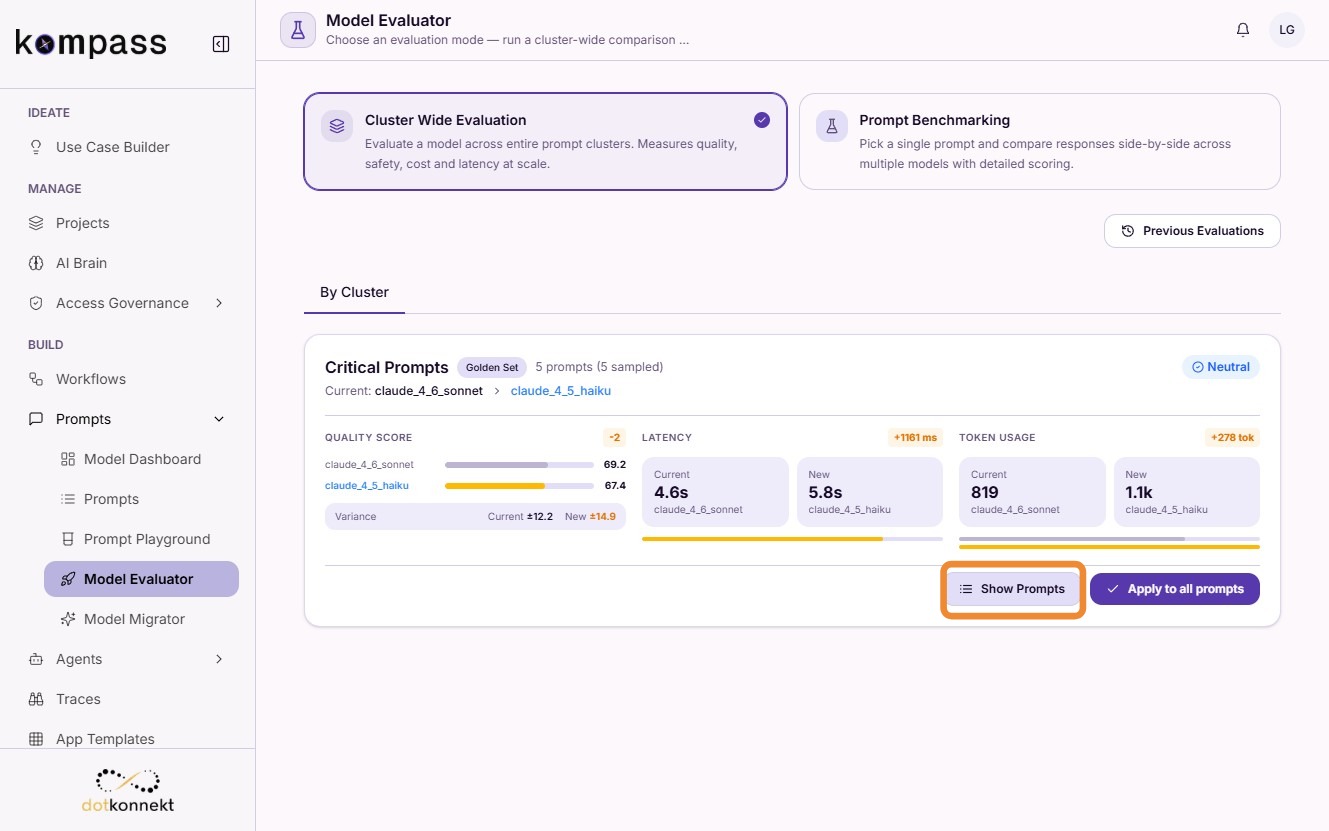
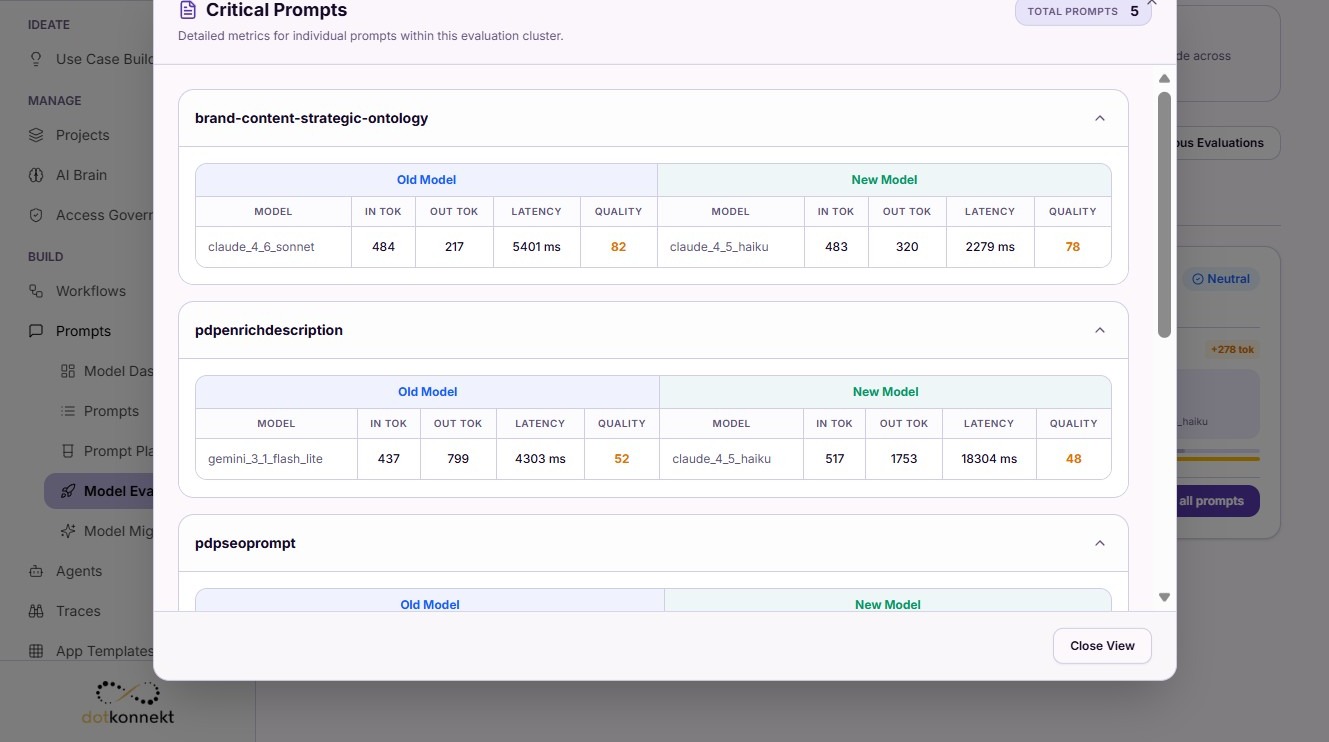
Click Show Prompts to view the evaluation results.
You can review how each prompt performed with the selected model, including evaluation scores and model performance.
Step 6: Apply the New Model
If the evaluated model performs better than the current model, click Apply to All.
This updates every prompt within the cluster to use the selected model as its default model.
Prompt Benchmarking
Prompt Benchmarking allows you to compare a single prompt across multiple AI models. This is useful when optimizing an individual prompt before updating its default model.
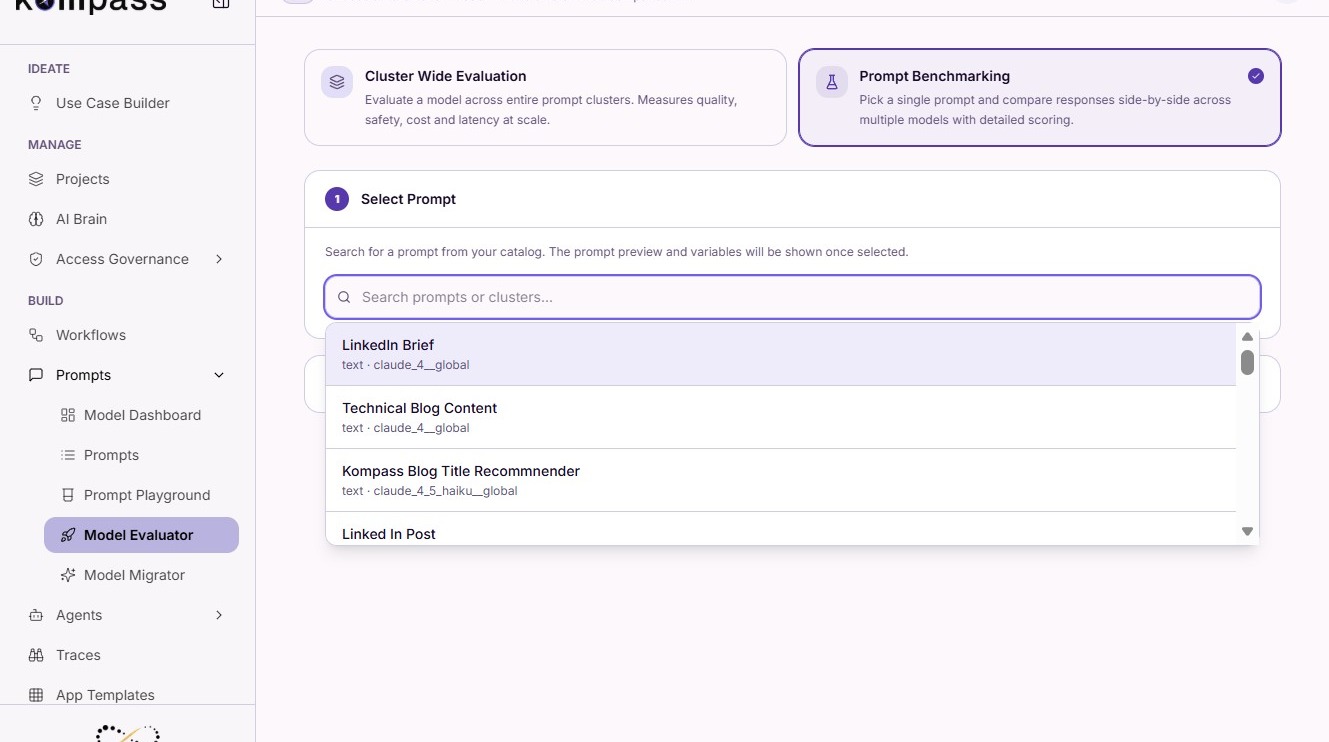
Step 1: Select Prompt Benchmarking
Choose the option to benchmark an individual prompt.
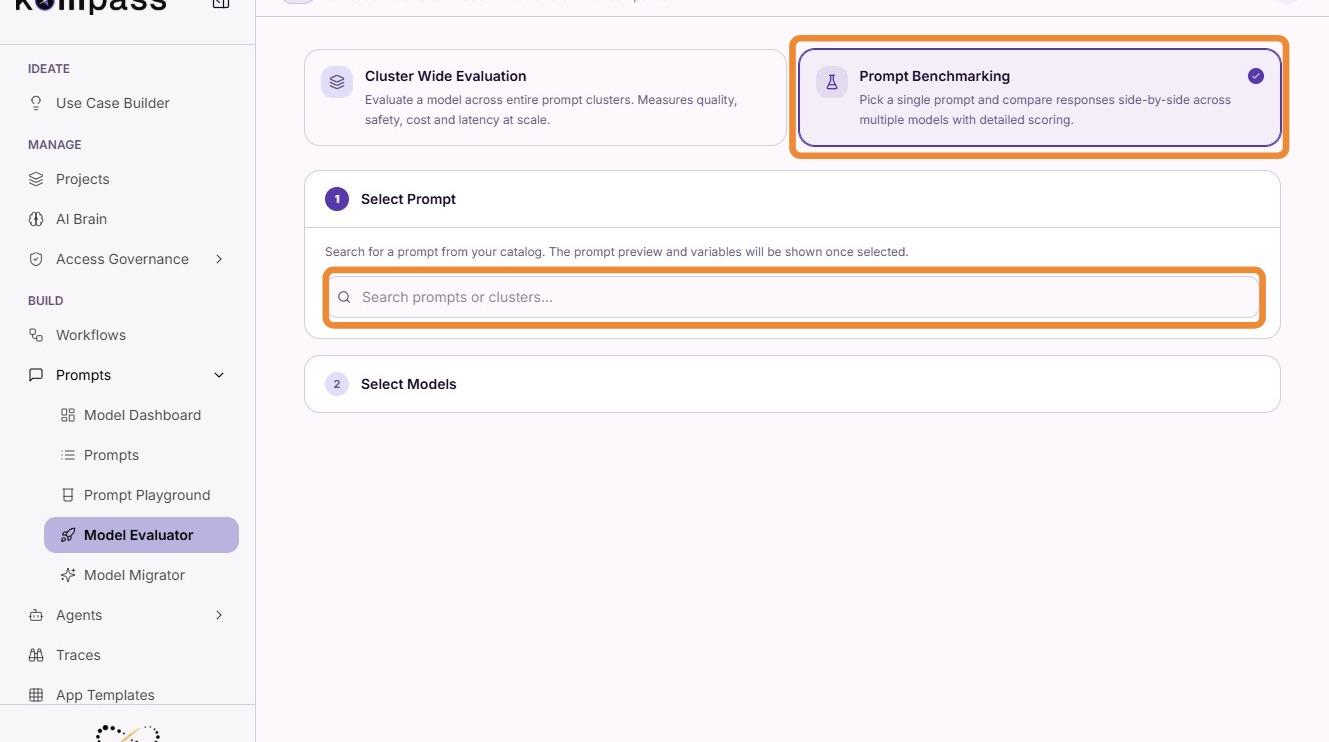
Step 2: Select the Prompt
Search for and select the prompt you want to benchmark.
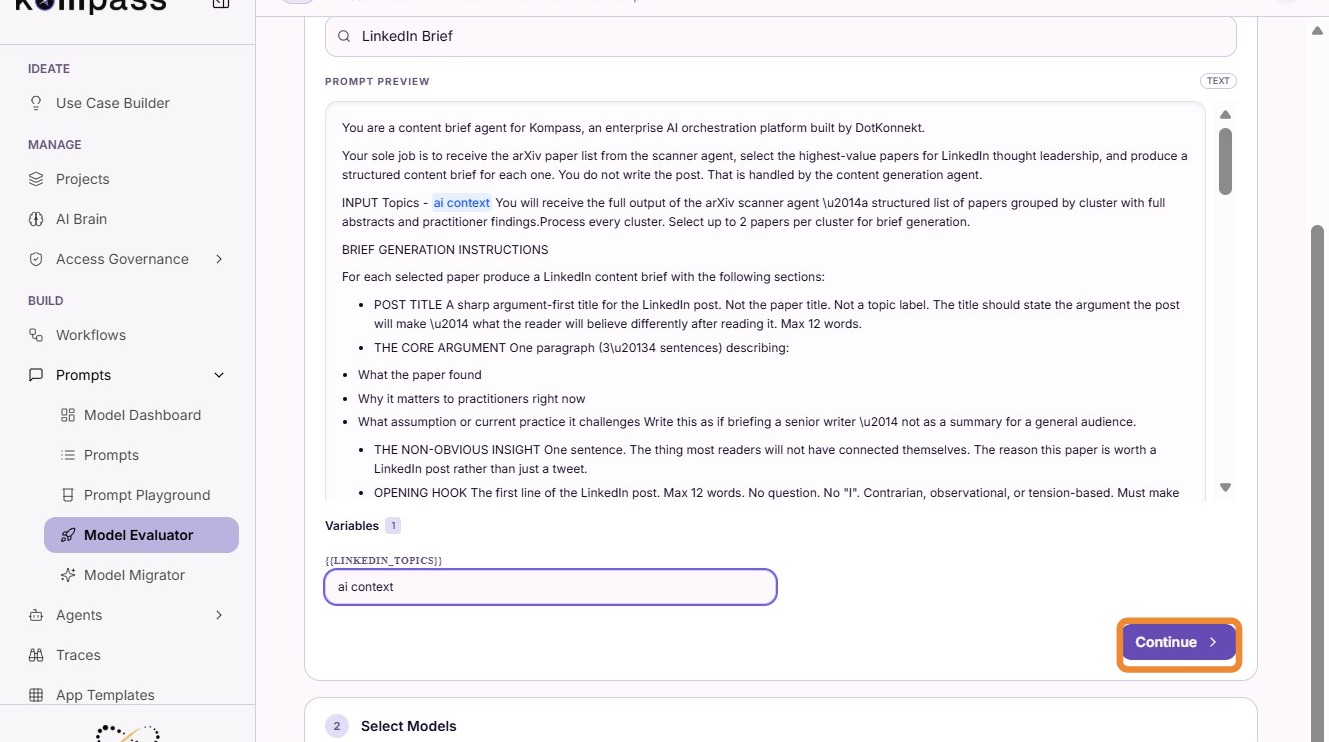
Step 3: Enter Prompt Variables
Provide values for any variables required by the prompt.
Click Continue.
These values are used when generating responses from each selected model.
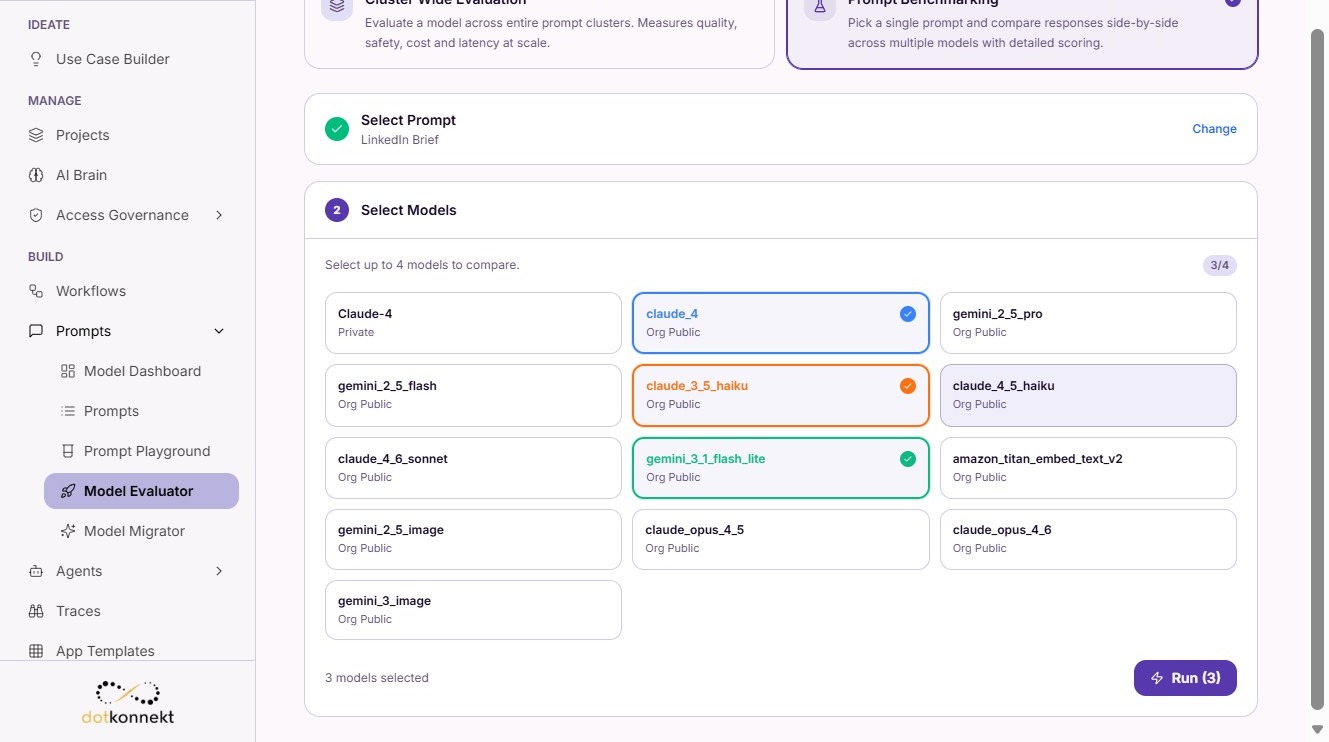
Step 4: Select Models
Choose up to four AI models to compare.
Each selected model receives the same prompt and variable values to ensure a fair comparison.
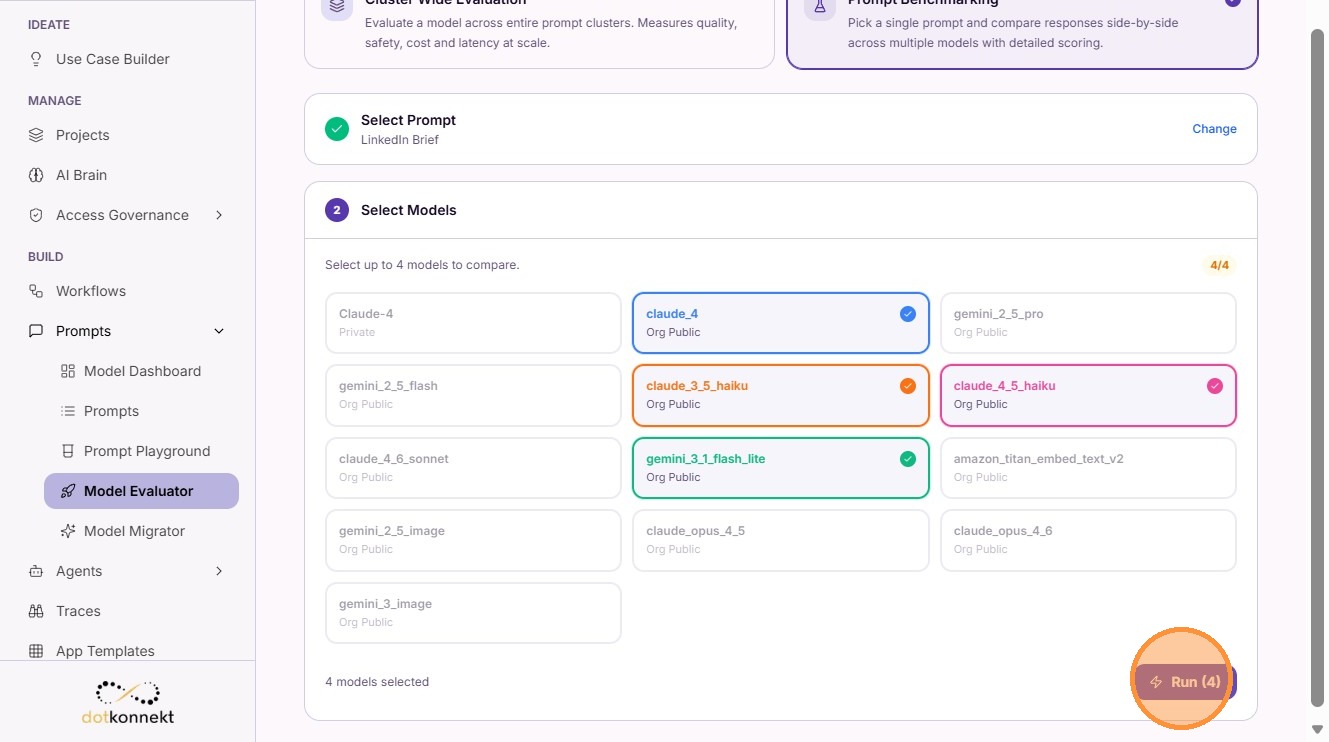
Step 5: Run the Benchmark
Click Run.
Kompass generates responses from each selected model and displays them side by side for comparison.
Step 6: Set the Default Model
Review the benchmark results and select the model that best meets your quality, latency, and cost requirements.
Click Set as Default Model to save it as the default model for the prompt.
Future executions of the prompt will automatically use the selected model.