Create and Test a Workflow
Workflows in Kompass enable you to automate AI-driven processes by connecting components such as inputs, agents, adapters, tools, and outputs into a visual execution pipeline.
This guide walks you through creating a workflow, configuring its components, testing its execution, and analyzing the results using execution traces.
What is a Workflow?
A Workflow is a visual orchestration of connected components that execute a business process from start to finish.
Each component performs a specific task, such as:
- accepting user input
- invoking AI agents
- transforming data
- calling external services
- producing structured outputs
By connecting these components together, you can build scalable, reusable, and automated AI applications without writing complex orchestration logic.
Creating a New Workflow
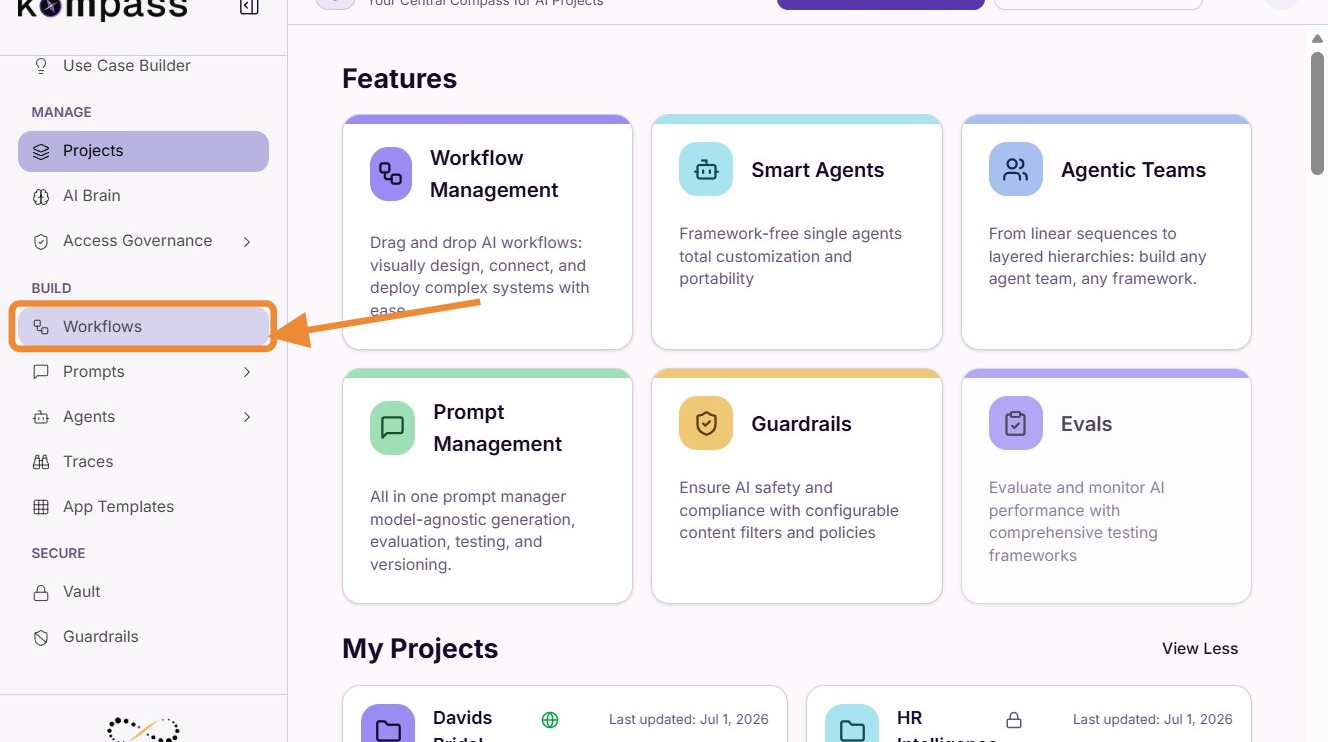
Step 1: Open Workflows
Navigate to the Workflows section inside your project workspace.
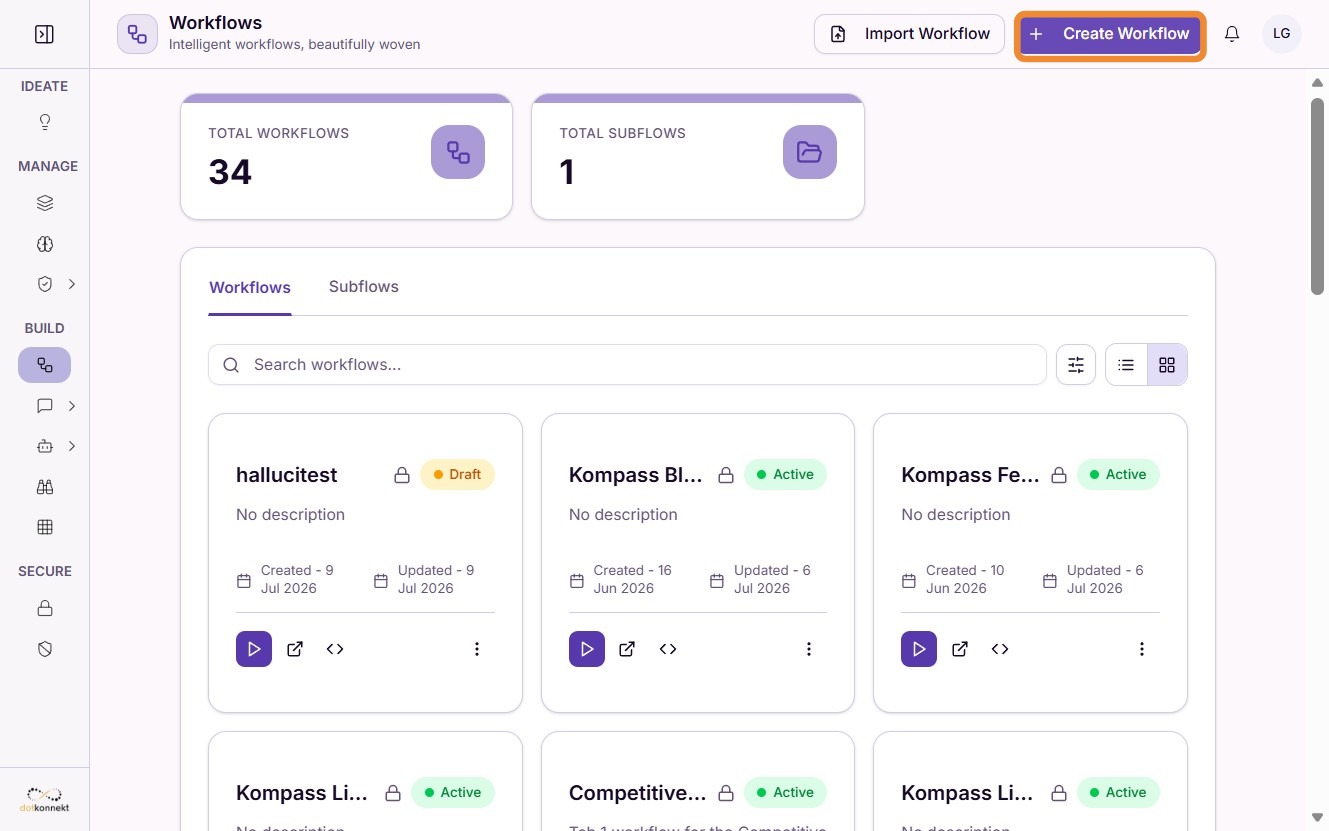
Step 2: Create a Workflow
Click "Create Workflow" to open the workflow builder.
Configure Workflow Components
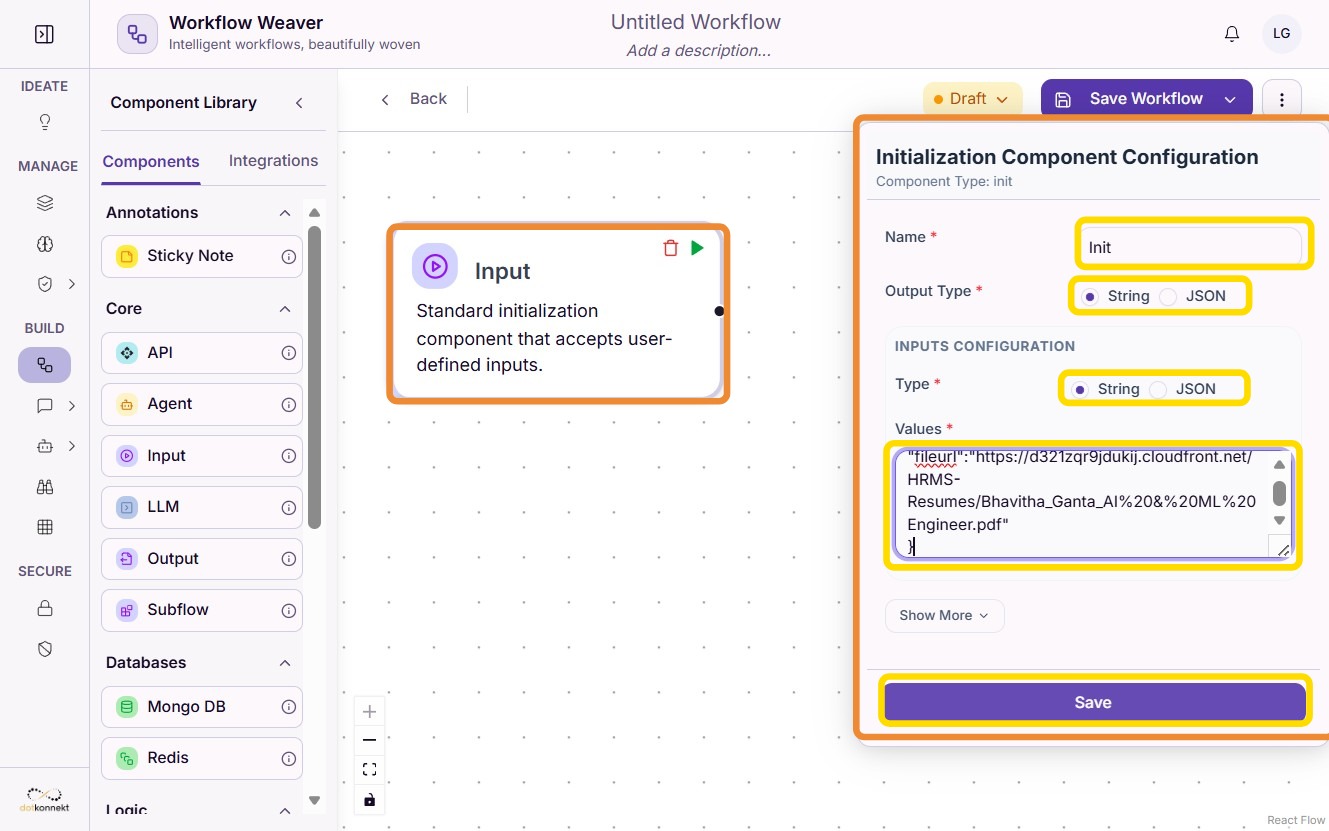
Step 3: Configure the Input Component
Every workflow begins with an Input component.
Configure the input fields that will be provided when the workflow is executed. These inputs act as the starting point for the workflow and can be referenced by downstream components.
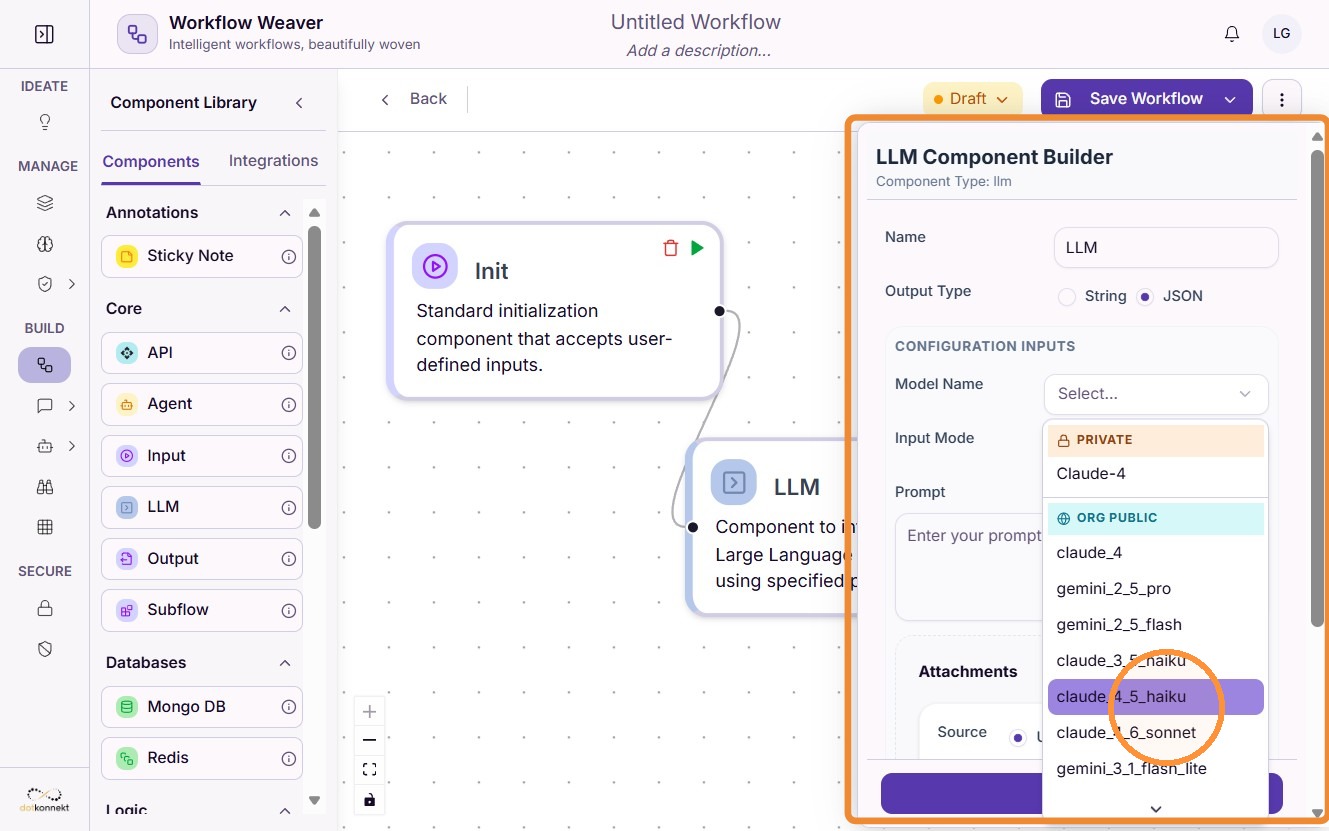
Step 4: Connect Workflow Components
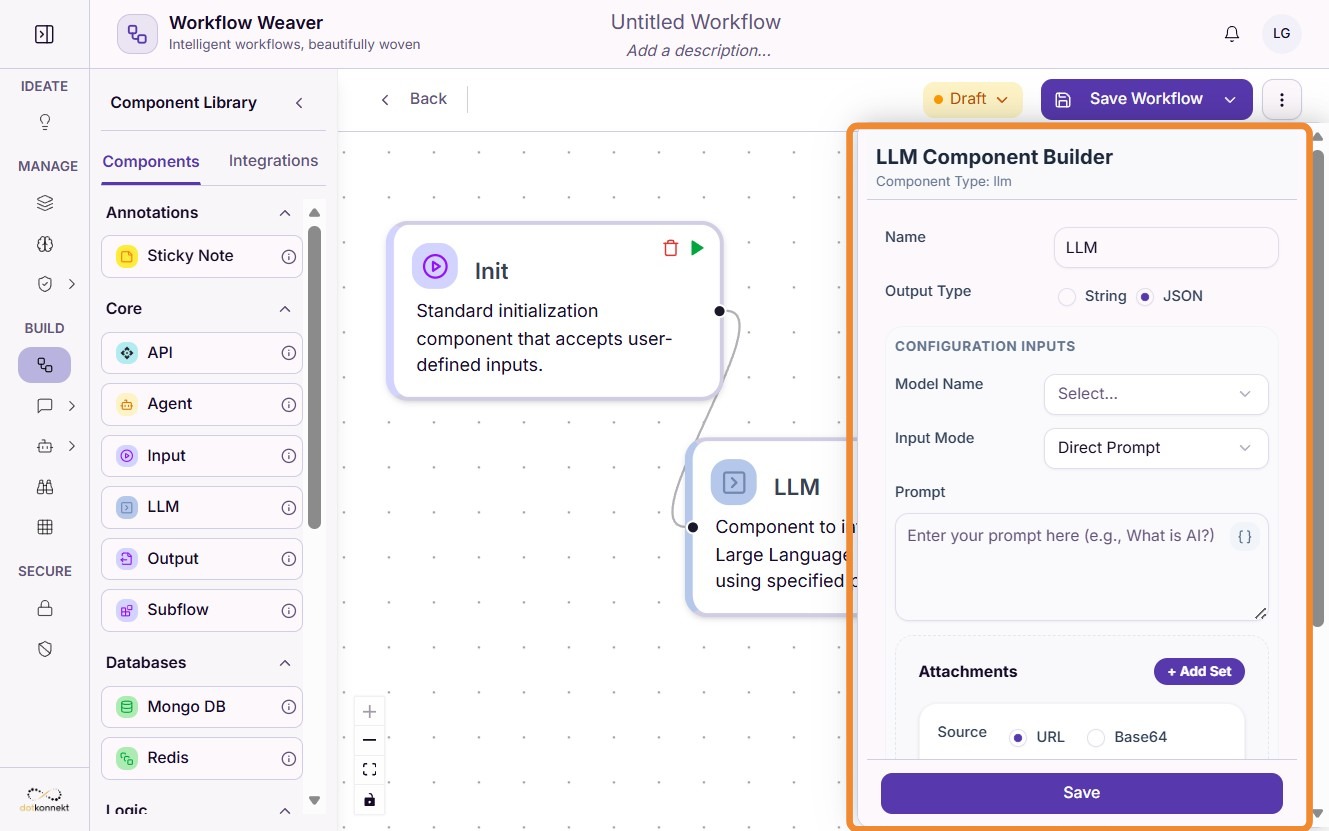
After configuring the input, connect the required workflow components on the canvas to define the execution flow.
Each connection determines how data moves between components during execution.
Step 5: Configure the Agent Component
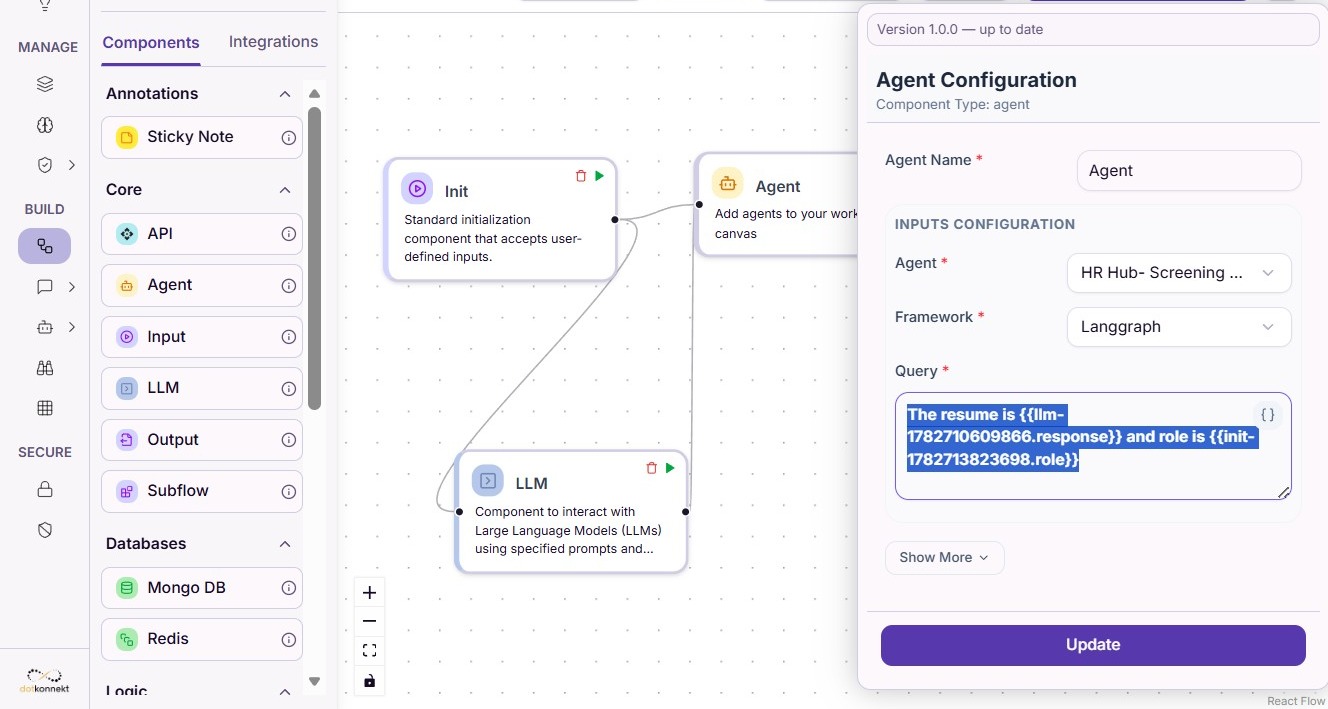
Add and configure an Agent component to perform the AI reasoning within the workflow.
Configure the required parameters, including:
- Agent
- Framework
- Query
- Input mapping
- Temperature
- Max Retries
The selected agent processes the workflow input and generates the AI response.
Step 6: Configure the Adapter
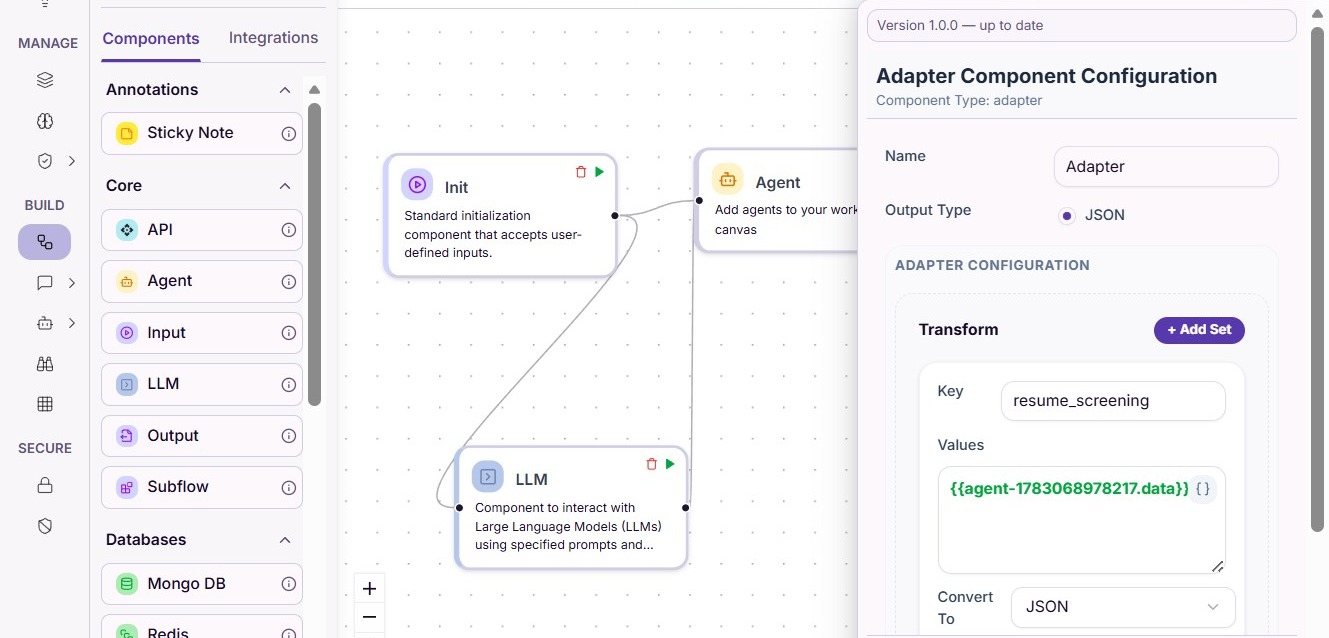
Use an Adapter component when the workflow output needs to be transformed into a different format.
For example, you can convert an agent's response into structured JSON before passing it to downstream components or external systems.
Save and Test the Workflow
Step 7: Save and Test
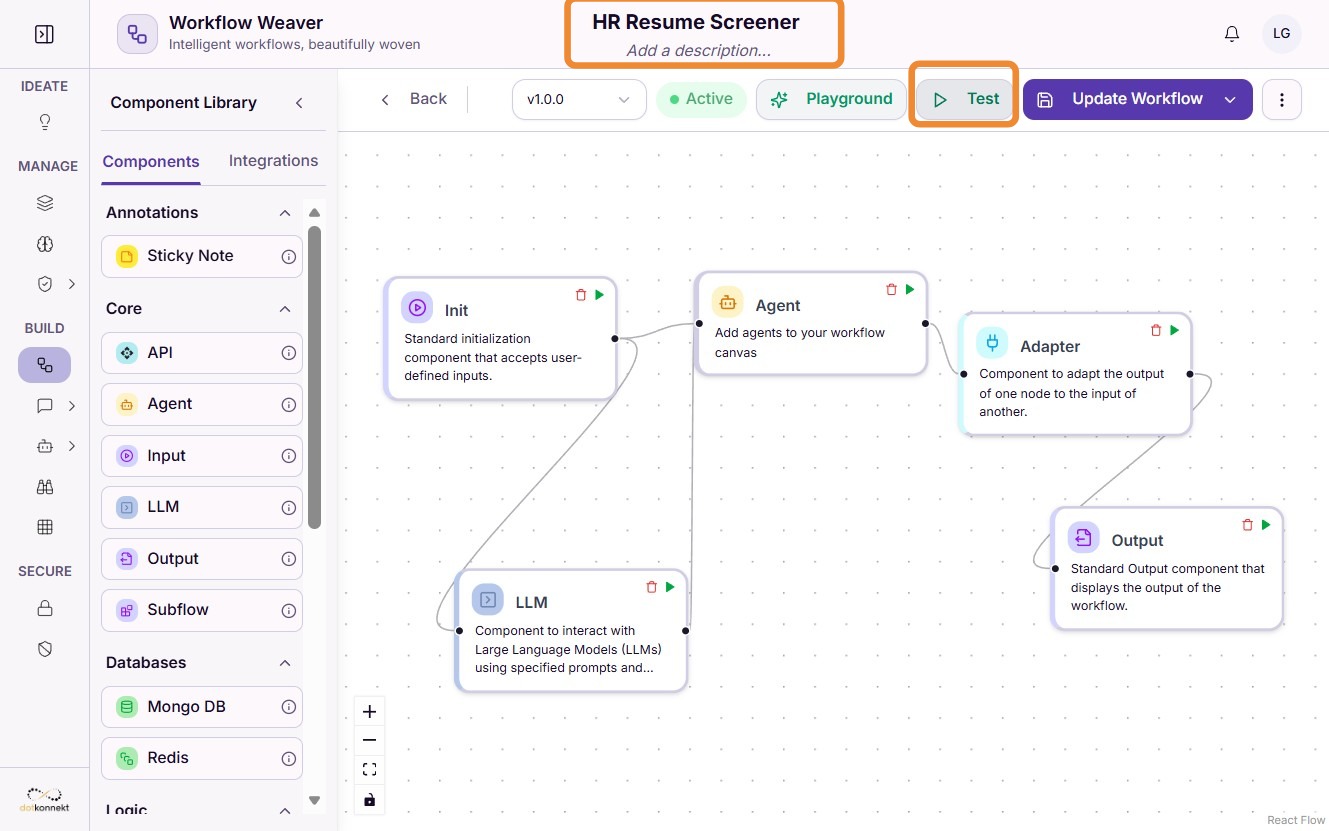
Provide a name for the workflow and click Save before starting a test execution.
The integrated testing interface allows you to validate the workflow without deploying it.
Analyze Workflow Execution
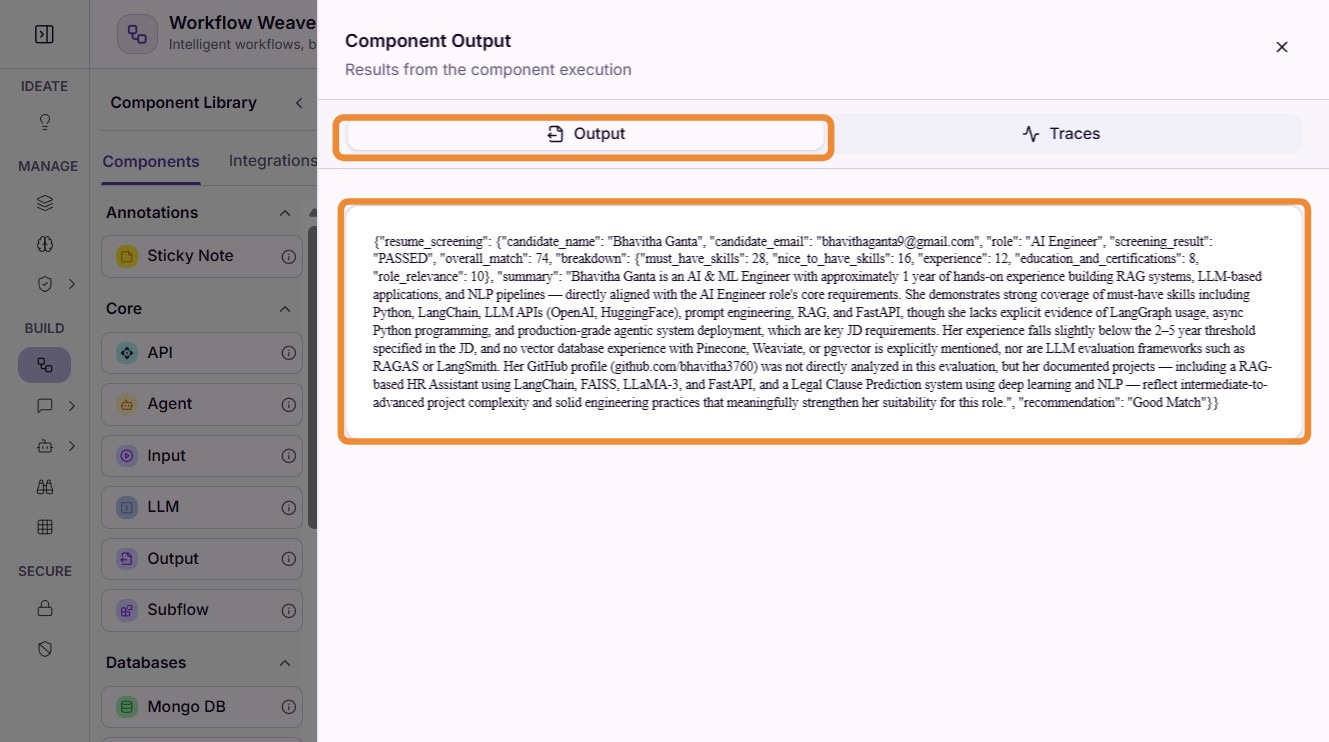
Step 8: View Component Results
During or after execution, click result button of any workflow component to inspect its execution results.
This allows you to verify the input received, output generated, and execution status of each individual component.
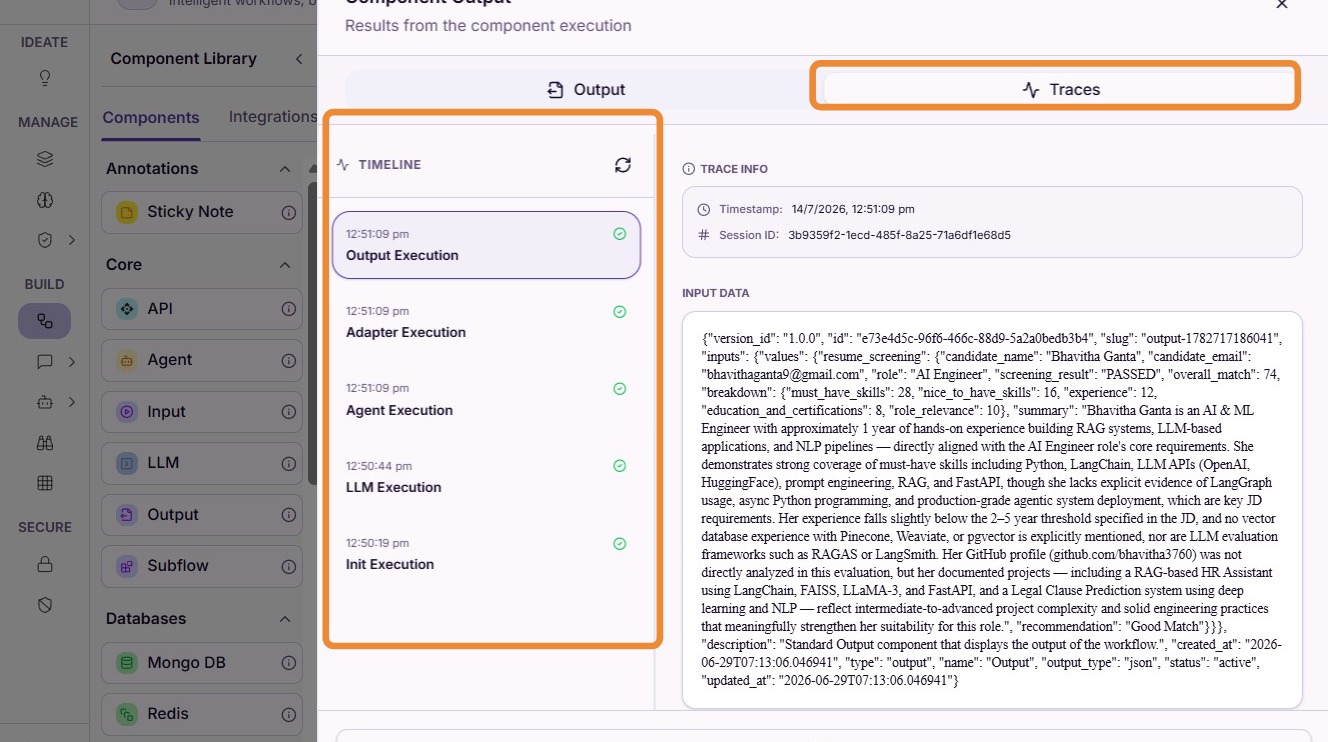
Step 9: Review Execution Timeline
Open the Traces panel to review the complete workflow execution timeline.
The timeline displays the order in which each component executed, making it easier to understand the workflow behavior and identify issues.
Step 10: View Detailed Execution Traces
Select "Traces" to inspect the complete execution details.
Execution traces provide visibility into:
- workflow execution flow
- component inputs and outputs
- AI model responses
- execution status
- debugging information
These insights help validate workflow logic and troubleshoot execution issues.
Best Practices
- Design the workflow before adding components.
- Give workflows descriptive names that reflect their purpose.
- Configure each component before connecting downstream nodes.
- Use adapters whenever data transformation is required.
- Test workflows using multiple input scenarios.
- Review execution traces to optimize workflow performance and identify failures.
- Reuse existing agents to maintain consistency across workflows.
Summary
Workflows provide a visual way to orchestrate AI-powered business processes by connecting multiple components into a single execution pipeline.
By configuring inputs, agents, adapters, and execution flow, you can automate complex tasks while maintaining full visibility into workflow execution through integrated testing and detailed execution traces.