File Manager
1. Component Intro:
The File Manager component enables workflows to upload, split, and retrieve files from cloud storage configured for your Kompass deployment.
Instead of storing files locally, the component interacts with the organization's configured cloud storage provider. Cloud credentials are securely configured through the platform's environment settings, allowing workflows to manage files without exposing sensitive access information.
The component supports three primary operations:
- Upload – Store a file in the configured cloud storage.
- Split and Upload – Split a document into smaller chunks before uploading it to cloud storage.
- Get – Retrieve a previously stored file using its file name.
This makes the File Manager ideal for document processing, file archival, AI document workflows, and integrations with external storage systems.
Core JSON Structure
[[JSON]]
{
    "name": "File Manager",
    "type": "file_manager",
    "output_type": "json",
    "label": "File Manager",
    "description": "Component to upload, fetch and split files from cloud provider.",
    "nodeType": "file_manager",
    "inputs": {
        "operation": "get",
        "cloud_provider": "aws",
        "use_cloud": false,
        "file_name": "resume.pdf",
        "upload_mode": "file_url"
    }
}
2. Where to Use It
-
Document Processing: Upload files before sending them to AI models or downstream workflow components.
-
Cloud Storage Integration: Store and retrieve files using the organization's configured cloud provider.
-
AI Pipelines: Save generated reports, PDFs, images, or other workflow outputs for future use.
-
Large Document Processing: Split large files into smaller chunks before storage for improved retrieval and downstream AI processing.
-
File Retrieval: Access previously uploaded files during workflow execution without requiring users to upload them again.
3. How to Initialize
Upload a File
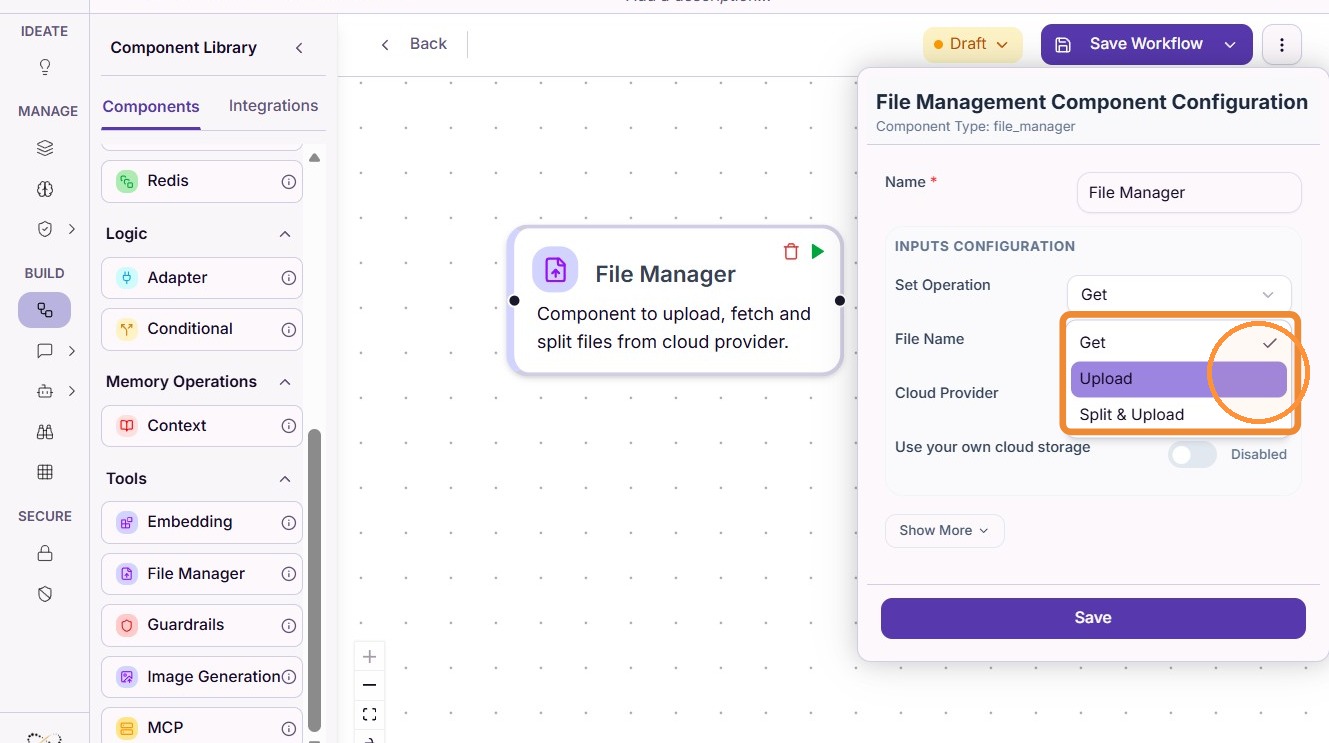
Step 1: Select Upload Mode
Choose Upload as the operation.
Step 2: Configure File Details
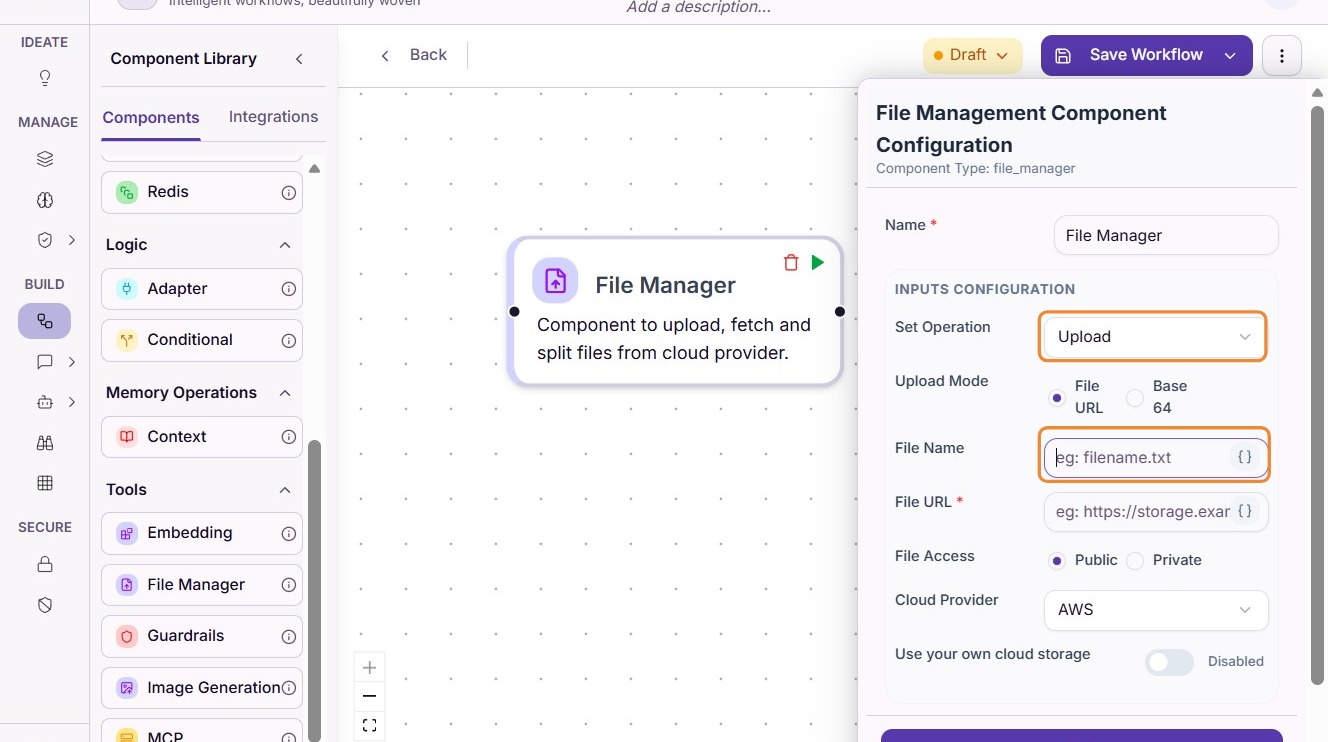
Provide the required information:
- File Name (including the file extension)
- Mode – Upload
- File URL – Publicly accessible URL of the file to upload
The uploaded file will be stored in the cloud storage configured for your Kompass deployment.
Note
Cloud storage credentials are configured by your administrator through the platform's environment settings. Kompass supports integration with the organization's preferred cloud storage provider without requiring credentials inside the workflow.
Step 3: Test the Upload
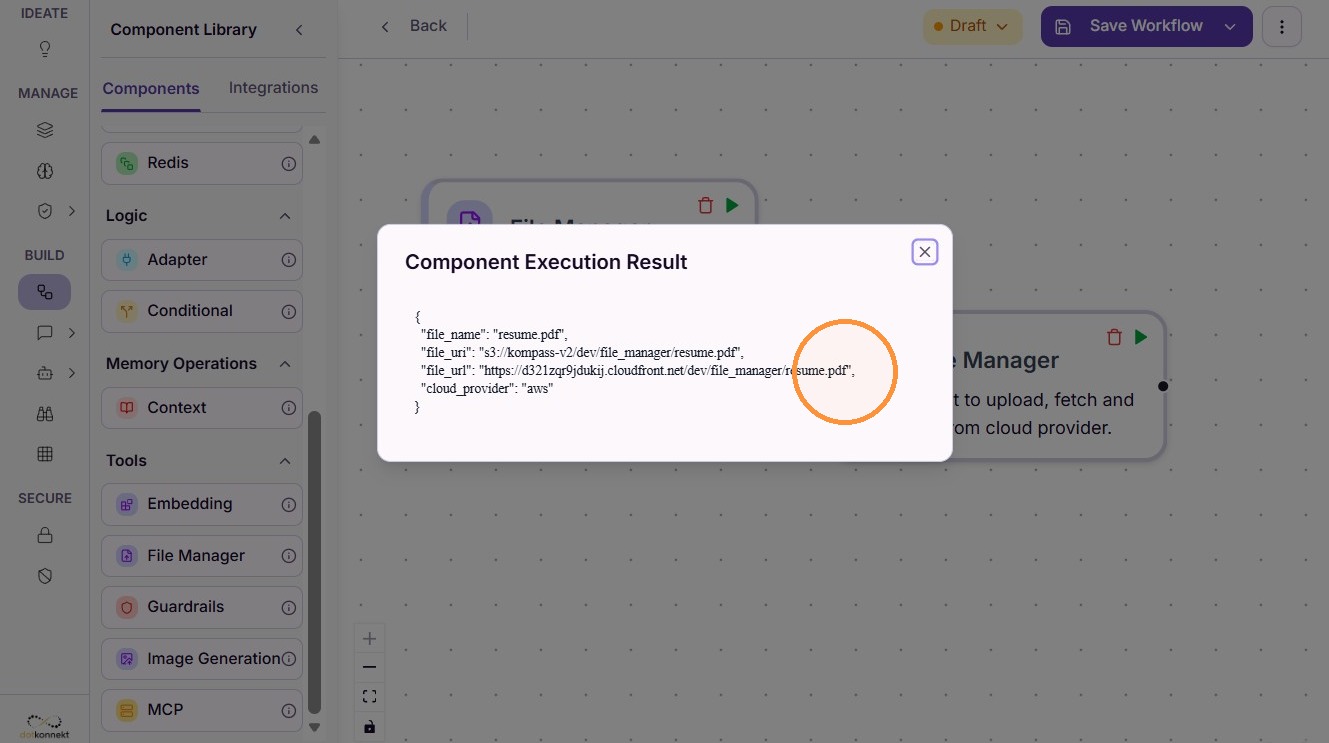
Execute the workflow to verify that the file has been uploaded successfully.
The component returns details about the stored file, including its storage location and metadata.
Split and Upload a File
The Split and Upload mode divides a document into smaller chunks before storing it in the configured cloud storage.
This is particularly useful when working with large documents or knowledge bases, as smaller chunks improve downstream indexing, retrieval, and AI processing.
When configuring this mode, provide:
- File Name (including the file extension)
- Mode – Split and Upload
- File URL – Publicly accessible URL of the source file
- Split Rule – Defines how the document should be divided before upload
The split rule can be configured according to your use case, such as chunk size, separators, overlap, or other supported splitting strategies.
Once processed, all generated chunks are uploaded to the configured cloud storage and can be consumed by downstream workflow components or AI Brain for indexing.
Retrieve a File
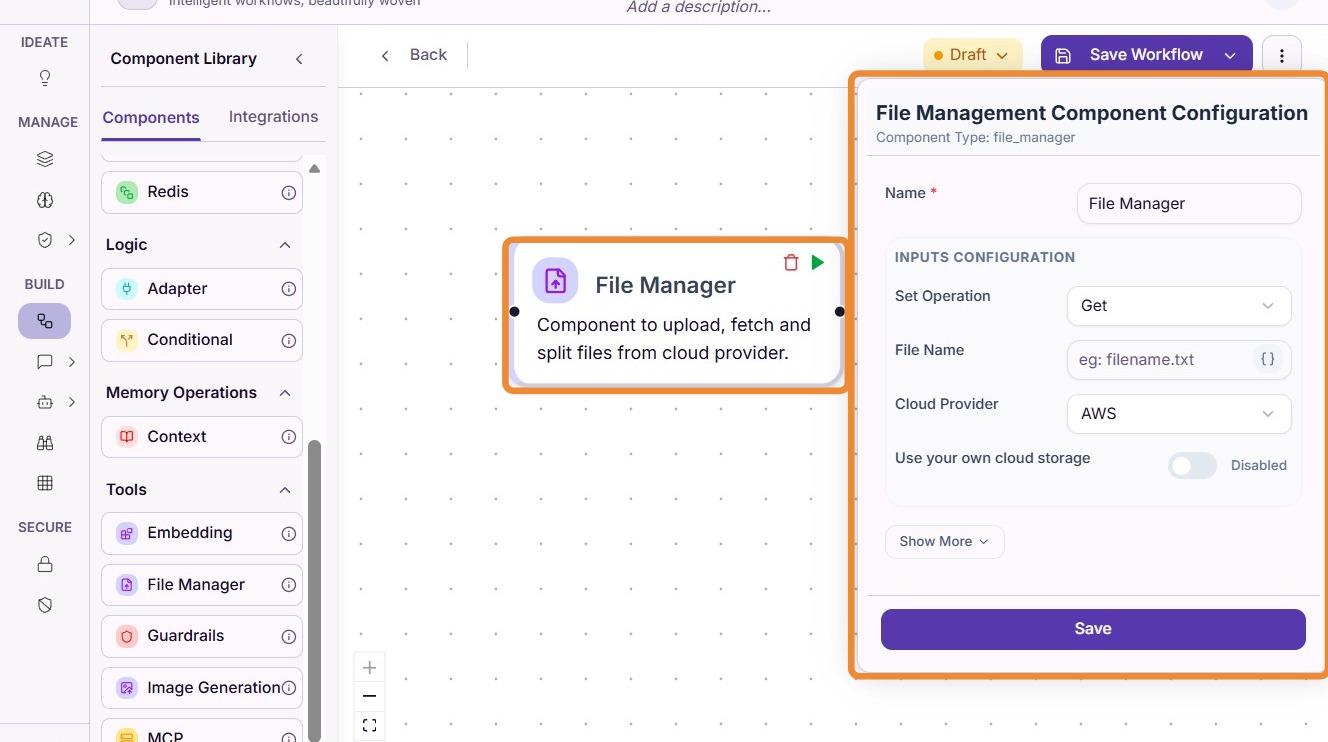
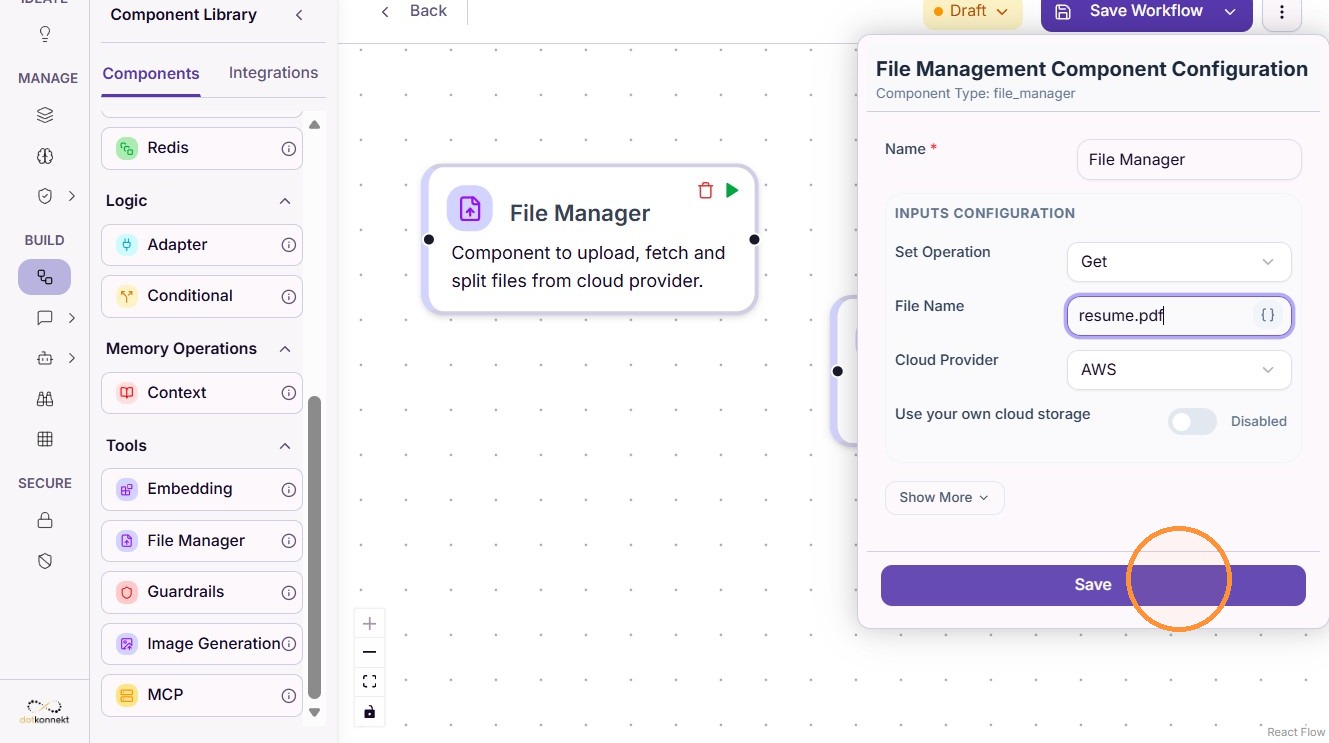
Step 1: Select Get Mode
Choose Get as the operation.
Step 2: Enter the File Name
Provide the exact file name, including its extension, that was used during upload.
The component searches the configured cloud storage and retrieves the matching file.
Step 3: Test the Retrieval
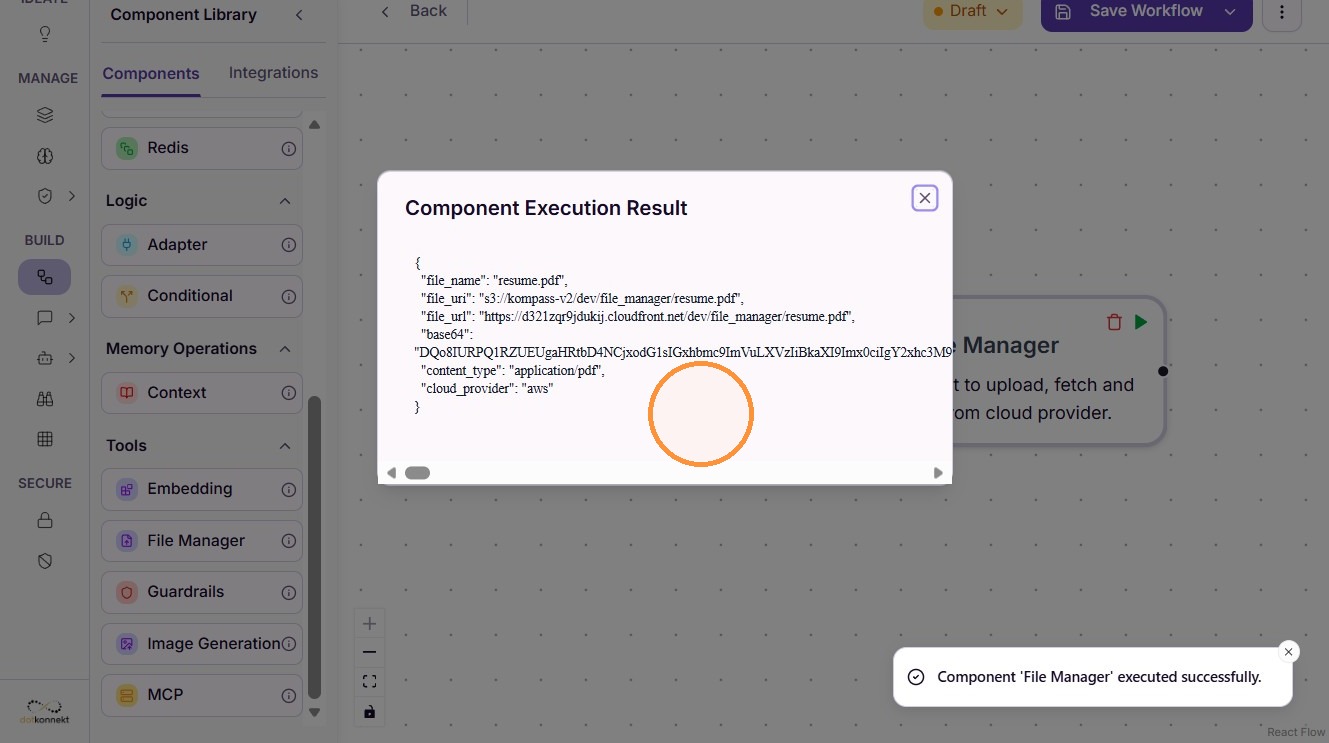
Run the workflow to retrieve the file.
The component returns the stored file information, allowing downstream components to access and process the file.
Do's and Don'ts
Do's
- Use descriptive file names with the correct file extension.
- Verify that the file URL is publicly accessible before uploading.
- Configure an appropriate split rule when working with large documents.
- Ensure cloud storage has been configured by your administrator.
- Use consistent naming conventions so files can be retrieved easily.
- Test upload, split, and retrieval operations before using them in production workflows.
Don'ts
- Don't enter cloud credentials directly inside the component.
- Don't change file names if the workflow needs to retrieve them later.
- Don't use invalid or inaccessible URLs when uploading files.
- Don't assume files exist before attempting retrieval.
- Don't upload unsupported or corrupted files.
- Don't split documents into excessively small chunks unless required for your use case.
Tip
- Upload
Use Upload when you want to store a file from an external URL in your organization's configured cloud storage.
- Split and Upload
Use Split and Upload when working with large documents that need to be divided into smaller chunks before being stored. This is especially useful for AI knowledge bases, Retrieval-Augmented Generation (RAG), and document processing workflows.
- Get
Use Get when you want to retrieve a previously stored file by providing its exact file name, including the file extension.