Embedding
1. Component Intro:
The Embedding component converts text and documents into vector representations that can be used for semantic search, similarity comparison, and retrieval-augmented generation (RAG) workflows.
You can configure the component to:
- Generate embeddings from text input using various embedding models.
- Store embeddings for semantic search across your knowledge base.
- Support multiple output formats including JSON and vector arrays.
- Configure chunking strategies to handle large documents efficiently.
This allows your workflows to perform intelligent document retrieval and semantic understanding without relying on keyword matching alone.
Core JSON Structure
{
  "name": "Embedding",
  "type": "embedding",
  "description": "Standard embedding component that accepts user-defined inputs.",
  "output_type": "json",
  "configuration": {
    "model_name": "amazon.titan.embed-text-v1",
    "chunking_strategy": "Fixed Size",
    "chunk_size": 256,
    "chunk_overlap": 50,
    "enable_chunking": true
  },
  "inputs": {
    "text": "{{llm-178409477085.response}}"
  }
}
2. Where to Use It
-
Semantic Search: Convert queries and documents into embeddings to find semantically similar content.
-
Retrieval-Augmented Generation (RAG): Generate embeddings for documents to enable context-aware AI responses.
-
Document Similarity: Compare embeddings to identify related documents or remove duplicates.
-
Vector Store Integration: Prepare text data for storage in vector databases like Pinecone, Weaviate, or Milvus.
-
Knowledge Base Enhancement: Embed enterprise documents for intelligent retrieval without manual keyword tagging.
-
Multi-Modal Understanding: Process text embeddings alongside other modalities in complex workflows.
3. How to Initialize
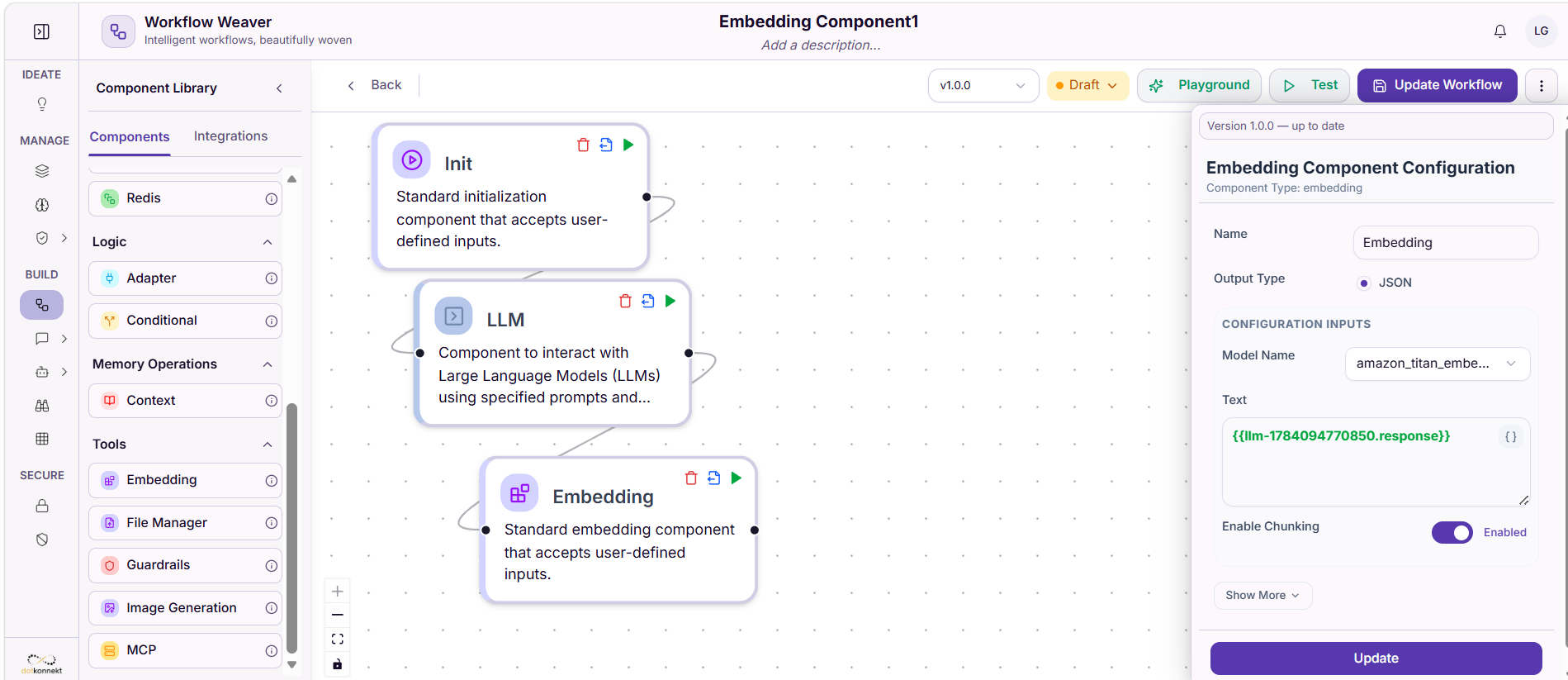
Step 1: Configure the Embedding Model
Select the embedding model that best fits your use case. The component supports multiple pre-trained models optimized for different scenarios.
Some Examples:
- Amazon Titan Embeddings (
amazon.titan.embed-text-v1) — General-purpose embeddings with strong performance across domains. - OpenAI Embeddings — High-quality embeddings with excellent semantic understanding.
- Custom Models — Bring your own fine-tuned embedding model.
Step 2: Configure Input Text
Specify the text input that the component will convert into embeddings. This can be:
- Static text entered directly into the component.
- Dynamic input from previous components (e.g.,
{{llm-178409477085.response}}). - Document content passed from a Context or File Manager component.
Example Input:
Text: {{llm-178409477085.response}}
This references the output from an upstream LLM component, enabling chained embedding workflows.
Step 3: Configure Chunking Strategy
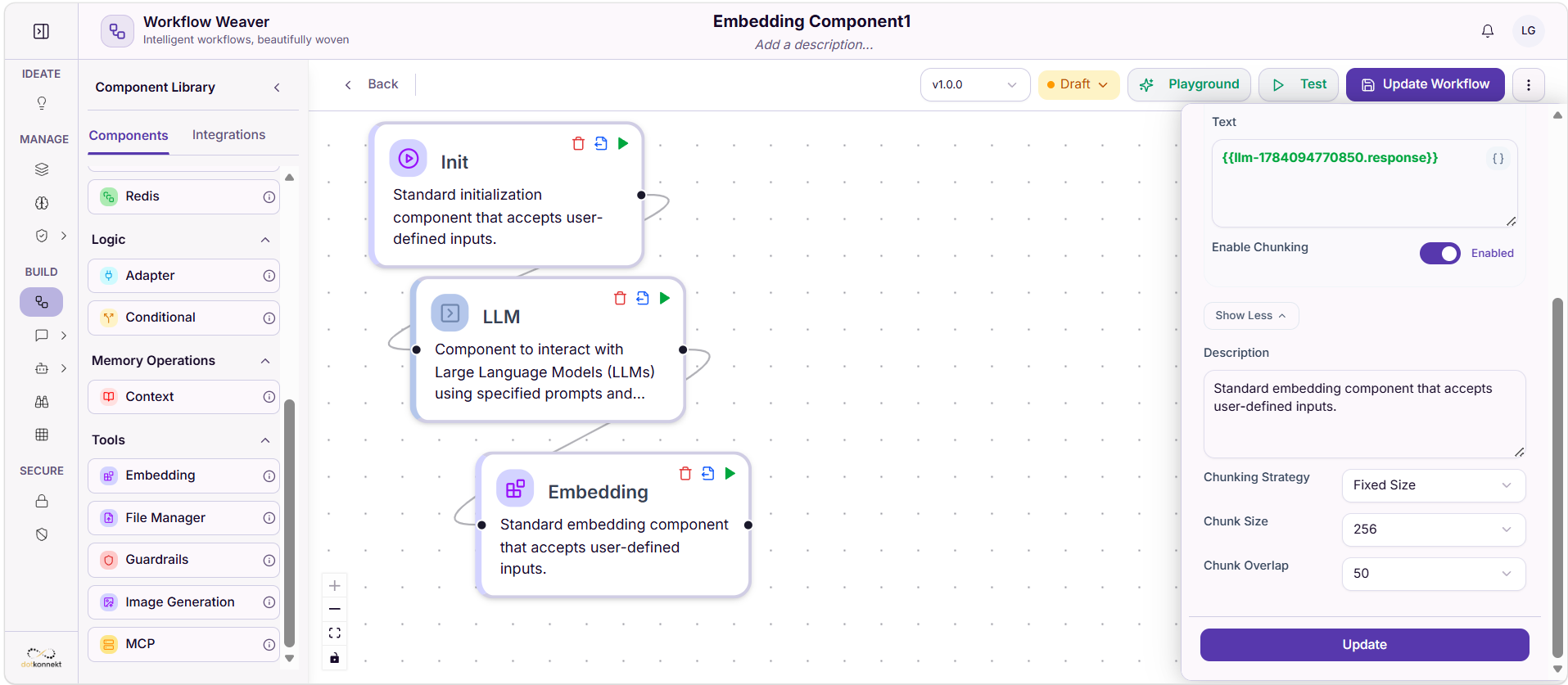
Chunking breaks large documents into smaller, manageable pieces before embedding. This improves performance and retrieval accuracy.
Chunking Strategies:
- Fixed Size — Splits text into uniform-sized chunks (recommended for most use cases).
- Sliding Window — Creates overlapping chunks to preserve context at boundaries.
- Semantic Chunking — Uses AI to identify natural break points in content.
Configuration Parameters:
- Chunk Size: Set the number of tokens per chunk (e.g., 256 tokens).
- Chunk Overlap: Define overlap between chunks to maintain context continuity (e.g., 50 tokens).
- Enable Chunking: Toggle to enable/disable chunking for the input text.
Recommended Settings:
| Use Case | Chunk Size | Overlap | Strategy |
|---|---|---|---|
| General Documents | 256–512 | 50–100 | Fixed Size |
| Long-Form Content | 512–1024 | 100–200 | Fixed Size |
| Precise Retrieval | 128–256 | 25–50 | Sliding Window |
| Natural Language | Variable | 20% of size | Semantic |
Step 4: Configure Output Format
Set the output type for the embedding vectors.
Output Options:
- JSON — Returns embeddings as structured JSON objects.
- Vector Array — Returns raw numerical arrays for direct vector store ingestion.
Select JSON for flexibility in downstream processing, or Vector Array for direct database integration.
4. Component Input/Output Reference
Inputs
| Parameter | Type | Required | Description |
|---|---|---|---|
text |
String | Yes | The text content to be converted into embeddings. Can be static or dynamic (e.g., from previous component). |
model_name |
String | No | The embedding model to use. Defaults to amazon.titan.embed-text-v1. |
chunk_size |
Integer | No | Number of tokens per chunk. Default: 256. |
chunk_overlap |
Integer | No | Number of overlapping tokens between chunks. Default: 50. |
Outputs
| Parameter | Type | Description |
|---|---|---|
embeddings |
Array[Float] | Numerical vector representation of the input text (e.g., 1,536-dimensional array). |
metadata |
Object | Includes chunk indices, token counts, and model information. |
status |
String | Indicates successful embedding generation ("success" or error details). |
Example Output:
{
  "embeddings": [
    -0.0088083312461126149,
    0.0761841014027595,
    -0.0495786331159399,
    ...
  ],
  "metadata": {
    "chunk_count": 3,
    "total_tokens": 768,
    "model": "amazon.titan.embed-text-v1"
  },
  "status": "success"
}
5. Execution & Testing
Running the Component
- Set Input Text: Provide the text you want to embed (static or from upstream component).
- Configure Model & Chunking: Select embedding model and chunking parameters.
- Execute: Click Test to run the component and verify output.
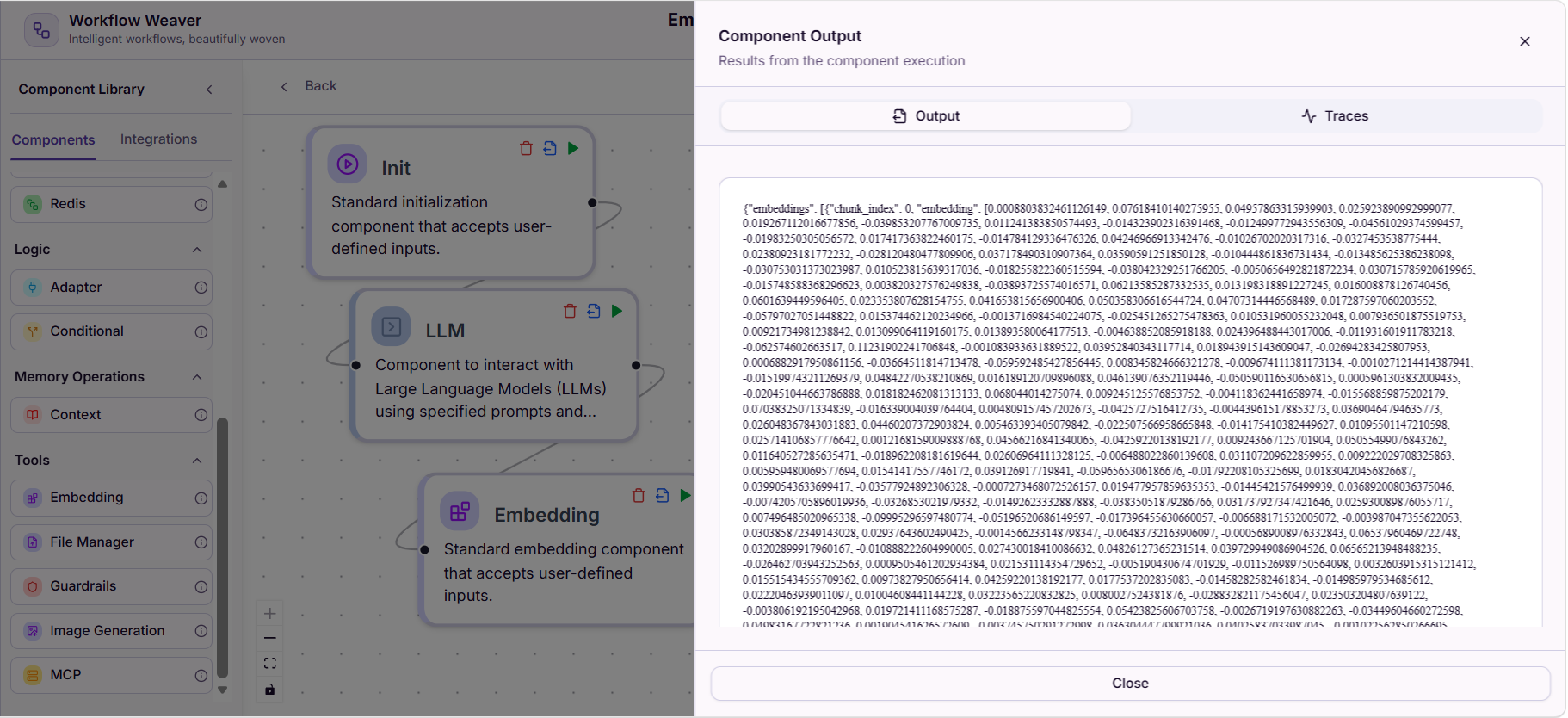
- Review Output: Examine the generated embeddings and metadata in the Component Output panel.
Viewing Execution Results
After running the component, you can view:
- Output Tab: The embedding vectors and metadata.
- Traces Tab: Detailed execution logs, token usage, and latency metrics.
6. Do's and Don'ts
Do's
- Use Fixed Size chunking for consistent retrieval performance across documents.
- Set appropriate chunk overlap to preserve context at chunk boundaries.
- Test the component with sample documents before deploying to production.
- Use JSON output format for flexibility in downstream processing.
- Store embeddings in a vector database for scalable semantic search.
- Match embedding model across your workflow (use same model for queries and documents).
- Monitor token usage to optimize costs in production workflows.
Don'ts
- Don't use embeddings for exact keyword matching (use Context component for that).
- Don't set chunk size too small (< 64 tokens) — loses semantic context.
- Don't set chunk size too large (> 2048 tokens) — exceeds model context window.
- Don't disable chunking for large documents without considering downstream performance.
- Don't mix embedding models in the same workflow without re-embedding.
- Don't skip testing before connecting to production vector stores.
7. Advanced Configuration
Enabling Chunking
Toggle Enable Chunking to activate document chunking for large inputs.
{
  "enable_chunking": true,
  "chunking_strategy": "Fixed Size",
  "chunk_size": 256,
  "chunk_overlap": 50
}
Disabling Chunking
For small text inputs or pre-chunked content, disable chunking to process text as-is.
{
  "enable_chunking": false
}
Custom Chunk Overlap
Adjust chunk overlap based on your domain:
- Documentation / Technical Content: 50–100 tokens (preserve code context).
- News / Articles: 25–50 tokens (natural paragraph breaks).
- Conversations: 100–200 tokens (maintain dialogue flow).
9. Troubleshooting
| Issue | Cause | Solution |
|---|---|---|
| Empty embeddings output | Invalid text input or model error | Verify input text is non-empty; check model availability |
| High token usage | Chunk size too large or no chunking | Reduce chunk size or enable chunking |
| Poor retrieval results | Mismatched embedding models | Ensure same model for query and document embeddings |
| Context loss at chunk boundaries | Insufficient chunk overlap | Increase chunk overlap to 50–100 tokens |
| Timeout errors | Processing large documents without chunking | Enable chunking with appropriate chunk size |
10. Tips & Best Practices
Optimal Chunk Size
Start with chunk_size: 256 and chunk_overlap: 50 for most use cases. Adjust based on your domain and retrieval quality.
Model Selection
Use Amazon Titan Embeddings for cost-effective general-purpose embeddings, or OpenAI Embeddings for superior semantic quality on specialized domains.
Testing Before Production
Always run the component with Test mode to verify embeddings and output format match your downstream requirements.
Vector Store Integration
Store embeddings in a vector database (Pinecone, Weaviate) for scalable semantic search across large document collections.
Monitoring & Optimization
Track token usage and latency metrics from the Traces tab to identify optimization opportunities in production workflows.